Are you tired of spam and bot responses that really mess up your WordPress forms? Add Cloudflare Turnstile to WordPress forms and protect WordPress forms from bots or spam.
Keeping your WordPress forms safe from these bots and spammers will ensure your website’s safety and will run smoothly. One of the best ways to do it would be by adding Cloudflare Turnstile, a lightweight yet powerful tool designed to block unwanted activity on your forms.
In this article, I will guide you through simple steps in setting up Cloudflare Turnstile with Bit Form, an advanced user-friendly plugin for creating forms in WordPress. At the end of it, you will be able to keep your forms secure without extra hassle for your visitors by following these steps. Let’s get into it!
Table of Contents
What is Cloudflare Turnstile?
Cloudflare Turnstile is like a security guard for your website’s forms. It works like a CAPTCHA but is much simpler for users. Instead of making visitors pick out traffic lights or click on pictures of boats, Turnstile checks in the background to see if someone is a human or a bot. This makes it easier for users, as they don’t have to do anything extra, while still keeping your forms secure.
How does Cloudflare Turnstile work?
Turnstile uses various high-level technologies to validate a great deal of different aspects about the person submitting your form like how they move their mouse or type on the keyboard.
It can tell whether the visitor is real or just a bot by observing these actions. It does this without irritating the user. They don’t need to click on anything or solve any puzzles. It’s simple and it keeps your form safe without adding extra work.
Why Use Cloudflare Turnstile in WordPress?
Cloudflare Turnstile works great on WordPress because it keeps things safe without making it hard for visitors. The bots and spam are blocked from messing up your forms so your website will remain neat and clean. Unlike old CAPTCHAs, it doesn’t make the visitor solve some puzzle or click pictures, hence people become less annoyed and leave.
It is lightweight and GDPR-compliant as well. Turnstile won’t slow down your website, nor will it violate user privacy. So, all of the above reasons make Turnstile an ideal option if you are interested in protection for your WordPress forms.
Cloudflare Turnstile vs. reCAPTCHA
Cloudflare Turnstile is way easier for people to use because it doesn’t make you solve puzzles or click on a bunch of pictures. But with reCAPTCHA, you have to do those boring things a lot. So, Turnstile is just way friendlier to deal with! That would mean that Turnstile provides better user experiences since they will be interrupted with nothing.
Besides, Cloudflare Turnstile is great for privacy, as it collects less personal data. It is GDPR-compliant-something which is important if the website operator does care about user privacy. On the other side of things, reCAPTCHA is rather more difficult regarding data collection, tracking far more user information than one would consider strictly necessary.
While both do a pretty good job regarding keeping bots out, Cloudflare Turnstile expends more of its energy on being nice and easy for users while being extremely careful with their data.
Cloudflare Turnstile and GDPR
Cloudflare Turnstile’s compliance with GDPR is a big advantage. If you’re worried about making sure your website follows GDPR rules, Turnstile is a great option. Unlike some other CAPTCHA systems, it doesn’t collect personal data. This makes it a much safer choice, especially if your site gets visitors from Europe or other regions with strict privacy laws.
How to add Cloudflare Turnstile to WordPress forms
Now let’s get started connecting Cloudflare Turnstile with your WordPress Form. Here we will use the Bit Form plugin, this plugin is compatible with Cloudflare Tunrstile as well as the re CAPTCHA. Follow the simple steps to add CloudFlare Turnstile to your WordPress forms.
➥ Install & Activate Bit Form Plugin
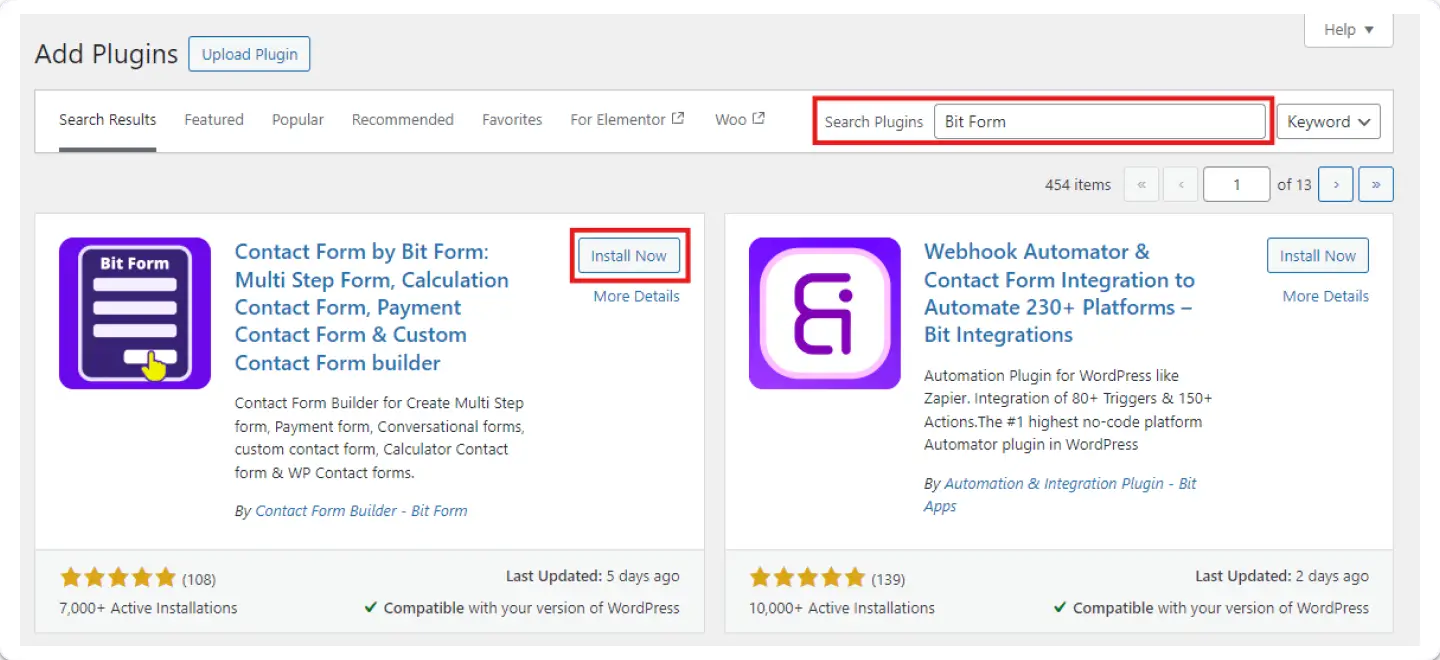
To install Bit Form, navigate to your WordPress dashboard and search for Bit Form, Install & activate the plugin. If you are using any other form builder you can migrate to Bit Form to get a better user experience and advanced functionality. You can create forms within a few seconds by using Bit Form’s pre-built templates!
Why Choose Bit Form? Well, Bit Form is the most advanced form builder in WordPress. it has unique fields and advanced functionality. The best thing is Bit Form is compatible with 47+ essential integrations including Google Sheets, WooCommerce, Mailchimp, Zapier, WhatsApp, and many more.
➥ Login to Your Cloudflare Account
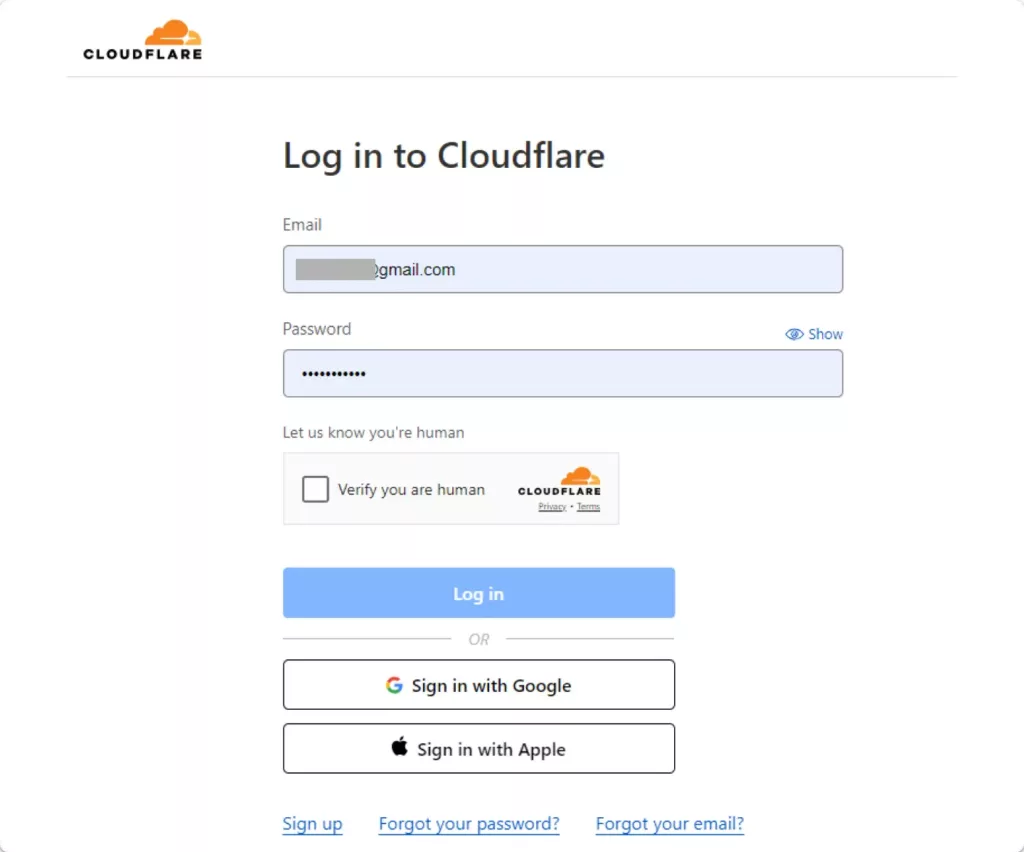
Navigate to the Cloudflare website and log in or sign up. You will need the account to provide Turnstile with the Site Key and Secret keys.
➥ Add Your Website to Cloudflare Turnstile
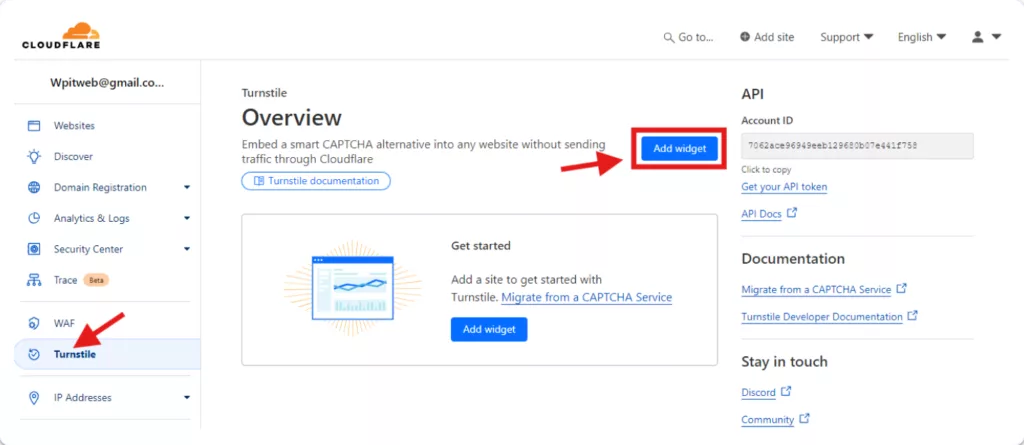
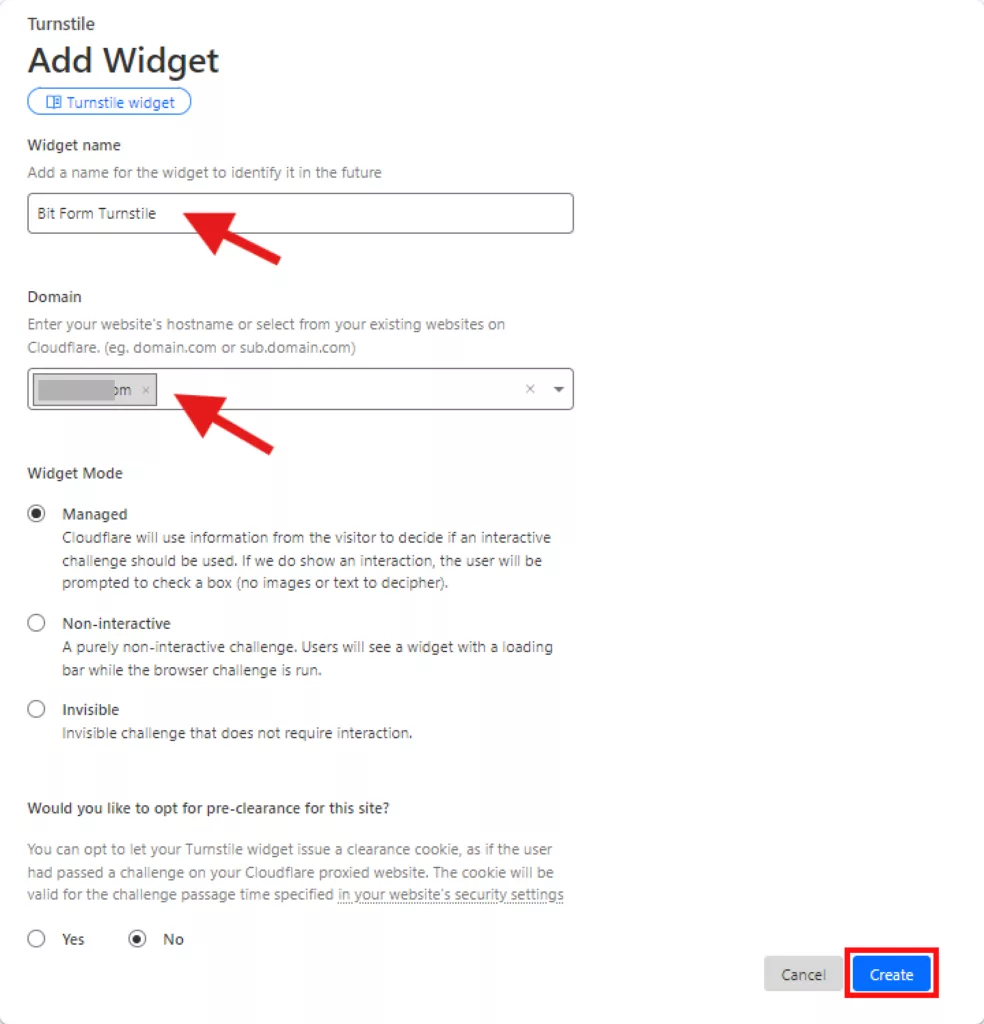
Login to your Cloudflare Dashboard and select the option of Turnstile. Click on the Add Widget button.
Name it – for example, “Bit Form Turnstile” and paste your website domain into the Domains field. Choose your preferred Widet Mode and hitthe Create button.
➥ Copy Site Key and Secret Key
Once you hit the Create button, Cloudflare will provide you with a Site Key and a Secret Key. You’ll need these keys to integrate Turnstile with Bit Form. Copy these keys.
➥ Navigate to Turnstile Settings in Bit Form
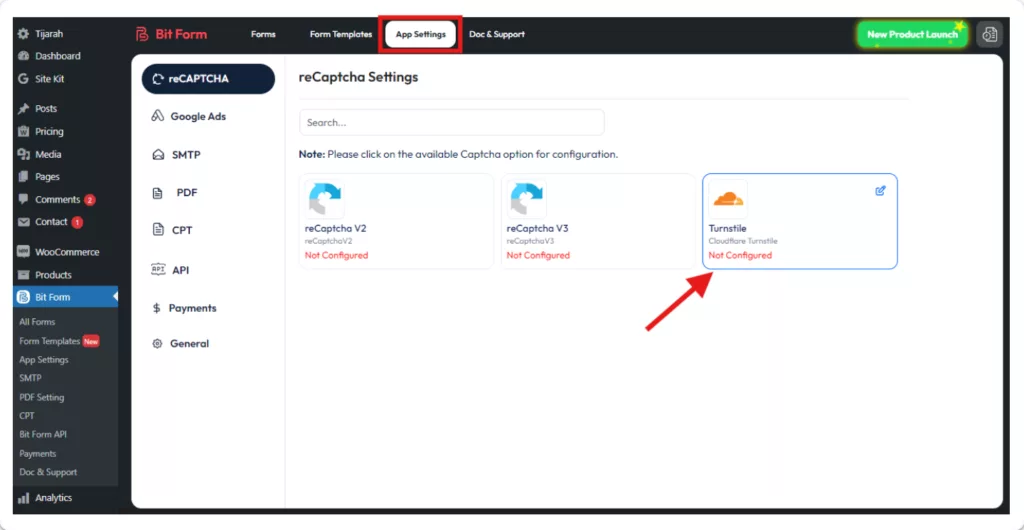
From the Bit Form Dashboard, go to App Settings > reCAPTCHA > Turnstile. And select Cloudflare Turnstile.
➥ Paste the Keys in Bit Form Settings
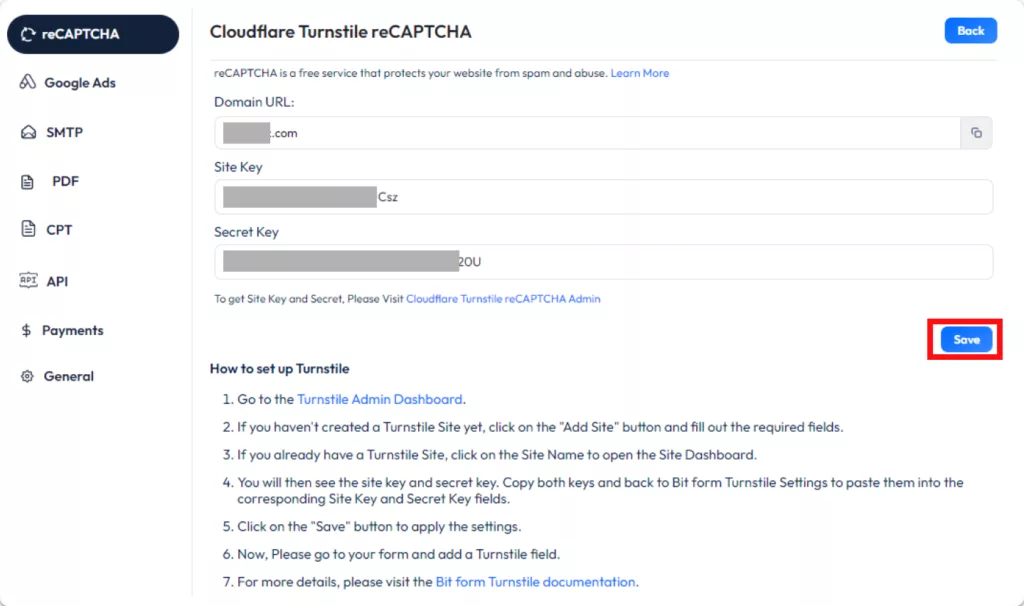
Now paste the Site Key and Secret Key in the respective fields of the settings for Turnstile. Then click on the Save button to save settings and complete the integration.
➥ Add Turnstile to Your Form
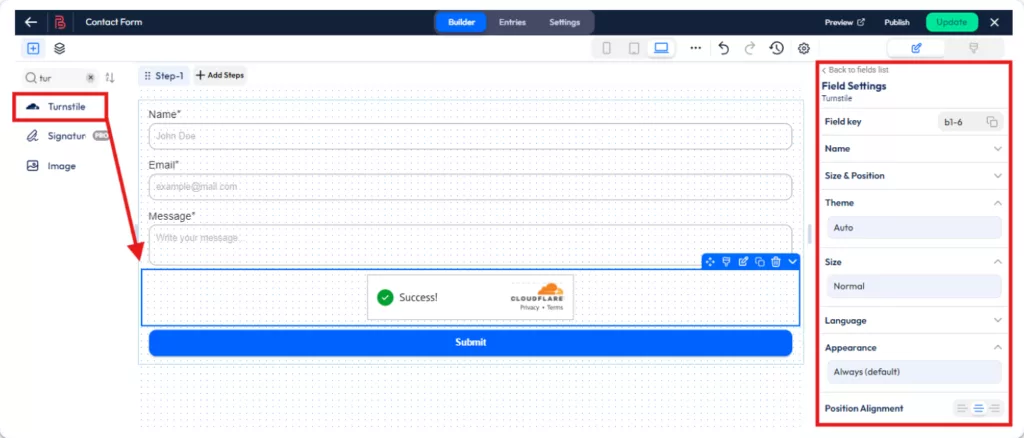
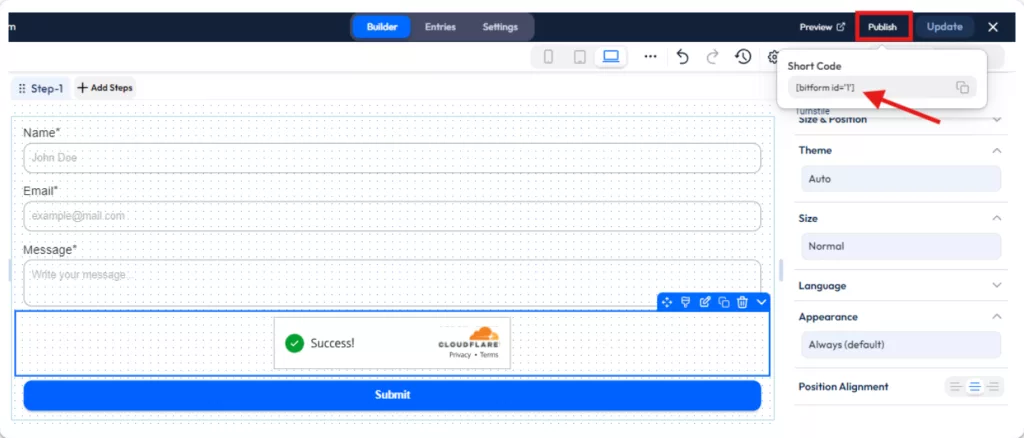
Now it’s time to add the Turnslite Widget to your form. To do that navigate to your Bit Form dashboard and open the form that you want to enable Turnslite. On the right side, you will see all the Bit Form fields, In the search bar search for the Turnslite then drag and drop the field to your form.
Now configure the display settings of the Turnstile widget to your needs, You can customize theme (Auto, Light, Dark) Size (Normal or Compact), and Language. You can also align it as per your needs.
➥ Save & Preview the Form
Now save the form and place it on your desired place, like your Registration Page, Newsletter Form, or Contact Us page. To get the form shortcode click on the Publish button from the top right bar of the Bit Form builder and paste it to your desired page. Or you can see the preview by clicking on the Preview button.
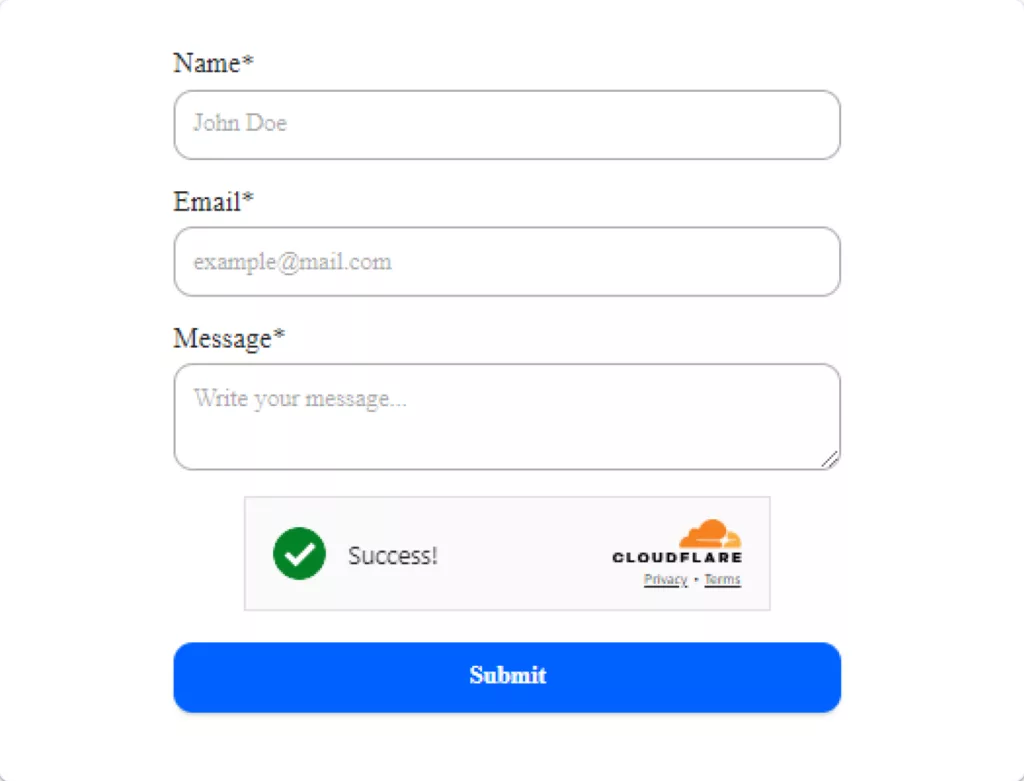
➥ Form Preview with the CloudFlare Turnslite
Here is the preview of the form that we have created with the Cloudflare Turnslite.
Final Words
Adding the Cloudflare Turnstile captcha in your WordPress forms is a great way to avoid spamming and protect your website. With Bit Form, it is super easy to set up, works smoothly in the background, and just does not bore your visitors.
It is also GDPR-friendly, you also won’t have to deal with privacy issues. Whether you want better security or simply a hassle-free way of keeping your forms secure, Turnstile is the way to go. Now you know how Cloudflare Turnstile works and why it’s an awesome tool for keeping your forms safe. Now try it with Bit Form to make your WordPress forms safe and secure!
WPForms Lite users often face a common problem. The free version does not store form entries in the dashboard. Instead, it only sends submissions by email. This means you cannot view or manage entries inside WordPress. This setup can quickly become frustrating. Important emails may land in spam or get lost. Without upgrading to Pro, […]
AI is changing how WordPress websites create content and automate daily tasks. But many website owners still struggle to connect powerful AI tools without paying extra or dealing with complex setups. While many creators are still stuck in the “copy-paste” loop with AI tools, WordPress Gemini Plugin is revolutionizing how websites use artificial intelligence to […]
Running a WooCommerce store is no longer just about listing products and waiting for customers to show up. Today, the WooCommerce businesses are growing through affiliate marketing, turning customers, creators, and partners into active promoters of their brand. Yet if only starting an affiliate program isn’t as simple as installing a plugin and hoping for […]
Cookie Consent
We use cookies to improve your experience on our site. By using our site, you consent to cookies.
This website uses cookies
Websites store cookies to enhance functionality and personalise your experience. You can manage your preferences, but blocking some cookies may impact site performance and services.
Essential cookies enable basic functions and are necessary for the proper function of the website.
Name
Description
Duration
Cookie Preferences
This cookie is used to store the user's cookie consent preferences.
30 days
Cookie Preferences
This cookie is used to store the user's cookie consent preferences.
30 days
This cookie is set by Cloudflare to help manage bot traffic and protect the website from malicious activity. It does not collect or store any personal data and is used solely for security and performance purposes.
Used to monitor number of Google Analytics server requests when using Google Tag Manager
1 minute
__utmt
Used to monitor number of Google Analytics server requests
10 minutes
__utmb
Used to distinguish new sessions and visits. This cookie is set when the GA.js javascript library is loaded and there is no existing __utmb cookie. The cookie is updated every time data is sent to the Google Analytics server.
30 minutes after last activity
__utmc
Used only with old Urchin versions of Google Analytics and not with GA.js. Was used to distinguish between new sessions and visits at the end of a session.
End of session (browser)
__utmz
Contains information about the traffic source or campaign that directed user to the website. The cookie is set when the GA.js javascript is loaded and updated when data is sent to the Google Anaytics server
6 months after last activity
__utmv
Contains custom information set by the web developer via the _setCustomVar method in Google Analytics. This cookie is updated every time new data is sent to the Google Analytics server.
2 years after last activity
__utmx
Used to determine whether a user is included in an A / B or Multivariate test.
18 months
_ga
ID used to identify users
2 years
_gali
Used by Google Analytics to determine which links on a page are being clicked
30 seconds
_ga_
ID used to identify users
2 years
_gid
ID used to identify users for 24 hours after last activity
24 hours
_gac_
Contains information related to marketing campaigns of the user. These are shared with Google AdWords / Google Ads when the Google Ads and Google Analytics accounts are linked together.
90 days
__utma
ID used to identify users and sessions
2 years after last activity
Clarity is a web analytics service that tracks and reports website traffic.