WPForms Lite users often face a common problem. The free version does not store form entries in the dashboard. Instead, it only sends submissions by email. This means you cannot view or manage entries inside WordPress.
This setup can quickly become frustrating. Important emails may land in spam or get lost. Without upgrading to Pro, there is no built-in way to track submissions safely.
But there is good news. You can fix this completely for free. With Bit Flows, you can automatically send every WPForms submission to Google Sheets and keep a secure backup.
In this step-by-step guide, you will learn how to set it up with no limits and no cost. We will also introduce Bit Form, a true WPForms alternative that lets you view entries directly, even in the free version.
Table of Contents
WPForms Lite Entry Storage and Limitations
WPForms Lite does not store form entries in your WordPress database by default. When someone submits a form, the plugin immediately sends the data to your email. Because of this, you will not see a built-in entries list inside the WPForms dashboard. That feature is only available in the Pro version.
This can create problems. If an email fails due to spam filters, server issues, or wrong configuration, you may lose track of a submission. Missed emails can make entries disappear. While Lite Connect can back up entries in the cloud for free, you still need to upgrade to Pro to view them.
💡Want an easier way to see entries inside your dashboard? Check our guide on the WPForms alternative. It shows how to manage form submissions directly in WordPress without relying on emails.
So, does WPForms Lite store entries in the database? The simple answer is no. All submissions are delivered only by email. If you want to view WPForms entries for free, you need an alternative method. In the next section, we will show how to use Bit Flows with Google Sheets as a free and reliable solution.
Free Solution: Send WPForms Entries to Google Sheets via Bit Flows
Bit Flows is a no-code automation tool that works like having Zapier inside WordPress. It lets you create unlimited workflows even in the free plan. With Bit Flows, you can connect WPForms as a trigger and Google Sheets as an action without paying any monthly fee.
Here is how it works. Every time someone submits your WPForms form, Bit Flows automatically sends the data to your Google Sheet. Each submission appears as a new row. This gives you a real-time, searchable record of all entries that you can check anytime. There are no task limits, and the integration remains free.
Below is a simple step-by-step guide to set up this workflow. Before you begin, make sure you have these three things ready:
Your WPForms form is created and published.
A Google Sheet is prepared to receive the data.
The Bit Flows plugin is installed and activated on your WordPress site.
Step 1: Install and Activate the Bit Flows Plugin
First, install Bit Flows on your WordPress site. From your WordPress admin dashboard, go to Plugins → Add New and search for “Bit Flows.” Then click Install Now and Activate.
You can also install it manually. Download the plugin ZIP from the Bit Flows website and upload it via Plugins → Add New → Upload Plugin.
After activation, you will see Bit Flows in your plugin list and dashboard menu. There is no need to upgrade. The free version already includes WPForms triggers and Google Sheets actions.
Step 2: Create a New Flow in Bit Flows
From your WordPress dashboard, go to Bit Flows → Flows and click Create Flow. Give your workflow a clear name, such as “WPForms to Google Sheets.”
This will open the visual flow builder. In Bit Flows, you first set a trigger on the left side, then add one or more actions on the right. This is where you define what happens after a form is submitted.
Step 3: Set WPForms as the Trigger
Click the “+” icon on the left side of the flow builder to add a trigger.
From the app list, select WPForms.
Then choose the trigger event, such as Form Submission or Submit Success.
Next, pick the specific form you want to track. You can also choose Any Form if you want the flow to work for all WPForms on your site.
After selecting the form, you need to capture the response. Click the Listen Response button and submit a test entry on your live form using dummy data.
Then return to Bit Flows. If the form fields appear, it means Bit Flows has successfully detected the data your form sends.
Step 4: Add Google Sheets as the Action
After setting the WPForms trigger, click the “+” icon on the right side of the flow to add an action.
From the app list, choose Google Sheets, then select the Add Row event. This action will insert a new row into your sheet every time the flow runs.
Next, connect your Google Sheet with Bit Flows. Click Add to create a new Google connection. You will be asked to enter your Client ID and Client Secret from Google Cloud. Follow the Bit Flows setup guide: create a project in Google Cloud Console, enable the Google Sheets and Google Drive APIs, configure the OAuth consent screen, add the required redirect URI, and copy your credentials into Bit Flows.
Once the connection is successful, choose the specific spreadsheet and worksheet (tab) where you want the entries stored. Bit Flows will display your available sheets. Simply select the one you prepared for this workflow.
You can also send the WPForms data to WhatsApp, Telegram, Slack, Mailchimp, Brevo, and many more platforms by using Bit Flows.
Step 5: Map WPForms Fields to Google Sheet Columns
After selecting Google Sheets, you will see the field mapping interface. Click Add Column, and two options will appear: Column and Value. For each column in your spreadsheet, choose the matching WPForms field from the trigger data.
For example, map the Name column to the WPForms Name field and the Email column to the Email field. Continue this for all important fields. Make sure your Google Sheet already has clear column headers that match your form fields.
This mapping step is the most important part of the setup. Once finished, click Test Run. Then submit your form again from the front end. If everything is configured correctly, you will see a new row automatically added to your Google Sheet with the test data.
Step 6: Activate the Flow and Monitor
Once your test run works correctly, you are now able to see every WPForms entry in your Google Sheets. This means that every new WPForms Lite submission will automatically be added as a new row in your Google Sheet.
You can monitor everything from the Bit Flows Logs. If a submission does not appear, the logs will help you identify the issue. In most cases, running the capture step again fixes the problem.
You can use this integration with confidence. Bit Flows offers unlimited workflows and task executions in the free plan. There are no usage meters or hidden limits.
This means you can create as many flows as you need. Every WPForms submission will continue to add rows to Google Sheets automatically without extra cost.
Quick Troubleshooting
If data does not appear in the sheet, first re-capture the WPForms response. Click Listen Response again and submit a fresh test entry. Without captured fields, the mapping will fail.
If your sheet list is empty, make sure the Google Sheets API is enabled, and your redirect URI and OAuth scopes are configured correctly in Google Cloud.
If rows are added but the data is mismatched, review the column-to-field mapping inside Bit Flows and correct any incorrect pairings.
Benefits of Google Sheets for Form Entry Backups
Using Google Sheets as a backup gives you strong control over your form data. Instead of depending only on emails, every submission is saved in one organized place. This makes tracking and managing entries much easier.
Here are the key benefits you get when you store WPForms submissions in Google Sheets:
Never lose important entries: Each submission is stored instantly, so you are protected even if emails fail or go to spam.
Clean and organized data table: All entries appear in structured rows with timestamps, making records easy to read and manage.
Easy filtering and sorting: You can quickly find specific leads or sort submissions based on your needs.
Simple data analysis and reporting: Create charts, summaries, and reports to understand trends and performance.
Safe access for team members: Share the sheet with your team without giving them WordPress login access.
Secure during site migration: Your form history stays safe in Google Drive even if you change hosting or move your site.
Works like a lightweight CRM: Track leads, follow up faster, and manage customer data in one place.
Advanced automation features: Use formulas, conditional formatting, and data validation to highlight high-priority leads automatically.
Overall, Google Sheets gives you a reliable, searchable, and flexible backup system. It is far more dependable than relying only on scattered email notifications.
The Best Free WPForms Alternative: Bit Form (with Built-in Entry Management)
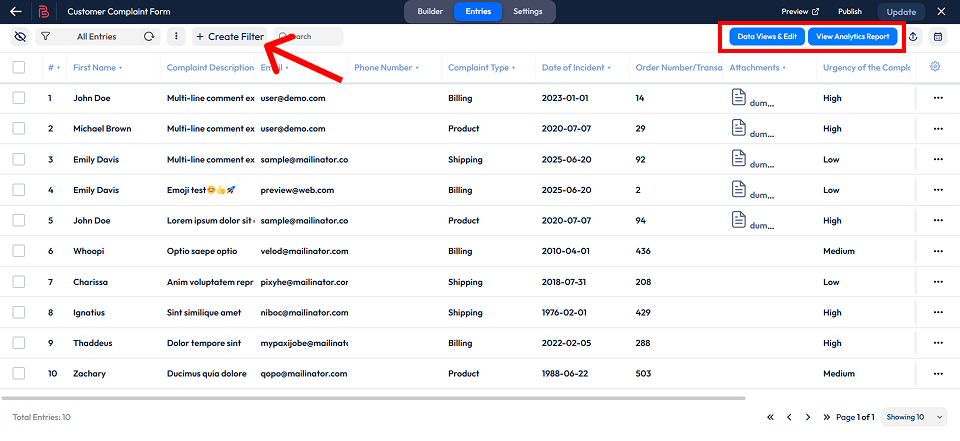
If you want a free form plugin for WordPress that already shows entries inside WordPress, Bit Form is a strong option. Unlike WPForms Lite, Bit Form’s free version lets you view and manage submissions directly from your dashboard. Each entry is stored in your database and appears in a dedicated Responses manager.
Inside the Responses area, you can view, edit, delete, filter, clone, and export submissions. This means you do not need an external tool just to see your form data. You get built-in entry management from the start.
Bit Form is also feature-rich. The free plan includes 38+ input fields, multi-step form support, and more than 50 integrations such as Google Sheets and Telegram. This makes it suitable for contact forms, surveys, and lead capture workflows.
In short, if dashboard entry viewing is essential and you prefer an all-in-one solution, Bit Form’s free version is worth trying. It is designed to give users real value even without upgrading.
Conclusion
WPForms Lite users often struggle because the plugin does not store entries inside the dashboard. Relying only on email notifications is risky. Important submissions can be missed, lost, or sent to spam. That is why many users search for a way to view WPForms entries for free without upgrading.
The good news is that you now have a reliable solution. By using Bit Flows with Google Sheets, you can automatically capture every submission and keep a secure backup. This method is simple, scalable, and completely free. You get real-time visibility of your form data without paying for the Pro version.
If you want to view WPForms entries for free, protect your leads, and build a smarter workflow, now is the time to act. Install Bit Flows, connect your form, and start tracking every submission with confidence.
FAQs
Does WPForms Lite store entries in the WordPress database?
No. WPForms Lite does not save entries in your site database. It sends each submission directly to the admin email. Only WPForms Pro stores entries locally and provides an entries screen.
How can I see WPForms entries for free?
WPForms Lite does not include an entry list. A free workaround is to use an integration. With Bit Flows, you can automatically send each submission to Google Sheets and view entries there. This method is free and keeps your data safe outside email.
How do WPForms Lite submissions get sent by email?
When someone submits a form, WPForms Lite instantly triggers a notification email to the address set in the form settings. There is no entry archive in the Lite version, so the email becomes the only record unless you create a backup.
Why should I back up WPForms entries?
Email delivery is not always reliable. Messages can fail or land in spam. A backup in Google Sheets ensures you always keep a copy of every submission. It also makes sorting, filtering, and analyzing entries much easier.
Is connecting WPForms to Google Sheets really free?
Yes. Bit Flows provides this automation in its free plan with unlimited workflows and task executions. You only need a Google account to set up the credentials. There are no recurring fees to send WPForms data to Sheets.
Can I view entries in Bit Form’s free version?
Yes. Bit Form includes a built-in Responses manager in the free version. You can view, edit, filter, and export submissions directly inside WordPress. It is a good alternative if you want native entry management without extra setup.
Running a WooCommerce store is no longer just about listing products and waiting for customers to show up. Today, the WooCommerce businesses are growing through affiliate marketing, turning customers, creators, and partners into active promoters of their brand. Yet if only starting an affiliate program isn’t as simple as installing a plugin and hoping for […]
Ever feel like managing appointments is taking up more time than actually serving clients? Service-based businesses that switch from manual bookings to online booking systems have seen a significant boost of 27% to 37% in revenue. Plus, 69% of customers are more likely to book with a company that offers online booking . With these […]
Are you planning to build an online food ordering website, but not sure where to start with WordPress? More customers now prefer ordering food online instead of calling. If your website does not support online orders, you risk losing customers to places that do. A well-structured food ordering website lets you show your menu clearly, […]
Cookie Consent
We use cookies to improve your experience on our site. By using our site, you consent to cookies.
This website uses cookies
Websites store cookies to enhance functionality and personalise your experience. You can manage your preferences, but blocking some cookies may impact site performance and services.
Essential cookies enable basic functions and are necessary for the proper function of the website.
Name
Description
Duration
Cookie Preferences
This cookie is used to store the user's cookie consent preferences.
30 days
Cookie Preferences
This cookie is used to store the user's cookie consent preferences.
30 days
This cookie is set by Cloudflare to help manage bot traffic and protect the website from malicious activity. It does not collect or store any personal data and is used solely for security and performance purposes.
Used to monitor number of Google Analytics server requests
10 minutes
__utmb
Used to distinguish new sessions and visits. This cookie is set when the GA.js javascript library is loaded and there is no existing __utmb cookie. The cookie is updated every time data is sent to the Google Analytics server.
30 minutes after last activity
__utmc
Used only with old Urchin versions of Google Analytics and not with GA.js. Was used to distinguish between new sessions and visits at the end of a session.
End of session (browser)
__utmz
Contains information about the traffic source or campaign that directed user to the website. The cookie is set when the GA.js javascript is loaded and updated when data is sent to the Google Anaytics server
6 months after last activity
__utmv
Contains custom information set by the web developer via the _setCustomVar method in Google Analytics. This cookie is updated every time new data is sent to the Google Analytics server.
2 years after last activity
__utmx
Used to determine whether a user is included in an A / B or Multivariate test.
18 months
_ga
ID used to identify users
2 years
_gali
Used by Google Analytics to determine which links on a page are being clicked
30 seconds
_ga_
ID used to identify users
2 years
_gid
ID used to identify users for 24 hours after last activity
24 hours
_gat
Used to monitor number of Google Analytics server requests when using Google Tag Manager
1 minute
_gac_
Contains information related to marketing campaigns of the user. These are shared with Google AdWords / Google Ads when the Google Ads and Google Analytics accounts are linked together.
90 days
__utma
ID used to identify users and sessions
2 years after last activity
Clarity is a web analytics service that tracks and reports website traffic.