The WordPress block editor (Gutenberg) revolutionized website design and content creation by using block elements like paragraphs, images, buttons, and more. Introduced in 2019 as a replacement for the classic editor, Gutenberg lets you build rich layouts without coding.
Blocks make it easy to mix and match elements such as text, media, columns, etc., and then move or style them individually. However, the default editor only offers basic blocks. But the Gutenberg Blocks Plugins help you to add custom blocks and design tools so you can create advanced layouts and visual effects.
By installing block plugins, you can unlock flexible page designs, interactive elements, and pre-built templates without code.
In this article, I will explain Gutenberg and why extra block plugins are powerful, then discuss some best Gutenberg block plugins for WordPress. Each plugin’s unique features, layout benefits, and standout points are highlighted to help you choose the right tools.
Table of Contents
Understanding Gutenberg and Gutenberg Blocks
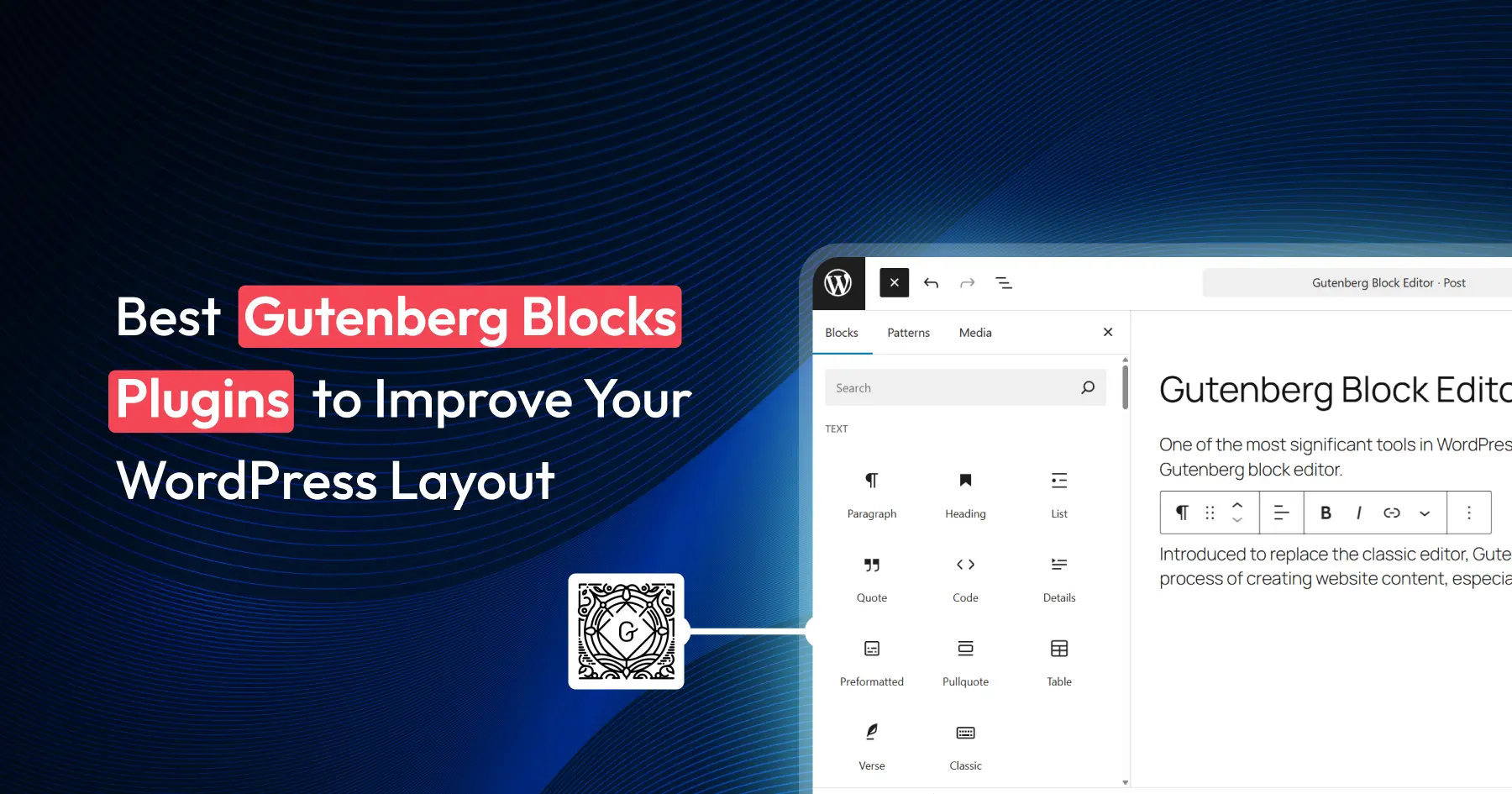
Gutenberg is simply the name for the WordPress block editor, a visual page builder that uses content blocks. In Gutenberg, each paragraph, image, gallery, or heading is a separate block. This means you can insert, drag, and configure each block independently.
WordPress Gutenberg Block Editor
For example, you might add a “Heading” block for a title, a “Paragraph” block for text, then a “Columns” block with an image and text side-by-side. By stacking and arranging blocks, you can design your page. This block-based approach gives creative freedom and structure. So you don’t need to code HTML or CSS. Just click to add blocks, then use on-screen controls to style them.
By default, WordPress includes basic blocks for common content (text, images, lists, etc.), and you can download many more block types via plugins. Default blocks come built-in with WordPress, while custom blocks are added by plugins.
Why Gutenberg Blocks Plugins Matter
While Gutenberg is powerful on its own, block plugins extend the power by adding new, specialized blocks and design features. Think of block plugins as toolkits that bring extra blocks for advanced layouts, animations, and widgets.
For example, you might want a pricing table, a custom testimonial slider, or a fancy gallery; extra blocks plugins provide those. This extra flexibility helps you to build complex, professional page layouts without a separate page builder plugin like Elementor. Block plugins also save time. Many include pre-designed templates or patterns you can drop in, so you’re not starting from scratch.
Many popular plugins include custom blocks for pricing tables, advanced buttons, accordions, tabs, and other elements that Gutenberg lacks by default. For example, you can easily add an FAQ section with a collapsible list, or a block that shows your latest blog posts in a grid.
Gutenberg blocks plugins matter because they let you build faster and design smarter. They provide rich styling controls (color, typography, spacing) and new blocks so your pages look more polished. Just be aware that very heavy plugins or too many blocks can slow down a site. So it’s best to pick a few well-optimized block plugins that fit your needs.
Default Gutenberg Blocks vs. Custom Blocks
Gutenberg offers two types of blocks to users: default blocks and custom blocks. Understanding the difference between these options helps you get the most out of Gutenberg.
Default Blocks
WordPress includes built-in (default) blocks that cover the basics. These include text headers, paragraphs, images, videos, buttons, and more. For simpler websites, these blocks might be all you need to create a functional and attractive layout.
Custom Blocks
These blocks are created through various Gutenberg Blocks Plugins, offering advanced features and unique designs that go beyond the basics.
Plugins like Spectra, Kadence, and Ultimate Blocks expand the variety of blocks available, adding options such as interactive sliders, pricing tables, and testimonial carousels. These custom blocks allow site owners to design layouts as per their needs, improving their site’s functionality and appearance.
Top Gutenberg Blocks Plugins
Below are some of the best Gutenberg blocks plugins, each with its standout features and benefits. For each, we highlight what sets it apart and how it improves layout design.
1. Ultimate Blocks
Ultimate Blocks is a content-focused blocks collection ideal for bloggers and marketers. It’s designed to simplify creating engaging posts and improving SEO.
The plugin offers 20+ ready-to-use blocks that writers will love. Blocks including Table of Contents, Content Toggle (accordion), Testimonials, Social Share, Review (with schema), Click to Tweet, and more. You can enable or disable each block individually for better performance. Ultimate Blocks also adds a Content Filter for custom post grids and a built-in Progress Bar block. Every block is SEO friendly. For example, the Review and HowTo blocks output a proper schema.
These blocks help organize and enrich content. A Table of Contents block automatically generates in-page navigation from headings. Toggle and Tabs blocks let you hide/show content, making long articles clean. The Testimonial and Image Slider blocks add visual interest. Because it’s lightweight, Ultimate Blocks won’t slow your site, but it greatly improves a page’s structure and readability.
Ultimate Blocks focuses on essentials that improve engagement, such as TOC, filters, and call-to-action. Its simplicity and SEO-friendly Gutenberg blocks design make it a favorite among beginners who want neat, organized content without excess features.
2. Spectra (formerly Ultimate Addons for Gutenberg)
Spectra is a page builder toolkit for Gutenberg. It has dozens of creative blocks and layouts that help you build eye-catching pages with no code.
Spectra includes 30+ custom blocks (image galleries, sliders, content timelines, forms, etc.) and pre-designed page templates (starter sites). Speactras’ flexbox-based Container block lets you freely arrange sections. You get advanced controls for spacing, colors, and even scroll-based animations. For example, Spectra offers on-scroll entrance animations and Lottie support to bring content to life.
The Slider and Post Grid blocks let you display posts or images in attractive ways. The Table of Contents and FAQ blocks help structure long content. It has social blocks (Instagram feeds, testimonials) and even schema blocks (How-To, Review) to improve SEO.
Spectra’s strength is its all-in-one design freedom. It not only has a variety of blocks, but also pre-built section layouts and a library of presets. Spectra brings premium-like flexibility to Gutenberg and gives you more control over design.
Kadence Blocks is a lightweight yet powerful toolkit that extends Gutenberg’s layout options. Built by the makers of the Kadence theme, it’s designed for speed and clean design.
It adds specialized blocks like an Advanced Row Layout for flexible grid/column control, Info Box, Countdown, and more. You can adjust padding/margins, color/gradient backgrounds, shadows, and typography for each block. There are also responsive controls so you can change styles per device. Kadence also offers prebuilt sections and starter layouts via a design library.
These tools make it easy to create professional, responsive layouts. For example, the Row Layout block lets you build multi-column grids that adapt to mobile. Kadence focuses on lightweight performance: its code only loads CSS/JS for blocks you use on a page, keeping sites fast even with advanced layouts.
Kadence Blocks stands out for its performance optimization and pro-quality design. It also offers on-scroll animations and deep global settings. All this makes Kadence a top pick if you want flexible Gutenberg blocks with a professional look and fast load times.
Genesis Blocks is a collection by StudioPress (creators of the Genesis theme). It adds pre-designed sections and landing page templates to Gutenberg.
This plugin adds powerful layout and marketing blocks: Section & Layout, Advanced Columns, Pricing, Post Grid, Testimonials, Call-To-Action, and more. It also comes with a library of page sections and full-page templates right in the editor. You can insert a pre-made call-to-action page or feature section in one click. Blocks like Newsletter, Accordion, and Inline Notice help with engagement and lead capture.
Genesis Blocks helps build highly customized landing pages or content-rich sites quickly. For example, you can use the Section & Layout block to create complex grids or the Pricing block to display product tiers. All the page sections are styled to look polished and cohesive. This means even without coding, you can have a customized homepage, sales page, or blog section.
The standout is its smooth fit with the Genesis Framework. StudioPress built these blocks to complement Genesis themes, so if you’re on Genesis, this is a must-have. Genesis Blocks is built to modern coding standards, with built-in AMP support for mobile speed. Its combination of section templates and reusable layouts makes it much faster to launch a professional site.
Otter Blocks (by Themeisle) is a user-friendly block plugin that brings extra page-builder-like functionality to Gutenberg.
Otter offers about 20+ free blocks (26 total) plus 100+ pages and block patterns. Key blocks include Advanced Button, Icon List, Testimonial, Pricing Table, and Animated Heading. It also adds dynamic content features like Visibility Conditions (show blocks only on certain pages or for certain users), plus a Custom CSS block. You’ll find animations and Lottie integrations to easily add motion. All blocks support responsive settings and theme overrides.
These blocks help create dynamic layouts with flair. For example, its Icon List block turns bullet lists into visual lists, and the Pricing Table block arranges product prices neatly. Otter also has pre-designed Section Patterns like hero sections and callouts to jumpstart pages. Importantly.
Otter’s highlight is visual variety and effects. It emphasizes animation: you can easily add fade, slide, and bounce effects to any block. Its animation library (50+ effects available) makes it easy to bring pages to life. Otter Blocks is a great choice for beginners who want attractive, animated blocks and quick templates without a steep learning curve.
CoBlocks is a GoDaddy-developed block suite that brings a true page builder experience to Gutenberg.
CoBlocks adds over 40+ blocks for modern layouts. Notable blocks include Accordion, Gallery Grids, Masonry Gallery, Hero, Map, Testimonial, Pricing Table, Post Carousel, and Contact Form. It provides full row and column support so you can drag to resize columns directly in the editor. Other features include Shape Dividers for stylish section breaks, Advanced Heading for text styling, and Icon blocks. All CoBlocks are responsive and let you fine-tune margins, padding, and typography per device.
With CoBlocks, design is highly visual and modular. For example, you can create a full-screen hero banner with text overlay, or a feature grid with background images. The Posts and Carousel blocks let you showcase blog posts attractively. This makes creating rich landing page sections with forms, galleries, and maps easy and efficient.
CoBlocks stands out for its row/columns flexibility and design flair. It lets you drag to resize columns. Also, it has a free companion Go theme optimized for full-width layouts. CoBlocks free Gutenberg blocks plugins gives you a modern, fully responsive layout toolkit that feels like a page builder inside Gutenberg.
GenerateBlocks is a minimalist block library focused on performance and flexibility.
Instead of dozens of blocks, GenerateBlocks gives you just five essential blocks: Container, Grid, Headline (Text), Buttons, and Image. With these building blocks, you can create nearly any layout. The Container block is especially powerful. It’s like a section wrapper that can hold other blocks and has full styling controls.
The Grid block handles column layouts. Each block has advanced style settings for typography, colors, spacing, borders, and more. It also supports dynamic tags (for displaying post data) and CSS variables for global styling.
GenerateBlocks is ultra-fast and lightweight. It generates only the CSS needed for the blocks you use, so pages stay lean. You can nest Container blocks to build complex responsive sections. This is ideal for minimalistic designs and developers who want full design control without overhead.
The plugin is also tightly integrated with the GeneratePress theme (though it works with any theme). Advanced users love its clean HTML output and flexibility. GenerateBlocks provides a solid, lightweight foundation for customized layouts.
ZoloBlocks is a lightweight yet powerful Gutenberg block toolkit designed to give you maximum flexibility in designing modern WordPress websites. It comes with a wide range of creative blocks, templates, and advanced styling options to help you build professional-looking pages without touching code.
ZoloBlocks includes 65+ custom blocks such as post grids, sliders, accordions, tabs, pricing tables, and testimonial carousels. It’s 100+ pre-designed page templates and section layouts make it easy to create visually appealing websites quickly. The advanced flexbox-based container block allows you to structure pages with precision, while responsive controls ensure your design looks perfect on all devices.
You also get features like animation effects, dynamic content support, and SEO-friendly schema blocks (FAQ, Review, How-To) to improve both design and performance. ZoloBlocks is fully compatible with WooCommerce, letting you enhance product pages with custom grids, sliders, and call-to-action sections.
The real strength of ZoloBlocks is its balance between simplicity and depth. Beginners can use ready-made templates to get started fast, while advanced users have detailed controls for spacing, typography, gradients, and hover effects.
Galleryberg is a modern Gutenberg gallery block plugin designed to help you create beautiful image galleries directly inside the WordPress block editor. While Gutenberg’s default Gallery block is suitable for basic image grids, Galleryberg takes galleries to the next level with advanced layouts, interactivity, and visual controls.
Galleryberg offers multiple gallery layouts such as Grid, Masonry, Justified, Square, and Mosaic (Pro), making it easy to showcase portfolios, photography, product images, travel photos, or blog visuals. It includes a built-in lightbox with smooth navigation, touch and swipe support, keyboard controls, and optional thumbnails.
One of Galleryberg’s biggest strengths is its deep customization while staying lightweight. You can control gallery columns separately for desktop, tablet, and mobile. Spacing can be adjusted globally to keep layouts clean and consistent. Captions can be shown below images, as overlays, or on hover. You can also add borders, rounded corners, and duotone filters for visual styling.
Galleryberg is fully responsive by default and optimized for performance, using clean markup and minimal CSS so galleries load fast even with larger image sets. It integrates seamlessly into the Gutenberg editor, making it intuitive for beginners while still offering enough flexibility for designers and photographers who want precise visual control.
When selecting Gutenberg blocks plugins, keep the following in mind:
Compatibility: Make sure the plugin works with your WordPress version and theme. Check the plugin’s page for confirmed compatibility. Also, review if it lists any theme or plugin conflicts. Choose plugins that support popular themes and Gutenberg features. Note that using too many block plugins at once can lead to conflicts.
Performance Impact: Every plugin adds code. A few optimized block plugins are usually fine, but too many or very heavy blocks can slow down pages. Look for plugins described as lightweight or optimized for speed.
Mobile Responsiveness: Always check layouts on mobile. Use the plugin’s responsive controls to adjust fonts, margins, or block settings for tablet and phone. Many blocks have options to show/hide content per device. Keep content legible on small screens and avoid blocks that force horizontal scroll.
Ease of Use: Pick plugins with a gentle learning curve. Many plugins offer inline tips or documentation. Blocks that integrate well into the Gutenberg interface and provide intuitive settings are ideal.
Consistency in Design: Maintain a similar look by reusing colors, fonts, and spacing. If your plugin supports global styles or design systems, use them. Choose a consistent color palette and repeat it in headings, buttons, and accents. Consistency helps your site feel professional and well-designed.
Don’t Overwhelm with Blocks: Don’t use every fancy block or too many widgets. Stick to blocks that serve a purpose. Don’t add decorative blocks if they distract from content.
Support and Updates: Choose plugins that are actively maintained. Check when the plugin was last updated and if it has recent reviews. Good plugins provide documentation or support forums.
Conclusion
Gutenberg Blocks Plugins open up a world of design possibilities for WordPress users. By adding custom blocks and pre-made layouts, these plugins help anyone create attractive, dynamic pages without code. Using them wisely can transform a basic site into a polished, interactive experience.
Remember to experiment: install a plugin, try out its blocks, and see how they change your layout. You might combine a couple of plugins for a well-rounded toolkit, or stick to one that covers all your needs.
As the WordPress editor evolves, more exciting features and blocks are likely on the way. For now, these Gutenberg blocks plugins are your best allies for improving your site’s design and structure. Pick the ones that match your goals, install them, and start building more flexible layouts today. Happy designing!
FAQs
What are Gutenberg Blocks Plugins?
Gutenberg Blocks Plugins are WordPress plugins that add new block types to the Gutenberg editor, allowing you to insert custom content modules into your pages. They extend the editor’s capabilities so you can build more complex layouts and features without coding.
Why should I use Gutenberg block plugins?
These plugins offer flexibility and design tools that the default editor lacks. They provide easy-to-use blocks and include templates or patterns to speed up site building.
Will using many block plugins slow down my site?
Using too many plugins or heavy blocks can affect performance. It’s best to choose well-coded, lightweight plugins and disable any blocks you don’t use.
Which Gutenberg block plugin is best for beginners?
Plugins like Ultimate Blocks, Kadence Blocks, Otter Blocks are often recommended for beginners. They are easy to use and come with helpful templates.
How do I pick the right block plugin?
Consider your needs: if you want full layouts and templates. Check compatibility, reviews, and see which block sets match the type of pages you’re building. It’s a good idea to test a couple of free plugins to see which style you like best.
Imagine building your dream home. You could visit multiple stores, buying hammers from one shop, nails from another, and paint from a third. Or you could walk into one expert home improvement store that gives you everything you need at a fraction of the cost. That’s exactly what WordPress plugin bundles offer, complete toolkits that […]
Imagine spending your days clicking and copy-pasting between apps, then discovering a plugin that handles all that work for you. WordPress automation plugins promise to connect your site, forms, and stores to hundreds of apps, triggering actions instantly when events occur. This saves bloggers, marketers, and developers countless hours. But with many tools on the […]
Building a website often starts with something simple. You just need a contact form. But then you start looking for an affordable form builder plugin, and the choices are overwhelming. You head to the WordPress plugin directory or Google and see dozens of options, each promising to be the best. For many website owners, this […]
Cookie Consent
We use cookies to improve your experience on our site. By using our site, you consent to cookies.
This website uses cookies
Websites store cookies to enhance functionality and personalise your experience. You can manage your preferences, but blocking some cookies may impact site performance and services.
Essential cookies enable basic functions and are necessary for the proper function of the website.
Name
Description
Duration
Cookie Preferences
This cookie is used to store the user's cookie consent preferences.
30 days
This cookie is set by Cloudflare to help manage bot traffic and protect the website from malicious activity. It does not collect or store any personal data and is used solely for security and performance purposes.
Used to determine whether a user is included in an A / B or Multivariate test.
18 months
_ga
ID used to identify users
2 years
_gali
Used by Google Analytics to determine which links on a page are being clicked
30 seconds
_ga_
ID used to identify users
2 years
_gid
ID used to identify users for 24 hours after last activity
24 hours
_gat
Used to monitor number of Google Analytics server requests when using Google Tag Manager
1 minute
__utmt
Used to monitor number of Google Analytics server requests
10 minutes
__utmb
Used to distinguish new sessions and visits. This cookie is set when the GA.js javascript library is loaded and there is no existing __utmb cookie. The cookie is updated every time data is sent to the Google Analytics server.
30 minutes after last activity
__utmc
Used only with old Urchin versions of Google Analytics and not with GA.js. Was used to distinguish between new sessions and visits at the end of a session.
End of session (browser)
__utmz
Contains information about the traffic source or campaign that directed user to the website. The cookie is set when the GA.js javascript is loaded and updated when data is sent to the Google Anaytics server
6 months after last activity
__utmv
Contains custom information set by the web developer via the _setCustomVar method in Google Analytics. This cookie is updated every time new data is sent to the Google Analytics server.
2 years after last activity
_gac_
Contains information related to marketing campaigns of the user. These are shared with Google AdWords / Google Ads when the Google Ads and Google Analytics accounts are linked together.
90 days
__utma
ID used to identify users and sessions
2 years after last activity
Clarity is a web analytics service that tracks and reports website traffic.