Do you want people from other countries to understand your website?
Making your WordPress site available in more languages can help you grow your business. When you add different languages, visitors feel happy. They stay longer and maybe want to contact you or buy from you. Many people see more visitors after they make their website speak more than one language.
WordPress gives us many plugins for translation. Some plugins do the job fast with machines. Other plugins are for people who want to do the translation by themselves.
Here, I share my simple ideas about the top WordPress translation plugins. I want to help you pick the best one for your website so that everyone feels welcome.
Table of Contents
How WordPress Translation Works
You have two easy ways to translate your website.
Automatic Translation: Some plugins work with Google Translate or DeepL. Just one or two clicks, and your website becomes many languages. It is quick. Sometimes, the translation is not perfect. You should check the text after, and if you see something strange, fix it.
Manual Translation: There are plugins where you or your friend do the translation. It is more work. But you can make every word correct. For business or important sites, people like this more.
Many people start with automatic. Later, they make the important pages better by hand. This way is faster but also gives good results.
Benefits of Creating a Multilingual WordPress Site
When your site speaks other languages, more people can trust you. They understand your text, so they feel welcome. You can get more visitors, and sometimes more sales.
With extra languages, you show up in Google searches in other countries. You can sell to different markets without making a new website each time. Even if you have a simple blog, you meet more readers.
Best WordPress Translation Plugins for Multilingual Websites in 2026
Choosing the right translation plugin depends on your site’s needs, goals, and technical expertise. Below, we’ve highlighted the top plugins to help you make an informed decision based on features, ease of use, and pricing.
⚡Quick Comparison of the Best WordPress Translation Plugins⚡
Plugin
Free Version
Translation Type
SEO Support
WPML
❌ (Paid only)
Automatic + Manual (Hybrid)
✅ Advanced (URLs, hreflang, meta)
TranslatePress
✅ (2 languages)
Automatic + Manual (Visual editor)
✅ (Pro version)
TranslateXYZ
✅
Automatic + Manual
✅ SEO Compatiable
Weglot
❌ (Paid SaaS)
Automatic + Manual (Cloud dashboard)
✅ (Built-in)
Polylang
✅
Manual (Pro adds extras)
✅ Strong SEO (URLs, hreflang)
GTranslate
✅ (basic)
Automatic (Google Translate)
✅ (Paid plan only)
Loco Translate
✅
Manual (theme/plugin strings only)
❌ (Not content-focused)
WPGlobus
✅
Manual (inline shortcode-based)
⚠️ Limited (add-ons for SEO)
Now that you have an overview of the top plugins, let’s look at the key features and benefits of each. I will help you find the best fit for your site.
WPML is a well-known plugin for making WordPress sites multilingual. It helps you translate everythingpages, posts, menus, custom types, and even theme or plugin text. You can choose between automatic and manual translation.
During setup, WPML can auto-translate your site using tools like Google, DeepL, or Microsoft. After that, you can review and edit the translations.
It also has advanced features. You can assign translations to team members or connect with professional services directly from the dashboard. Simple and flexible!
Key Features:
You can translate all parts of your site, not only posts
Start with machine translation, then check by hand
Let your team members or workers help with translation
Helpful for shops with many products (works with WooCommerce)
Has SEO tools for each language version
Best For: Shops, business pages, and anyone with a lot of languages and helpers.
Pricing: You pay from €39 per year. For more, like full shop tools, pay €99 per year.
2️⃣ TranslatePress – Visual Translation Editor
TranslatePress makes translating your site super easy. Its best feature? A visual editor. You just visit your page, click the text you want to translate, and type the translation in a sidebar. No coding, no backend hassle.
You translate your site exactly how visitors see it. It works on everything: posts, pages, menus, widgets, sliders, popups, and more. Even SEO stuff like titles and descriptions can be translated.
TranslatePress is self-hosted, so all your translations stay in your database. You own them, even if you stop using the plugin. It also offers automatic translation with Google Translate or DeepL. One click, and your site is translated. Then, you can tweak it as needed. Simple and powerful!
Key Features:
Make changes on your real website, easy to understand
Works for all text, images, pop-ups, menus, and buttons
Compatible with Google Translate and DeepL to help start quickly
Translations stay on your site; nothing is sent far away
You can make translator accounts for helpers
Best For: Simple websites, blogs, and anyone who likes an easy process.
Pricing: Free for 2 languages. Paid starts at €99 each year.
3️⃣ TranslateXYZ – AI Translation Addon
Many WordPress translation plugins help you manage multilingual content manually, but translating large websites manually can be time-consuming and expensive. TranslateXYZ helps automate this process by connecting popular multilingual plugins with AI-powered translation services such as OpenAI, Gemini, Claude, DeepL, and Google Translate.
Rather than replacing your existing translation plugin, TranslateXYZ works alongside tools like Polylang, TranslatePress, WPML, and Loco Translate. This allows website owners to generate translations in bulk, review the results, and publish multilingual content much faster.
Depending on your translation plugin, choose the best AI solution for your workflow. AutoPoly works with Polylang for AI translations using OpenAI, Gemini, DeepL, and Google Translate. AutoTP adds AI translation to TranslatePress with leading AI models. AutoMLP supports WPML and can reduce costs up to 95% using OpenAI and Gemini. LocoAI automates Loco Translate files using AI tools like OpenAI, Gemini, and Google Translate.
Key Features:
AI-powered translation for multilingual WordPress websites.
Connect your own API key for complete translation cost control.
Bulk translate entire websites without manual effort.
Keep brand language consistent with advanced Glossary support.
Supports multilingual SEO through translated website content.
Easy setup without requiring coding or technical expertise.
Best For:
WordPress users, agencies, and businesses using WPML, Polylang, TranslatePress, or Loco Translate for fast, AI-powered translations.
Pricing:
TranslateXYZ offers flexible pricing to suit different translation needs. Get the complete AutoPoly + AutoMLP + AutoTP + LocoAI Bundle for just $100/year.
However, if you need a specific addon, individual plans are also available. You can explore all available pricing options and choose the plan that best fits your requirements at TranslateXYZ Pricing.
4️⃣ Weglot – Cloud-Based Translation Service
Weglot is a cloud-based tool that makes your site multilingual fast. Once you install it, Weglot auto-detects and translates all your content, text, images, SEO metadata, and more, into the languages you choose.
It supports over 110 languages right away. You can use Weglot’s web dashboard to check and edit translations, work with teammates, or even hire professional translators.
Setup is super easy. Many users say you can translate your site in just minutes, no coding needed. Weglot also takes care of SEO, adding hreflang tags and translating metadata automatically.
It organizes translated pages neatly into subdirectories or subdomains, like example.com/es/ for Spanish, and makes sure they’re ready for search engines. Quick and efficient!
Key Features:
Website is ready with 110+ languages
You can edit translations online, even with a team
SEO support is built in, helping people find your site in Google
Sends each visitor to their language automatically
Works with all other WordPress plugins and themes
Best For: Busy people, shop owners, and anyone who wants instant results and less worry.
Pricing: You can try free. After, pay depends on how many words and languages you need.
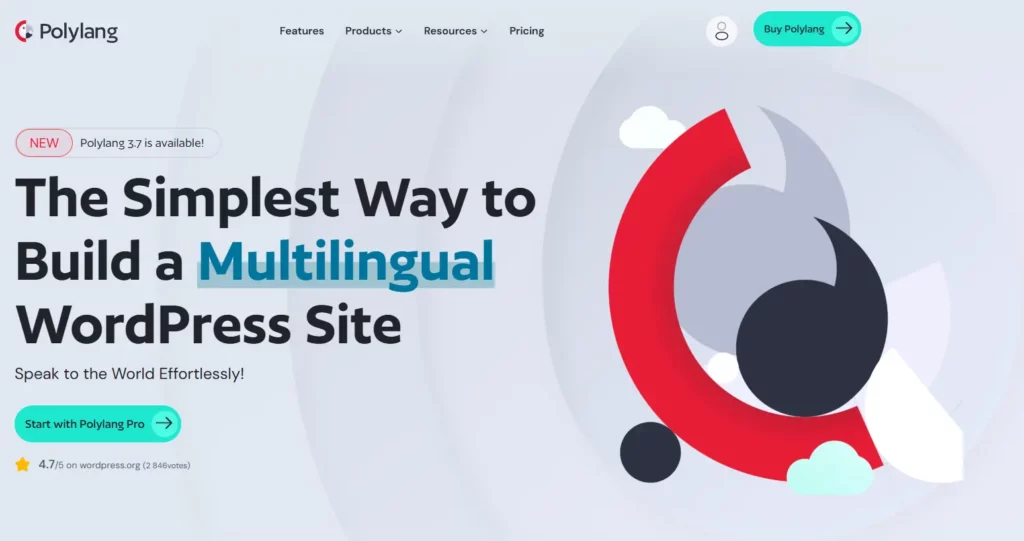
Polylang is great for people who like to be careful. You add each translation when you want, and nothing is done without you knowing. Polylang is simple, but it works well with WordPress and other plugins. You can pick subfolders, different domains, or subdomains for your languages.
It is easy to use for writers and bloggers who want good SEO and clear control. Nothing fancy, just you, your content, and your own speed.
Key Features:
Unlimited languages, you decide what and when to add
Manual translation for top quality
Each language has a special URL and SEO setup
Visitors change language with one click
The plugin is fast and does not slow down your site
Best For: Bloggers, small business owners, and anyone who wants full control without paid plans.
Pricing: The core plugin is free. For more (like shop support), check pro options.
GTranslate is a budget-friendly translation tool. It uses the Google Translate API. Your site can be translated into 100+ languages instantly.
The free version is simple. It adds a Google translation widget or a floating language switcher. Translations happen in real-time. They are not indexed by Google. Setup is quick. Add the switcher, and your pages translate on the spot.
The paid version offers more features. It enables multilingual SEO. You can publish translated pages on subdomains or subfolders. It also translates URL slugs. This creates indexable content. Google can rank your translated pages.
Paid plans let you edit translations manually. You can use an inline editor. It also supports WooCommerce, allowing you to optimize WooCommerce SEO. It handles more complex needs. It’s budget-friendly and flexible!
Key Features:
Automatic translation to more than 100 languages, instantly
Easy for visitors to select a language
SEO tools (with paid version)
Fast, does not slow down your site
Good for shops and simple websites
Best For: People testing new markets, or anyone who wants more languages with little work.
Pricing: Free to start. Paid from $9.99 per month for more serious needs.
7️⃣ Loco Translate – Developer Localization Tool
Loco Translate is for people who work on themes or plugins. Have you ever bought a theme and half is in English? Loco helps you fix those words. It works inside your WordPress dashboard. It is also useful for developers who want to help with open-source translation or fix mistakes.
You do not have to touch code. You simply click, change the word, and save. Loco saves backups too, so you never lose your changes.
Key Features:
Edit plugin and theme words inside WordPress
Finds all words and phrases you need to change
Offers help from Google or DeepL for suggestions
Makes a backup for all your translation files
Team collaboration in the pro version
Best For: Developers or anyone who needs to fix interface words, not website posts.
Pricing: Free basic. Pro starts at a small price per month.
8️⃣ WPGlobus – Simple Multi-Language Content
WPGlobus is for people who want the most basic way. You write in different languages in the same post using small tags. Your visitor clicks a switch to see their language. No big settings or advanced options. It does what it says and is good for small websites.
Many beginners or personal sites like WPGlobus. It keeps everything simple. You do not need special knowledge, only patience to write each language.
Key Features:
Manual translation by adding both languages to the same post
Easy switcher for visitors
Friendly with SEO plugins, helps search engines know your content language
Stays light, does not use more server space
Best For: Beginners and small pages. You want a simple site; you do not need many features.
Pricing: Free. Buy extras if you want more features.
Multilingual SEO Strategies for WordPress
When you want search engines to find your translated pages, remember some important steps. Always use hreflang tags. These help Google know which language or country is for which page. Make every language page have a different URL.
This can be in a folder, subdomain, or even another domain. Translate titles, meta descriptions, alt texts for images, and links inside your site. Submit a sitemap for all languages. If you do these things, people in other countries can discover your website more easily.
How to Choose the Best WordPress Translation Plugins
First, think about what you want. Do you want fast and easy? Or do you want to check every sentence yourself? See if the plugin has strong SEO tools.
Is it easy to connect with your other plugins and shop? Is there help in your language if you get stuck? If you can, try free versions before you pay. The best choice is what feels simple for your situation and gives you good support.
Best Practices for Multilingual WordPress Sites
Set Up Proper URL Structure: Make every language have a clean, easy-to-understand URL. It helps visitors and Google.
Translate All SEO Elements: Do not forget page titles, picture texts, addresses, and little details.
Maintain Content Quality: Check translations. If you can, ask someone who speaks the language to help with important pages.
Add Clear Language Switching: Put the language switcher at the top. Make it easy to find.
Test Everything Thoroughly: Look at every part of your site. Use every language and fix what you see is wrong.
Consider Performance: If your site has many languages, it can be slower. Use plugins that do not make your site heavy.
Final Thoughts
Making your WordPress site speak many languages is a good idea. More people from different countries can visit and understand your site. This can help your website grow and feel special for everyone.
Sometimes it looks difficult, but good plugins make things much easier. You can find one that fits your needs and your money. When you use many languages, people trust your site more and feel comfortable.
Remember to translate all your content and make the site easy to use. With some small steps, you can open your website to the world. Visitors will feel welcome, like at home.
Frequently Asked Questions
Which WordPress Translation Plugin Should I Choose?
For simple manual work, Polylang is good. TranslatePress is great for quick, live changes. For fast translation, Weglot and GTranslate help. WPML is best for big business or shop websites. Use Loco Translate for the translation of plugins and themes, not for your main posts.
What’s Better: Automatic or Manual Translation?
Automatic makes life easy, but you must check the results. Manual is slow, but more correct. You can start with automatic and then review important pages.
How Do I Make Translated Pages Rank in Google?
Choose a plugin that makes separate URLs for every language. Always translate page titles and image text. Add all pages to your sitemap.
Which Translation Plugin Works Best for WooCommerce?
WPML is used by most WooCommerce shops. Weglot is also popular. Both work for products and checkout.
Can Loco Translate Handle My Site Content?
No. Loco Translate is for themes and plugins, not content posts or pages. For big content jobs, use WPML, Polylang, or TranslatePress.
Is Google Translate Safe for My Website?
Google Translate is helpful for starting, but you should check the translations. For SEO, choose plugins that create unique pages for each language.
He writes about WordPress, SEO, automation, and SaaS with hands-on experience. He creates tutorials, comparisons, and practical content by understanding real use cases, search intent, and AI visibility.
Building a WooCommerce store is exciting in the beginning. You install WooCommerce, upload products, connect a payment gateway, and feel like the hard part is done. Then you may need something that the core WooCommerce doesn’t cover. A customer abandons checkout because the process feels too plain. Another leaves because shipping costs look confusing. Someone […]
Choosing a WordPress LMS plugin is not as easy as it looks. Many plugins promise course building, quizzes, payments, and student management. But once you start comparing them, the differences become clear very fast. Some are easier to use. Some give you more control. Some are better for selling courses. Others work better for memberships […]
One of the easiest ways to increase average order value and boost sales in your WooCommerce store is by offering product bundles with discounts. Now, there are several product bundle plugins, but we picked the ones that have proven to grow a WooCommerce store’s revenue. Here’s the quick look at these tools: Quick overview of […]
Cookie Consent
We use cookies to improve your experience on our site. By using our site, you consent to cookies.
This website uses cookies
Websites store cookies to enhance functionality and personalise your experience. You can manage your preferences, but blocking some cookies may impact site performance and services.
Essential cookies enable basic functions and are necessary for the proper function of the website.
Name
Description
Duration
Cookie Preferences
This cookie is used to store the user's cookie consent preferences.
30 days
Cookie Preferences
This cookie is used to store the user's cookie consent preferences.
30 days
Cookie Preferences
This cookie is used to store the user's cookie consent preferences.
30 days
This cookie is set by Cloudflare to help manage bot traffic and protect the website from malicious activity. It does not collect or store any personal data and is used solely for security and performance purposes.
Contains custom information set by the web developer via the _setCustomVar method in Google Analytics. This cookie is updated every time new data is sent to the Google Analytics server.
2 years after last activity
__utmx
Used to determine whether a user is included in an A / B or Multivariate test.
18 months
_ga
ID used to identify users
2 years
_gali
Used by Google Analytics to determine which links on a page are being clicked
30 seconds
_ga_
ID used to identify users
2 years
_gid
ID used to identify users for 24 hours after last activity
24 hours
_gat
Used to monitor number of Google Analytics server requests when using Google Tag Manager
1 minute
__utmt
Used to monitor number of Google Analytics server requests
10 minutes
__utmb
Used to distinguish new sessions and visits. This cookie is set when the GA.js javascript library is loaded and there is no existing __utmb cookie. The cookie is updated every time data is sent to the Google Analytics server.
30 minutes after last activity
__utmc
Used only with old Urchin versions of Google Analytics and not with GA.js. Was used to distinguish between new sessions and visits at the end of a session.
End of session (browser)
__utmz
Contains information about the traffic source or campaign that directed user to the website. The cookie is set when the GA.js javascript is loaded and updated when data is sent to the Google Anaytics server
6 months after last activity
_gac_
Contains information related to marketing campaigns of the user. These are shared with Google AdWords / Google Ads when the Google Ads and Google Analytics accounts are linked together.
90 days
__utma
ID used to identify users and sessions
2 years after last activity
Clarity is a web analytics service that tracks and reports website traffic.