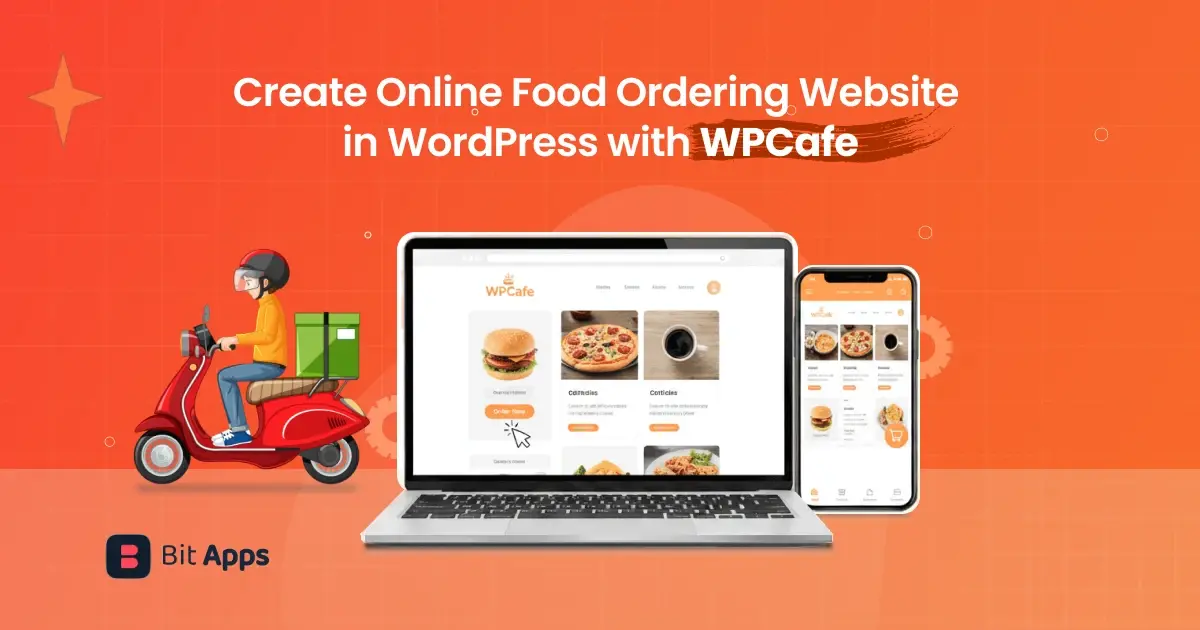
Are you planning to build an online food ordering website, but not sure where to start with WordPress?
More customers now prefer ordering food online instead of calling. If your website does not support online orders, you risk losing customers to places that do.
A well-structured food ordering website lets you show your menu clearly, take orders without friction, and manage everything from one dashboard.
In this guide, you will learn how to build an online food ordering website in WordPress using WPCafe. By the end, you will know how to set up a user-friendly ordering system that helps you take more orders and run your restaurant more smoothly.
To make food ordering management even easier, WPCafe can also work with Bit Flows automation tools. By using WPCafe events in Bit Flows, restaurants can automatically handle updates, notifications, and data syncing, keeping operations efficient as order and reservation volume grow.
Table of Contents
What you need before building a food ordering website
You do not need a complex setup to start online food ordering. A few core tools are enough.
1. A WordPress website: You need a live WordPress website to begin. If you already have a WordPress site for your restaurant, you can use the same one.
2. WooCommerce plugin (handles orders and payments on your website): If WooCommerce is already installed on your site, you do not need to install it again. WPCafe can read your existing WooCommerce items and automatically show them as food menu items.
Make sure WooCommerce is ready
If you already have WooCommerce installed, skip this.
If not, go to Plugins → Add New
Search WooCommerce
Click Install → Activate
Complete the basic WooCommerce setup (store info, currency, etc.)
Note: If you already use WooCommerce, WPCafe can pull your existing products and display them as menu items automatically. This saves time and avoids duplicate work.
3. WPCafe plugin (for restaurant management): WPCafe is an all-in-one restaurant management plugin for WordPress that combines online food ordering, table booking, and delivery management in one dashboard.
Install and activate WPCafe
Go to WordPress Dashboard → Plugins → Add New
Search WPCafe
Click Install → Activate
4.A restaurant-friendly WordPress theme (optional): WPCafe works with most WordPress themes, so you are free to choose what fits your brand.
Once these are in place, you are ready to start building your online food ordering website with WPCafe.
6. Automation tools like Bit Flows (Optional): To add more power to your food ordering website, you can use Bit Flows. This powerful plugin lets you create fully automated workflows, helping you stay organized and save time.
Why WPCafe is a good choice for restaurant websites
WPCafe is an all-in-one restaurant management plugin for WordPress that helps you run online food ordering and table bookings from one dashboard. Instead of using separate tools for menus, orders, and reservations, WPCafe keeps everything in one place.
With WPCafe, you can create food menus, accept online orders, manage table bookings, and handle both pickup and delivery with ease. It is fully compatible with WooCommerce, which means you get full control over payments, orders, and customer data.
Moreover, it works well for restaurants of all sizes, from small cafes to full-service chains.
Highlight restaurant-focused features:
Ready-made food menu layouts, including lists and tab-style menus
Flexible table reservation options with single or multiple time slots
Pickup and delivery ordering with custom time intervals
Live mini cart with quantity control for faster checkout
Advanced menu filtering and optional product add-ons
Detailed sales reports with automatic order and status email updates
Full support for Elementor and all WooCommerce payment gateways
Now that you understand why WPCafe is one of the best restaurant management plugins for WordPress restaurant users. So, it’s time to set everything up.
Step-by-step guide to build your food ordering website with WPCafe
This step-by-step guide shows how to build a complete food ordering website in WordPress using WPCafe. You will learn how to set up menus, enable pickup and delivery, configure payments, add reservations, and start accepting orders from your website.
Step 1: Create your restaurant food menu
Your food menu is the first thing customers look for, so it needs to be clear and easy to browse. If you’re not yet adding any items to your WooCommerce products, then add them.
Add food items
Go to WordPress Dashboard → Products → Add New
Enter the food name and price
Add a short description and image
Click Publish
Step 2: Enable online ordering for pickup, delivery, and dine-in
Pickup and delivery let customers place orders online and choose how they want to receive their food. You can control schedules, time slots, preparation time, and order rules from one place.
Go to WPCafe → Settings & Tools → Modules
Enable Pickup and Delivery
Click Save Changes
After enabling, pickup and delivery settings will appear under Settings → Pickup and Settings → Delivery. Now configure pickup and delivery rules:
Set Minimum Order Amount and Preparation Time
Enable Pickup Orders and Delivery Orders
Turn on Date and Time selection at checkout
Add Order Instructions for customers (pickup location or delivery notes)
Save the settings and go to configure payments and the checkout process.
Step 3: Configure payments and checkout
This step lets customers pay for their orders securely from your website. WPCafe uses WooCommerce checkout, so you can manage payments and orders from one place.
Go to WooCommerce → Settings → Payments
Enable the payment methods you want to accept, such as cash on delivery or online payments
Set your currency and checkout details if they are not already configured
WPCafe uses the WooCommerce checkout, so customers will see a familiar and secure payment flow.
Step 4: Use discounts and offers to increase orders
Offering discounts helps encourage more orders and promote special deals on your menu items. WPCafe lets you create both fixed-amount and percentage-based discounts and control when and where they appear.
Same way, go to WPCafe → Settings & Tools → Modules and enable the Discount module.
Then navigate to Settings → Discounts and click Add New Discount.
In the discount settings, select the discount type (fixed amount or percentage), enter a name such as Breakfast Discount, set the discount value, and apply rules for specific products or categories.
You can also define a date and time if the offer should run for a limited period.
Click Save and Publish to create the discount. After that, open the Discount List and toggle the discount to activate it.
Step 5: Add table reservations from the same system
You can simplify your table reservation process by controlling seat capacity, guest limits, booking limits, hold times, button labels, and reservation status from one place. WPCafe also offers a multi-branch restaurant management and Visual Table Layout feature that lets you design your table setup visually and assign reservations more efficiently.
Go to WordPress Dashboard → WPCafe → Settings → Reservation → Reservation Rules
Set your restaurant’s seat capacity, booking limits, and guest rules.
Enable visual table reservation (optional)
This feature allows you to design and manage your table layout in an interactive way. You can add tables, define seating capacity, adjust styles, and link everything directly to your reservation system.
Go to WPCafe → Settings & Tools → Modules and enable the Table Layout module
Click the Configure button to start designing your layout
After arranging and styling your tables, click Save Layout from the top-right corner to apply the changes.
This setup helps you avoid overbooking, manage dine-in traffic better, and give customers a clear reservation experience.
*Note: Access to advanced features, such as visual table reservation and other exclusive functionalities, requires the WPCafe Premium version.
Step 6: Add food ordering to your website pages and start selling
Once your menu, ordering, and reservations are ready, the final step is to show them on your website pages so customers can start placing orders.
Go to WordPress Dashboard → WPCafe → Settings & Tools
Open the Shortcodes section
Choose the shortcode you need, such as Food Menu, Food Ordering, or Reservation
Copy the shortcode
Now add it to a page:
Go to Pages → Add New (or edit an existing page)
Paste the shortcode into the page content or a Shortcode block
Click Publish or Update
The same process works for all WPCafe features. You can add your food menu, online ordering, and table reservation forms to any page using the relevant shortcodes.
Once you add the food ordering and reservation sections to your pages, your website is ready to accept real orders.
Take sometimes to test the full flow from menu selection to checkout and reservation confirmation.
When everything works as expected, you can start sharing your website link and begin taking orders directly from your own site.
Automating WPCafe Reservations and Notifications with Bit Flows
Bit Flows is a no-code workflow automation tool that integrates with WPCafe. It allows you to automate reservation and order events, connect multiple platforms, and manage follow-up actions from a single workflow.
As reservation and order volume increase, organizing data becomes harder to manage. Bit Flows is deeply integrated with WPCafe and allows you to automate actions based on events without any complex setup.
Bit Flows connects directly with WPCafe and listens to important triggers such as reservation creation, updates, cancellations, and order notifications. Once an event occurs, Bit Flows can run one or multiple actions automatically.
Available WPCafe Events in Bit Flows
Bit Flows connects with WPCafe and listens to key reservation and order events. These events act as triggers to automate actions across different tools and systems.
Reservation Created: Triggers when a new table reservation is placed. Useful for sending confirmations, saving booking data, or notifying staff instantly.
Reservation Updated: Runs when an existing reservation is changed. Helps update records and inform both customers and staff about changes.
Reservation Deleted: Fires when a reservation is removed from the system. Ideal for cleaning up records and keeping tracking data accurate.
Reservation Cancelled: Triggers when a customer cancels a reservation. Can notify the team and free up table availability.
Reservation Notification Sent: Runs after a reservation-related notification is sent. Helpful for logging communication status or triggering internal follow-ups.
Reservation Cancelled Notification Sent: Triggers when a cancellation notification is sent. Ensures all systems stay updated after a reservation is cancelled.
Order Notification Sent: Fires when an order notification is sent. Can alert kitchen staff or sync order details with external tools.
Example Use Case with Bit Flows
Let’s build an automated workflow in Bit Flows by using WPCafe events. Automated workflow helps restaurants track reservations, notify staff, and keep customers informed automatically. It runs in the background and requires no manual follow-ups.
Step-by-Step Guide to Build the Workflow
Step 1: Choose the WPCafe Trigger
Start by selecting WPCafe as the trigger app in Bit Flows. Choose events like Reservation Created, Reservation Updated, or Reservation Cancelled based on your workflow goal. Here I have selected the Reservation Created event.
Step 2: Capture Reservation Data
To map the data in the workflow, you need to capture a test response by clicking on the “Listen Response” button. Then make a test reservation. Once the event fires, Bit Flows captures reservation details automatically. This includes customer name, date, time, guest count, contact information, and more.
Step 3: Use the Router to Run Multiple Actions
Add a Router to run more than one action at the same time. This allows you to notify staff, update records, and message customers together.
To add a router, navigate to the Tools section in the Bit Flows builder. Drag and drop the Router on the workflow and connect it after the WPCafe Event.
Step 4: Store Data for Tracking
Connect tools like Google Sheets or similar tools to save reservation data. This helps with daily tracking, reporting, and future analysis.
To add actions, click on the + (plus) icon after the router and search for Google Sheet. Select Add Row as the event.
After selecting the event, you need to connect the Google Sheet with Bit Flows by using your credentials. Then, select the spreadsheet and map the fields according to your needs.
Step 5: Send Notifications to Staff
You can also add email or messaging apps to notify staff instantly. Bit Flows allows you to connect Telegram, WhatsApp, Discord, Gmail, Slack, and similar platforms.
Step 6: Test the Workflow
Run a test to make sure each action works correctly. You can check the Bit Flows detailed logs to see how the workflow is performing.
This is a simple workflow. You can create more complex and conditional workflows using Bit Flows’ logical tools, such as Delay, Schedule, Condition, and more. You can also integrate AI tools like ChatGPT, Gemini, Claude, Perplexity, and Deepseek to make your workflow AI-powered.
Final thoughts
Building an online food ordering website does not have to be complicated. With WordPress, WooCommerce, and WPCafe, you can manage menus, online orders, payments, and table reservations from one system.
WPCafe helps you take orders and reservations. Bit Flows helps you manage what happens next in a more organized way. By automating events, notifications, and updates, restaurants can save time, reduce mistakes, and focus more on customer experience.
You can start with the basics and add more features as your restaurant grows. This setup gives you full control over your orders and customer experience, without relying on third-party platforms. Once your site is live, keep testing and improving it to make ordering easy for your customers and smoother for your team.
FAQs
Do I need coding skills to build a food ordering website with WPCafe?
No. You can set everything up using the WPCafe dashboard, settings, and shortcodes. No coding is required.
Can I use WPCafe with my existing WordPress theme?
Yes. WPCafe works with most WordPress themes. You can also use a restaurant-focused theme if you prefer. And it has lots of shortcodes that you use to set up features.
Is WooCommerce required to use WPCafe?
Yes. WooCommerce is required to handle orders, checkout, and payments, but if you only want to take table bookings/reservations with food, you don’t need WooCommerce. WPCafe can handle them inside it.
Can customers order food for pickup and delivery?
Yes. WPCafe supports pickup, delivery, and dine-in ordering from the same system.
Does WPCafe support table reservations?
Yes. You can enable table reservations and manage booking rules, time slots, and seat limits.
Can I start with the free version of WPCafe?
Yes. WPCafe is an all-in-one restaurant management plugin for WordPress, capable of handling food orders and reservations. If you require advanced features such as live order notifications, visual table reservations, and more, you can upgrade to the premium plan.
Can WPCafe work with automation tools like Bit Flows?
Yes. WPCafe events can be used in Bit Flows as triggers. This allows restaurants to automate actions after reservations or order updates.
Ever feel like managing appointments is taking up more time than actually serving clients? Service-based businesses that switch from manual bookings to online booking systems have seen a significant boost of 27% to 37% in revenue. Plus, 69% of customers are more likely to book with a company that offers online booking . With these […]
When you need to collect leads, there are many ways to do it, including paid marketing. However, if you already have a website with traffic, popup marketing is one of the most effective methods. You never know when your website’s organic traffic might decline. Also, a single visit doesn’t guarantee that a visitor will return. […]
The online food market is booming more than ever, and home-based bakeries are riding the wave. With so many people now ordering their favorite treats from the comfort of home, the demand for baked goods has never been higher. The global online food delivery market is projected to reach $505 billion by 2030. And with […]
Cookie Consent
We use cookies to improve your experience on our site. By using our site, you consent to cookies.
This website uses cookies
Websites store cookies to enhance functionality and personalise your experience. You can manage your preferences, but blocking some cookies may impact site performance and services.
Essential cookies enable basic functions and are necessary for the proper function of the website.
Name
Description
Duration
Cookie Preferences
This cookie is used to store the user's cookie consent preferences.
30 days
This cookie is set by Cloudflare to help manage bot traffic and protect the website from malicious activity. It does not collect or store any personal data and is used solely for security and performance purposes.
Used by Google Analytics to determine which links on a page are being clicked
30 seconds
_ga_
ID used to identify users
2 years
_gid
ID used to identify users for 24 hours after last activity
24 hours
_gat
Used to monitor number of Google Analytics server requests when using Google Tag Manager
1 minute
__utmt
Used to monitor number of Google Analytics server requests
10 minutes
__utmb
Used to distinguish new sessions and visits. This cookie is set when the GA.js javascript library is loaded and there is no existing __utmb cookie. The cookie is updated every time data is sent to the Google Analytics server.
30 minutes after last activity
__utmc
Used only with old Urchin versions of Google Analytics and not with GA.js. Was used to distinguish between new sessions and visits at the end of a session.
End of session (browser)
__utmz
Contains information about the traffic source or campaign that directed user to the website. The cookie is set when the GA.js javascript is loaded and updated when data is sent to the Google Anaytics server
6 months after last activity
__utmv
Contains custom information set by the web developer via the _setCustomVar method in Google Analytics. This cookie is updated every time new data is sent to the Google Analytics server.
2 years after last activity
__utmx
Used to determine whether a user is included in an A / B or Multivariate test.
18 months
_ga
ID used to identify users
2 years
_gac_
Contains information related to marketing campaigns of the user. These are shared with Google AdWords / Google Ads when the Google Ads and Google Analytics accounts are linked together.
90 days
__utma
ID used to identify users and sessions
2 years after last activity
Clarity is a web analytics service that tracks and reports website traffic.