Do you know businesses that capture more leads grow year after year without any extra expenses?
Companies that know very well how to make connections with potential customers get 50% more ready-to-buy leads while saving 33% on marketing costs. With stats like these, it’s obvious: creating effective lead generation forms is a must, to make sure you capture potential customers. However, creating high-converting forms doesn’t have to be difficult if you use the Bit Form plugin.
You must know about creating lead generation forms that genuinely capture and convert leads into buyers will be presented fully to you in this guide. We will have a look at developing the best forms possible, covering other essential things, some best practices, the step-by-step of form creation, and how Bit Form can help you manage leads like a pro. So let’s dive in!
Table of Contents
What is Lead Generation?
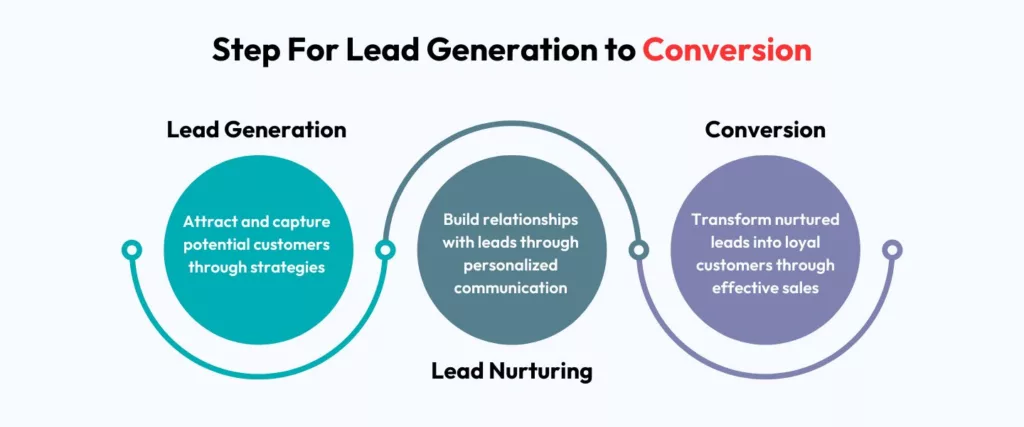
Lead generation is getting information from possible buyers, like their email addresses, names, or phone numbers. These are usually captured through forms on the website. By filling out the lead form, a visitor shows interest in the product or service. Such information can be used to follow up from time to time or share valuable resources so that the lead may finally be converted into a paying customer.
Why You Should Focus on Lead Generation?
Focusing on lead generation is essential because it brings potential customers directly to your doorstep. Unlike random website visitors, leads are people who’ve shown interest in what you offer.
According to research, companies that implement effective lead generation techniques can increase conversion rates and expand their customer base more quickly. Whatever your business is, getting leads can help. It doesn’t matter if you work for a company or for yourself.
Now that you know what lead generation is and why it’s important, let’s look at the best ways to make lead generation forms that get people to fill them out immediately.
What is Lead Nurturing?
The next step after getting these leads is to keep in touch with them. Keeping in touch with possible customers through helpful content, personalized emails, and deals that are relevant to their wants and needs is part of building relationships with them. This regular contact helps them learn about your goods or services, gets their questions answered, and builds trust.
Difference between lead generation and lead nurturing: Lead generation means finding people who might buy something. Keep in touch with leads over time to get them to buy is lead nurturing.
You can keep leads excited and give them value to make it more likely that they will buy from your business when they are ready. Reminding people who are interested in your goods over and over again how they can help them is called lead nurturing. So, they will keep buying from you.
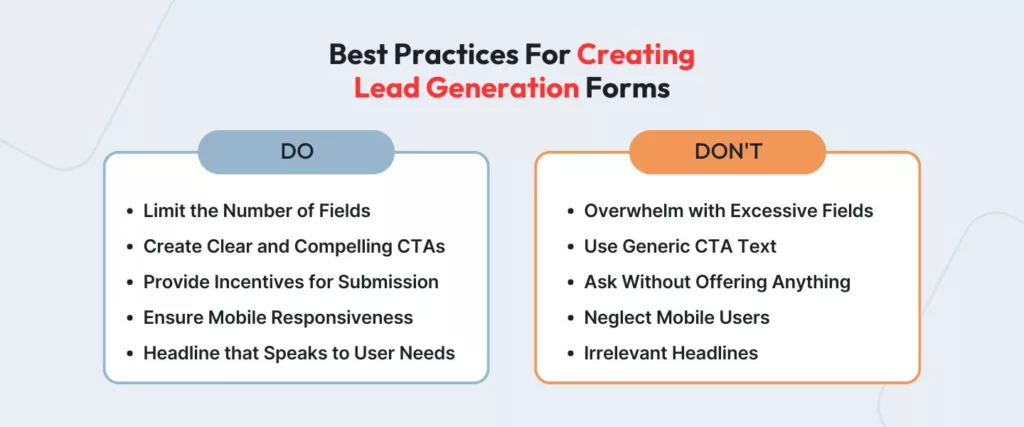
Best Practices for High-Converting Lead Generation Forms
Keep It Simple: Nobody likes forms that are too long and complicated. Keep your form as short as possible with the fields necessary for name and email or phone number.
Add Engaggble CTA Button: Instead of using a simple “Submit” on your button text, make sure it’s clear and appealing, such as “Get My Free Guide.” This will help persuade users to submit their information.
Add Attractive Headline: A headline that speaks directly to your visitor’s needs can beg them to fill out the form.
Offer Value: Give them something in return for the fill-up-like a free e-book, discount code, useful guide, or coupon to help boost form submissions grandly.
Optimize for Mobile: Since nearly half of all web traffic comes from phones, make sure your form looks great on smaller screens.
Configure Welcome Email: New leads can be effectively engaged with welcome emails. While other emails only have an open rate of 14.6%, theirs is 57.8%. Sending it immediately raises the open rate to 83%.
Ensure Privacy and Compliance: To make sure your forms follow the rules for GDPR and CCPA, add clear approval checkboxes and a link to your privacy policy. Tell people clearly how their data will be used to earn their trust and follow the law.
These best practices will help you get more leads and communicate with them more effectively.
Guide to Creating a Lead Generation Form in WordPress
Bit Form is one of those excellent plugins that will help you build forms for lead generation in WordPress. It is easy, effective, and seamlessly integrates with other tools that you are perhaps already using. Here is how you can get started with the plugin:
Install and Activate Bit Form
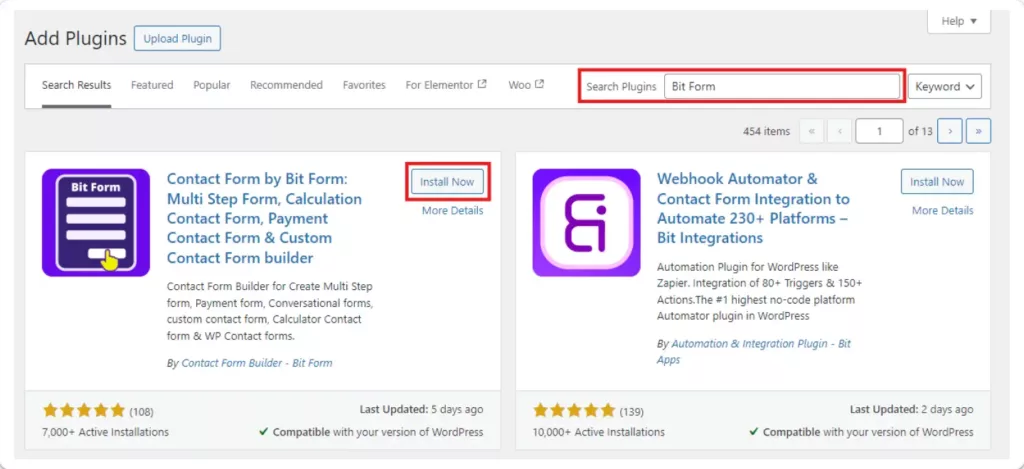
To get Bit Form onto your WordPress site, open up your WordPress Dashboard. Click “Plugins,” then “Add New.” Search for “Bit Form” and when you see it in the results, click “Install Now.” After installation, click “Activate” to get started with Bit Form.
Create a New Form
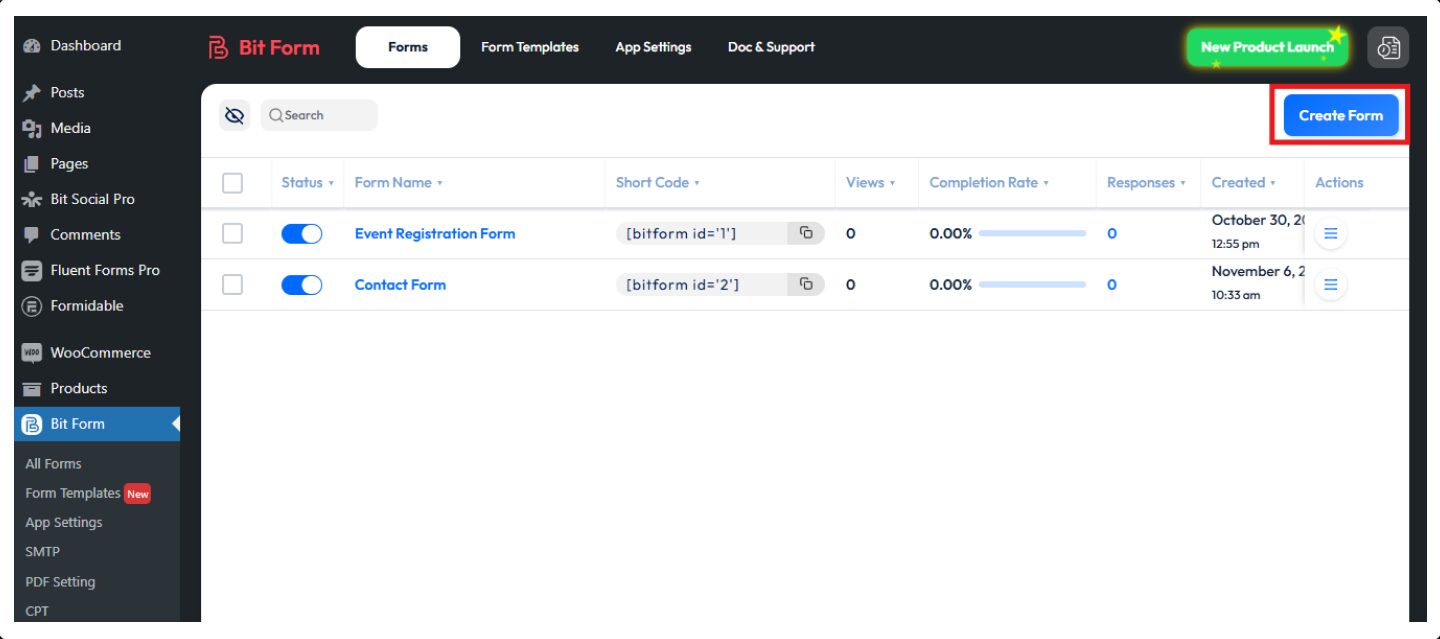
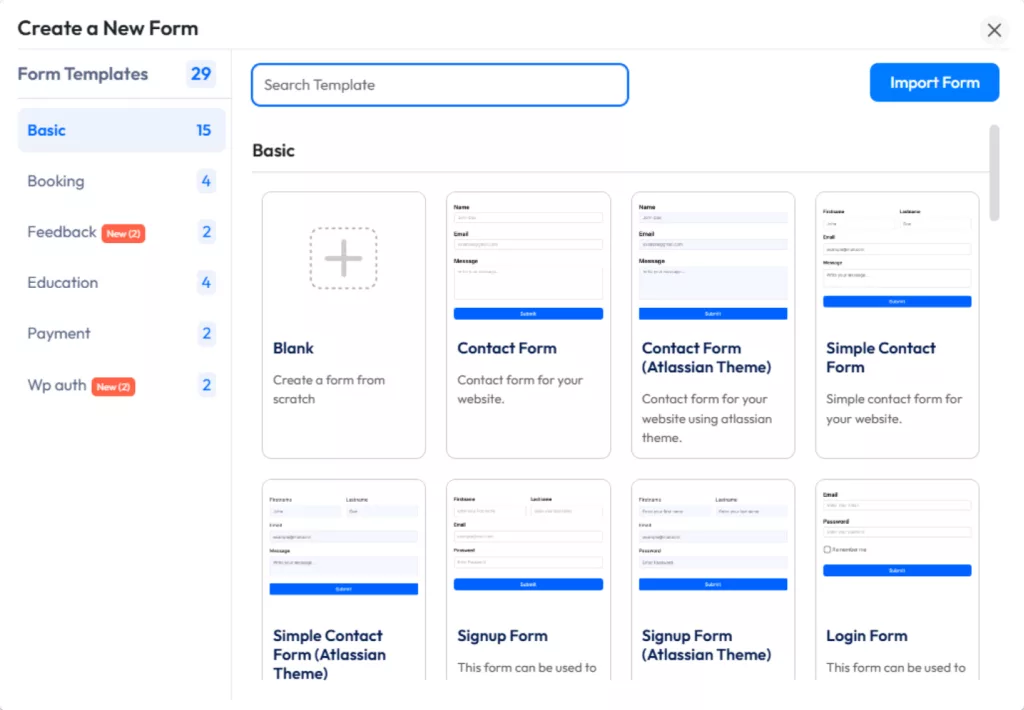
Navigate to the Bit Form menu on your WordPress dashboard, and click “Add New Form.”
Then you can either pick one of the templates or start creating your form from Blank.
Add & Customize Your Form Fields
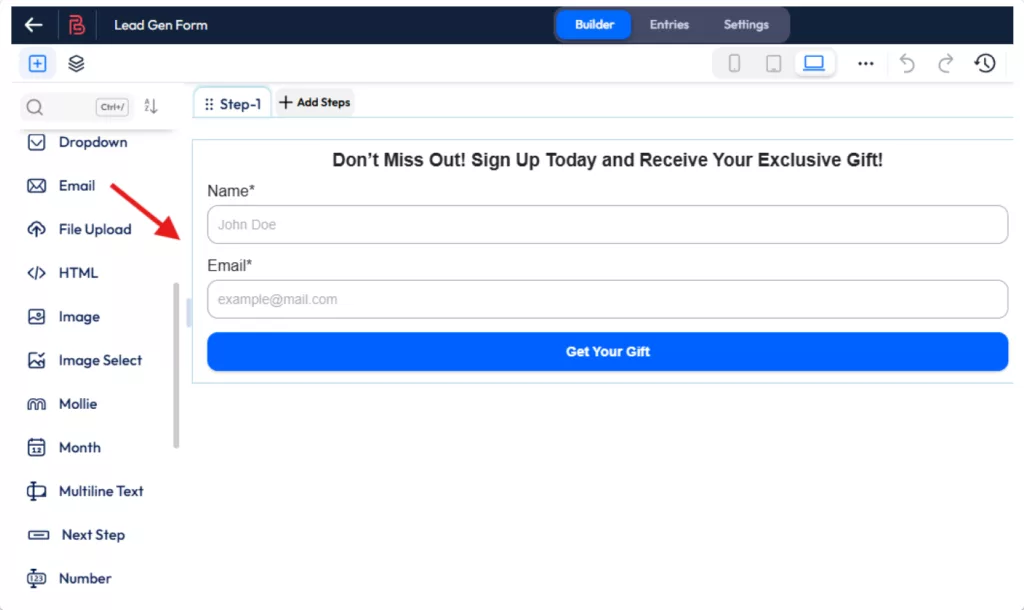
Drag the fields you want to add like Name, Email, Phone Number, etc., and arrange them as needed. Give them labels and placeholder text so it would be easier to understand.
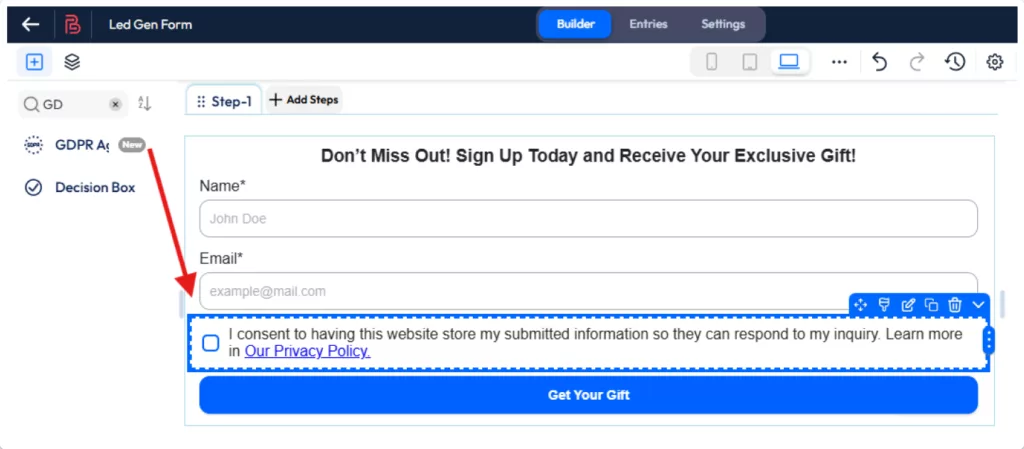
Add a GDPR consent button to your form, This one ensures transparency and informs users of how their data will be used, which is essential for GDPR compliance. To Add the GDPR button just drag and drop the button to your form builder.
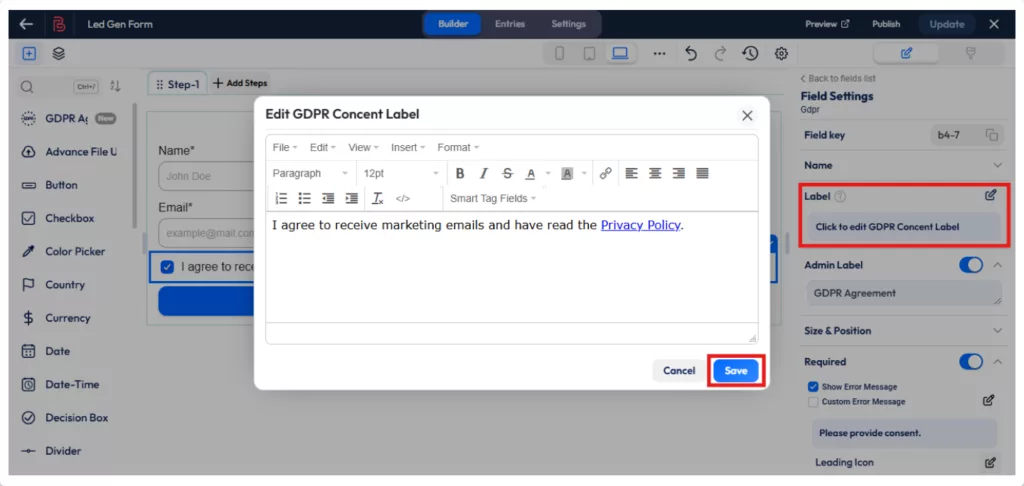
You can also edit the GDPR label text. To edit the text just click on the Label and a popup with the editor will appear. Now edit the text and hit Save.
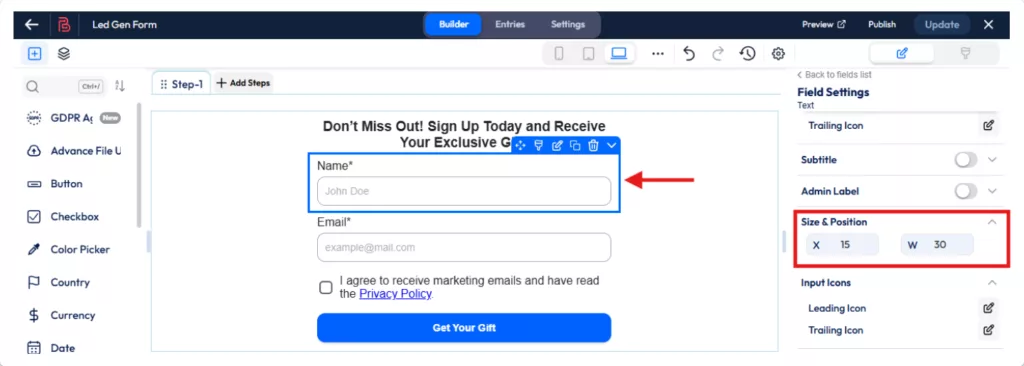
You may need to resize your form. Bit Form gives you full control to size your field width and position. To do that simply click on the Size & Position setting from your right side. Put your suitable input and update the form.
For advanced customization, you can follow this easy customization guide which will help you to make the form style match your brand style.
Set Up a Thank You Message or Redirect
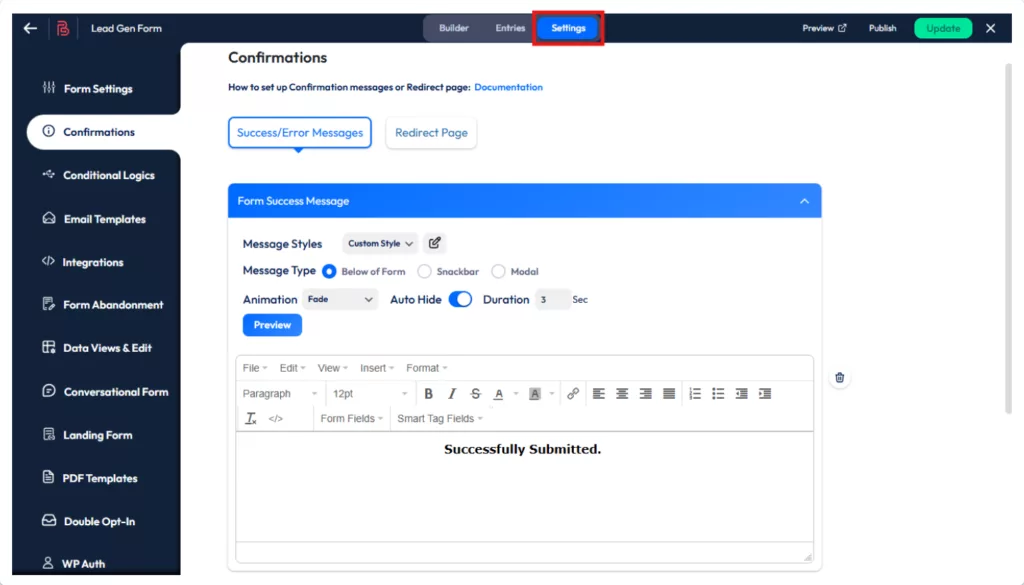
In Bit Form, you can configure the setting to send them a message once they submit the information or even redirect them to a “Thank You” page. You can also send welcome email notifications with PDF to the users.
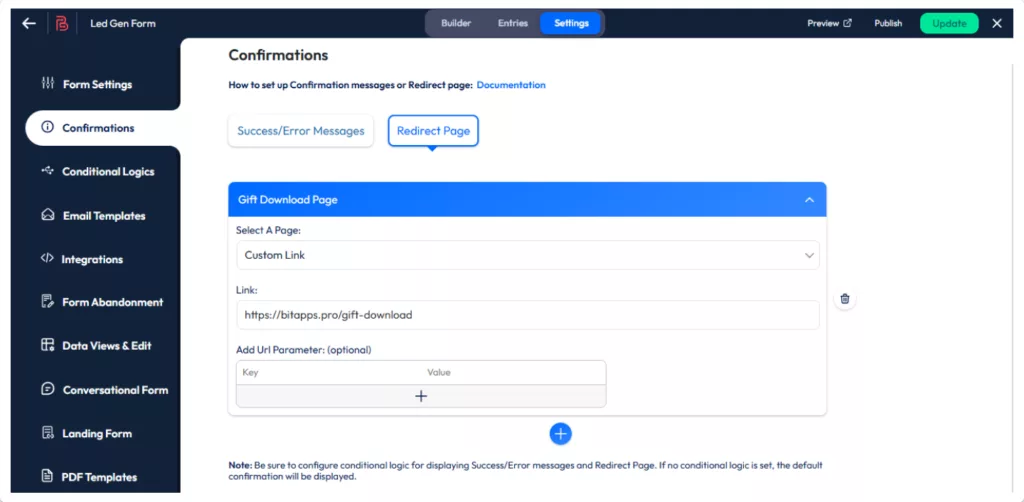
To redirect users to a custom page or any link just add the redirect link and save your form. You can also use the URL Parameter here.
Integrate with Other Tools (Optional)
Bit Form allows you to connect your form to other tools like Google Sheets or CRM software. To do this navigate to “Integrations”, andselect the tools you want to integrate with your form.
This guide will help you to integrate your form with essential tools like CRM, and Google Sheets.
Publish Your Form
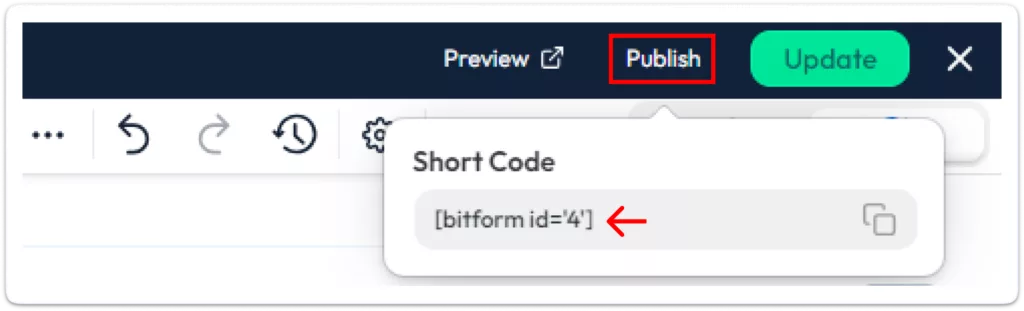
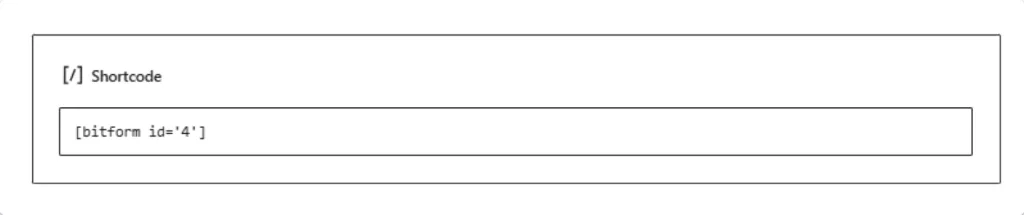
Use the Bit Form shortcode to add your form to any WordPress page, post, or on your sidebar. Preview and test to make sure it works well!
You will get the shortcode by clicking on the “Publish” button.
Now paste the shortcode wherever you want to show the form.
And that’s it! Your form is live and ready to start capturing leads.
Check Form Submissions
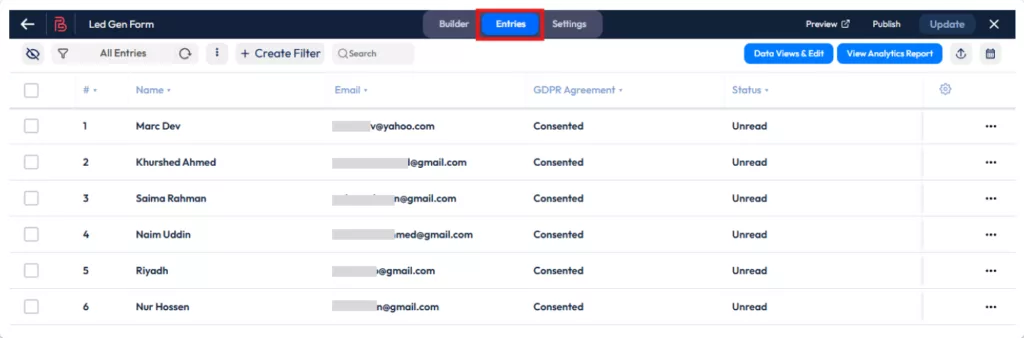
You can check and filter the responses from your Bit Form dashboard, To check the responses navigate to Entries on your Bit Form top menu and you will see all responses here.
Why Choose Bit Form?
Building lead generation forms should be easy and fast, even for non-technical people. Here’s why Bit Form stands out:
Easy to Use: Bit Form provides a drag-and-drop interface, which everyone can work with, so you don’t have to write a single line of code.
Customizable Options: fields, colors, and styles can be customized to your liking to match the look of your website and your brand.
Advanced features: Bit Form has many advanced features like conditional logic, spam protection, built-in SMTP, form abandonment, email templates, and many more.
Marketing Automation Tools: Bit Form can connect to email marketing tools, which lets you set up drip campaigns and automate lead nurturing processes to keep potential customers interested.
Follow-up with leads through automated emails: Because Bit Form has an SMTP server and email themes that you can change, you can send welcome emails and follow-up emails automatically. This keeps leads interested and moves them closer to converting.
Form Abandonment Tracking: Save incomplete submissions and get in touch with interesting leads who didn’t finish the form. This gives you another chance to nurture leads.
Conditional Logic: You can use conditional logic to make forms that change based on what the user types in. This lets you collect more specific data that can be used for personalized follow-ups.
Sending Leads to Essential Tools with Bit Form
Capturing leads is just the beginning; getting them inside the tools you use every day makes your workflow easier. Bit Form will let you send your leads directly to Google Sheets, into CRM systems, or email marketing software. Here’s how:
Sync with CRM: Directly sync your leads into your CRM and follow up immediately with your sales team.
Email Marketing Platforms: You can also trigger this integration with email marketing platforms to add leads to your newsletter or drip campaigns to keep potential customers engaged.
This integration will simplify managing your leads, organizing you, and keeping you focused on building of relationships with your potential clients.
Conclusion
Creating high-converting lead generation forms is not a complicated process. You can set up beautiful, optimized forms in minutes that capture the right information with Bit Form and help you build your audience. Simply follow the above steps, try features around in Bit Form, and you will find out how easy it’s going to be to connect with potential customers. Check out theintegrations that Bit Form offers to see how they can help you get more people to your site and better handle their information. Ready to grow your business? Take your lead generation process to the next level with Bit Form today and start changing them into loyal customers!
Dear WordPress enthusiasts! What an unforgettable experience it was! WordCamp Dhaka 2025 is over, and wow, what an amazing event it was! From beginning to end, the energy, excitement, and community spirit were truly awesome. Bit Apps was proud to be part of this grand event as the Lalbagh Legacy (Platinum) Sponsor of WordCamp Dhaka […]
Black Friday 2025 is finally here, and it’s the best time to give your WordPress website the upgrade it deserves with huge discounts! If you’ve been thinking about improving your site’s design, automating tasks, or adding more functionality, this is the perfect opportunity. This Black Friday, you can grab amazing deals on the best plugins, themes, and automation […]
When you need to collect leads, there are many ways to do it, including paid marketing. However, if you already have a website with traffic, popup marketing is one of the most effective methods. You never know when your website’s organic traffic might decline. Also, a single visit doesn’t guarantee that a visitor will return. […]
Cookie Consent
We use cookies to improve your experience on our site. By using our site, you consent to cookies.
This website uses cookies
Websites store cookies to enhance functionality and personalise your experience. You can manage your preferences, but blocking some cookies may impact site performance and services.
Essential cookies enable basic functions and are necessary for the proper function of the website.
Name
Description
Duration
Cookie Preferences
This cookie is used to store the user's cookie consent preferences.
30 days
This cookie is set by Cloudflare to help manage bot traffic and protect the website from malicious activity. It does not collect or store any personal data and is used solely for security and performance purposes.
ID used to identify users for 24 hours after last activity
24 hours
_gat
Used to monitor number of Google Analytics server requests when using Google Tag Manager
1 minute
__utmt
Used to monitor number of Google Analytics server requests
10 minutes
__utmb
Used to distinguish new sessions and visits. This cookie is set when the GA.js javascript library is loaded and there is no existing __utmb cookie. The cookie is updated every time data is sent to the Google Analytics server.
30 minutes after last activity
__utmc
Used only with old Urchin versions of Google Analytics and not with GA.js. Was used to distinguish between new sessions and visits at the end of a session.
End of session (browser)
__utmz
Contains information about the traffic source or campaign that directed user to the website. The cookie is set when the GA.js javascript is loaded and updated when data is sent to the Google Anaytics server
6 months after last activity
__utmv
Contains custom information set by the web developer via the _setCustomVar method in Google Analytics. This cookie is updated every time new data is sent to the Google Analytics server.
2 years after last activity
__utmx
Used to determine whether a user is included in an A / B or Multivariate test.
18 months
_ga
ID used to identify users
2 years
_gali
Used by Google Analytics to determine which links on a page are being clicked
30 seconds
_ga_
ID used to identify users
2 years
_gac_
Contains information related to marketing campaigns of the user. These are shared with Google AdWords / Google Ads when the Google Ads and Google Analytics accounts are linked together.
90 days
__utma
ID used to identify users and sessions
2 years after last activity
Clarity is a web analytics service that tracks and reports website traffic.