Are you looking for an easy way to manage your form data in WordPress?
Integrations to send data WordPress Form to Google Sheets are a huge time Saver and Keep Your Data Organized. This is the user guide for Google Sheets with the Bit Form plugin. This is also easy for beginners and new WordPress users.
What is Google Sheets, and why is it so popular?
Google Sheets is a fantastic free tool for creating and sharing spreadsheets. It helps you organize data, make lists, perform calculations, and more. Perfect for keeping everything in order and getting things done. Additionally, with multiple users working on the same sheet simultaneously, it’s excellent for efficient data management and team collaboration. Also, You can access it from any internet-connected device, and it even saves your work automatically!
Why Use Bit Form Plugin for WordPress and Google Sheets Integration?
Integrating your WordPress forms with Google Sheets has many benefits. Here are a few reasons why you should consider this integration:
- Easy Data Management: With Google Sheets, you can see how to edit and manage your data centrally. This means you can avoid using manual data input from your WordPress forms.
- Time-Saving: If you set up automatic data transfer, it can save you time. This way, you can focus on other essential tasks.
- Real-Time Updates: After you finish the integration, Google Sheets will update instantly whenever a new form is submitted.
- Accessibility: Since Google Sheets is cloud-based, you can check the submission form anywhere.
- Collaboration: You can share your Google Sheet with the team, and they can easily access and update with data.
Guide to Send Data WordPress Form to Google Sheets
Here’s how you can set up the Google Sheets integration with Bit Form to send data WordPress form to Google Sheets:
1. Install and Activate the Bit Form Plugin
Now, let’s set up the Bit Form plugin in WordPress. Go to your WordPress dashboard. Navigate to Plugins > Add New> Search for “Bit Form” > Click “Install” and then “Activate.” You can also follow this plugin installation guideline.
2. Create a Form
After activating the plugin, you have to navigate to Bit Form in the WordPress dashboard. Click “Add New Form”. Create your form with fields like Name, Email, and Message or whatever you need. Also, you can select an existing form to send data WordPress form to Google Sheets.
3. Configure the Bit Form Plugin
Go to Bit Form Settings> Select the Integrations from the left menu and Click the + (Plus) icon. Now, search for the Google Sheets. You will see the Google Sheets integration interface.
4. Set Up Google Sheets API
To configure the integration, we need to add Client ID and Client Secret from the Google API Console. This allows Bit Form to send data WordPress form to Google Sheets.
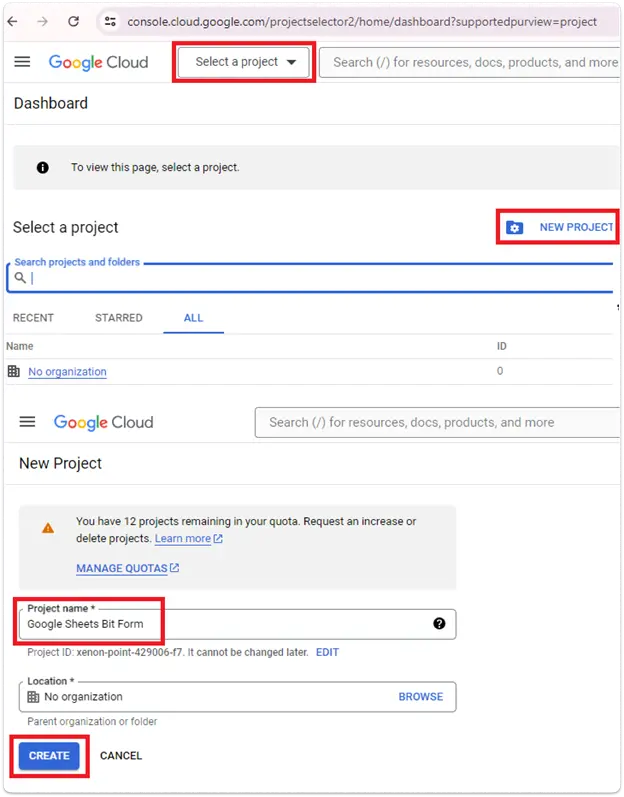
To get this, we have to Create a New Project in Google Cloud Console. Go to the Google Cloud Console. Click on “Select a project.” And then “New Project.” Give your project a name and click “Create.”
5. Enable the Google Sheets & Google Drive API
For Bit Form Google Sheets Integration, To send data WordPress form to Google Sheets, you must enable the Google Sheet & Google Drive API. To do that, go to the Library in the Google Cloud Console.
Search for “Google Sheets API.”
Click “Enable.” Follow the same steps to enable the Google Drive API.
6. Configure Consent Screen
Once the API is enabled, go to the “OAuth Consent Screen.” Choose “External” as the user type and click “Create.” Fill in your app’s name, support email, and developer contact information.
Add the scopes for “Google Drive API” and “Google Sheets API.” Continue clicking “Save and Continue” on each screen until you arrive at the dashboard. Finally, publish your app and confirm.
7. Generate Client ID and Client Secret
Next, navigate to the “Credentials” section and select “Create credentials.” From the options, choose “OAuth Client ID.”
Set the application type to “Web Application” and assign it a name.
In the “Authorized JavaScript origins” field, enter your “Homepage URL.” In the “Authorized redirect URIs” field, input the “Authorized redirect URIs” provided on the integration page. Finally, click “Create.”
8. Obtain and Utilize Credentials
Your Client ID and Client Secret will now appear on the screen. Copy these details and paste them into the appropriate Bit Form integration page fields.
After submitting your Google Sheets Client ID and Client Secret, click the “Authorize” button to proceed.
Once authorization is complete, click “Next” to proceed.
9. Select Spreadsheet & Worksheet
Select a spreadsheet from the drop-down menu labeled “Spreadsheets.”
Then, choose a specific worksheet from the “Worksheet” drop-down menu.
Specify your Header Row, such as A1, in the integration settings.
Look for the “Map Fields” option. Here, you will connect fields from your form to the corresponding columns in Google Sheets. If you need to map more fields, click the Plus (+) icon to add them.
Once you do everything as needed, click the “Save & Finish” button to save the integration settings.
Now, Bit Form is successfully connected with Google Sheets, and you can send data WordPress form to Google Sheets!
Conclusion
Use the Bit Form plugin to easily send data WordPress form to Google Sheets, simplifying your data management. This friendly tool offers real-time updates and data access, perfect for beginners. Whether you’re managing contact forms, surveys, or other forms on your WordPress site, this integration simplifies your working process.
Don’t wait! start using the Bit Form plugin today and see the difference it makes for your WordPress site! Check out our guides, tutorials, and FAQs, and join our Facebook Community for tips and advice from fellow users and developers. Need help? Reach out via email or live chat for quick support. Start your journey to smoother, more efficient data management today!
Bonus: Bit Form works with over 47+ integrations, making your lead generation and customer management easier. It saves you time and effort and increases your overall efficiency. Get Bit Form now and upgrade your WordPress form experience to the next level!
FAQs
How Can I Send Data from Bit Form to Google Sheets?
Bit Form allows you to send data directly to Google Sheets. You can set up this integration by creating a new form, configuring the fields, and connecting your Google Sheets account. Once set up, any form submission will automatically be recorded in the specified Google Sheet.
How Do I Automatically Sync Bit Form Data to Google Sheets?
To automatically sync data from Bit Form to Google Sheets, you can use the built-in integration feature within Bit Form. After creating your form, navigate to the integrations settings, select Google Sheets, and follow the prompts to map your form fields to the columns in your Google Sheet.
Can I Send Data from Multiple Bit Forms to the Same Google Sheet?
Yes, Bit Form allows you to send data from multiple forms to the same Google Sheet. You can map each form’s fields to specific columns within the same sheet, allowing you to manage all your submissions in one place.
How to Map Bit Form Fields to Google Sheets Columns?
When setting up the integration between Bit Form and Google Sheets, you’ll be prompted to map each form field to a specific column in your Google Sheet. This ensures that the data is organized and stored correctly in the sheet.
Is It Possible to Filter Which Bit Form Submissions Get Sent to Google Sheets?
Yes, Bit Form allows you to use conditional logic to filter which submissions are sent to Google Sheets. You can set specific criteria within the form, so only certain submissions are recorded in your Google Sheet based on the conditions you define.
Can I Send File Uploads from Bit Form to Google Sheets?
While Google Sheets itself doesn’t store files, Bit Form can send the URLs of uploaded files to your Google Sheet. This allows you to keep track of file uploads by storing the download links in the sheet.
How to Handle Errors When Sending Data from Bit Form to Google Sheets?
If you encounter errors when sending data from Bit Form to Google Sheets, there could be several causes, such as network issues, expired access tokens, and more. To troubleshoot, review your form responses and check the integration log. The log will help you identify and confirm the specific reason for the error.
How Do I Keep My Bit Form Integrations with Google Sheets Running Smoothly?
To ensure smooth operation of your Bit Form integrations with Google Sheets, regularly update the Bit Form plugin, monitor the integration for any issues, and verify that your Google Sheets API connection remains active. Scheduling regular checks can help prevent disruptions.