Tired of getting spam and bot submissions from your WordPress contact form? You’re not alone! Let’s fix this quickly with easy steps and say goodbye to contact form spam!
Dealing with endless fake contact form submissions can be incredibly frustrating for WordPress site owners. Spam bots can fill your inbox, waste valuable time, and even hurt your site’s performance and SEO.
Also, spam can slow down your site, degrade user experience, and undermine trust in your business. This guide will walk you through why WordPress forms attract spam and exactly how to protect your forms using Bit Form’s built‑in spam protection.
Table of Contents
Why Do Bots Fill Out Contact Forms?
Bots fill out contact forms to send lots of fake messages and ads. Sometimes they try to trick people with bad links or try to find ways to break the website. They do this because contact forms are easy to use, and it can cause problems like spam and hacks. That’s why websites need things like reCAPTCHA to stop bots.
WordPress powers roughly 43–44% of all websites on the internet. So, spammers have a huge options to target WordPress sites. Every unprotected contact form on a WordPress site is a potential target. Many WordPress forms or plugins may not have strong security by default. Which makes them easy for automated bots to exploit.
Also, modern spambots are very sophisticated; some can even bypass simple CAPTCHAs or inject data via vulnerabilities. Even small blogs and businesses using WordPress often get hit by bots looking for unsecured forms.
Why Spam Submission is Bad for Your Site
Spam submissions aren’t just annoying, they can hurt your site and business in multiple ways:
Performance & UX: Huge spam requests can overload your server or slow down your site, harming user experience and even SEO (search engines penalize slow or high-error sites).
Security & Trust: Spam bots often try to submit malicious links or exploit form vulnerabilities. If a bot sneaks malware or phishing links through your form, it can compromise your site or your users’ data.
Business & Reputation: Tons of spam in your inbox waste time and can lead to missed legitimate leads. Users may also lose trust if spammy or irrelevant content gets through. For example, if automated contact form spam triggers huge email send volumes, it can cause deliverability errors and damage your sender reputation.
Data Integrity: Spam submissions skew analytics and can hide real user inquiries. Some forms are even hijacked to send spam on your behalf, harming your domain’s reputation.
In short, form contact form spam is more than just junk, it can affect your SEO rankings, slow your site, breach security, and erode customer trust. That’s why blocking contact form spam at the source is critical.
How to Stop Contact Form Spam in WordPress with Bit Form
Bit Form includes powerful features to protect your WordPress forms. You can protect yourself by using the Bit Form’s Google reCAPTCHA field. Here’s how to use them step by step:
Integrate Google reCAPTCHA to Stop Fake Contact Form Submissions
Bit Form fully supports Google reCAPTCHA v2 and v3, which integrates Google reCAPTCHA into WordPress forms to enable a free anti-spam service to verify real users. In reCAPTCHA v2 (“I’m not a robot”), users check a box or solve an image challenge, which blocks most bots. The v2 checkbox and image tests are very user-friendly in Bit Form. People just click a box or select pictures, and legitimate users breeze through, while spambots are kept out.
Google’s newer reCAPTCHA v3 runs quietly in the background and assigns each visitor a “spam score” based on behavior and interactions. If the score is low (bot-like behavior), Bit Form can be configured to reject the submission. This means no user-facing challenge at all. Real visitors don’t see extra captchas, but abusive traffic is caught behind the scenes.
To configure Google reCAPTCHA to prevent spam in WordPress forms, follow these simple steps:
1) Install and activate the Bit Form plugin and navigate to Bit Form’s App Settings → CAPTCHA. And click on the captcha option that you want to configure. Here I will configure reCAPTCHA V2 and will show you how it works.
2) After selecting the reCAPTCHA V2, the configuration interface will appear. Here we have to add Google reCAPTCHA site key and site secret.
3) Now you need the site key and secret key from the reCAPTCHA admin. To get this information, visit the Google reCAPTCHA admin and click on the + icon.
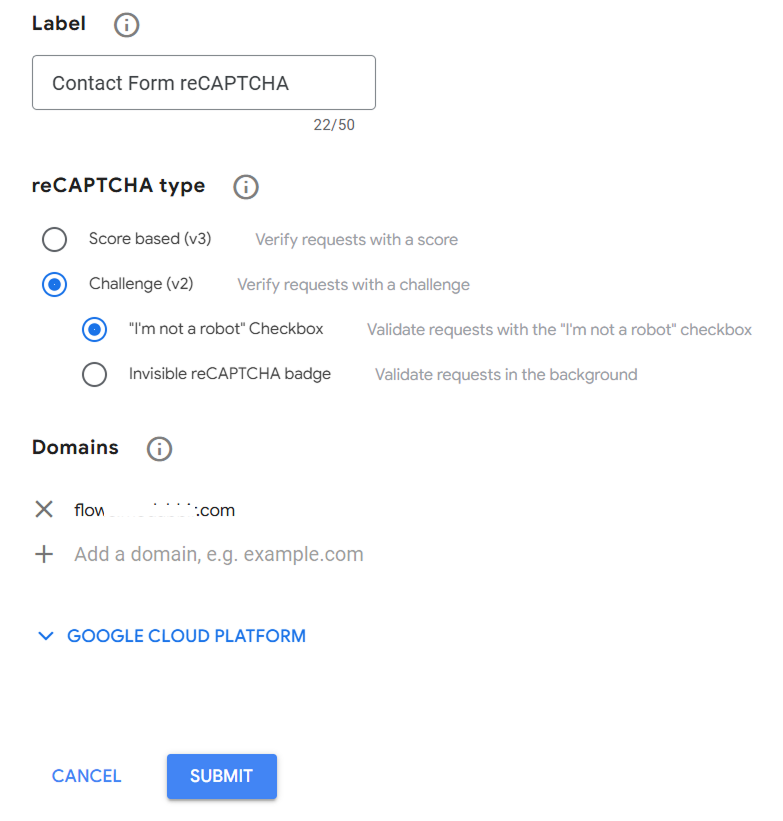
4) Set a label to identify your configuration later and select the reCaptha type V2, and select the method. Here, I have selected the “I’m not a robot” checkbox option. Then add the domain URL. After adding the domain name, click on the Submit button.
5) After clicking on the submit button, you will get the reCAPTCHA Site Key and Secret Key. Copy these keys and paste them into your Bit Form reCAPTCHA V2 setting. And then click on the save button.
6) Done! You have successfully configured the Google reCAPTCHA V2 to prevent spam in WordPress forms. Now you will see the configuration on the Bit Form Captcha page.
7) Now you just need to add the reCAPTCHA field to your Bit Form and hit the update button. That’s all! Now your form is protected from spam or bot submissions.
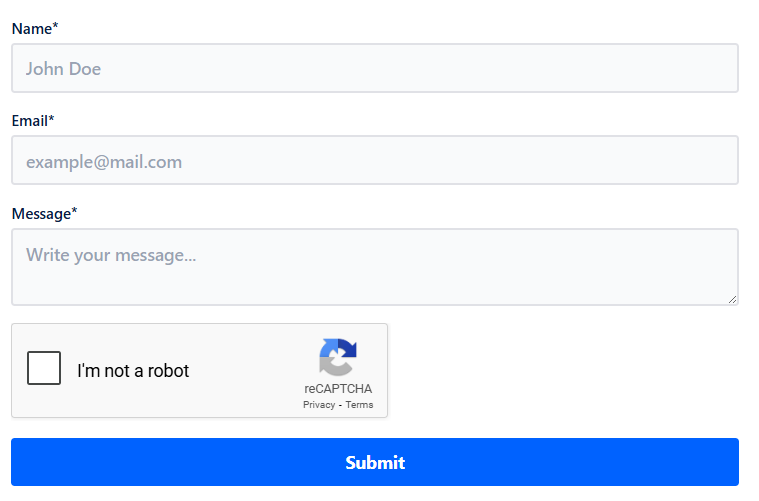
Preview your form and do some test submissions. Here is a live preview of a reCAPTCHA form made with Bit Form.
💡 Easily create a contact form on your WordPress site with a powerful WordPress form builder plugin.
You can change the color and size of the reCAPTCHA field as per your preferences. You can choose Dark or Light color mode and Normal or Compact size.
Google reCAPTCHA v2 vs v3: Key Differences Explained
When choosing between Google reCAPTCHA v2 and v3, it’s important to understand how each version impacts user experience and security. Here’s a quick side-by-side comparison to help you decide which fits your needs best:
Feature
reCAPTCHA v2
reCAPTCHA v3
User Interaction
Requires user action (e.g., clicking “I’m not a robot” checkbox or solving puzzles)
Invisible. No user interaction required
Detection Method
Challenges to confirm humans (checkbox, image selection)
Scores user behavior silently in the background
User Experience
Can annoy users with extra steps
No interruptions, smoother UX
Security Level
Effective but can be bypassed by advanced bots
Uses advanced risk analysis, harder to pass
Use Cases
Good for simple forms or login pages where a quick challenge is okay
Best for sites needing frictionless protection and continuous monitoring
Customization
Limited. Fixed challenge types
Flexible. Custom scoring thresholds and actions based on risk score
Watch this quick tutorial to learn how to set up Google reCAPTCHA v2 on your. It’s perfect if you want an easy way to add basic bot protection with user challenges.
This video shows you how to configure Google reCAPTCHA v3, invisible bot protection using advanced risk scoring.
Additional WordPress Form Spam Protection Best Practices (For Pro Users)
Beyond Bit Form’s reCAPTCHA fields, you can further tighten security with these best practices:
Limit Form Submissions: Use Bit Form’s “Disable this form after a limited entry” feature to disable the form after a set number of entries. You might stop accepting responses after 100 submissions or reopen the form after a certain time. This helps prevent bots from submitting endlessly. To do that, navigate to Bit Form Form Settings and enable the “Disable this form after limited entry” and put the number that you want to limit after.
Block IP Addresses: In Bit Form Settings, there’s a Blocked IP List where you can add addresses of known spammers. Any submissions from those IPs will be automatically rejected. You can also use WordPress security plugins or your server firewall to block abusive IPs at a higher level.
Email Validation: Always use an email field that checks for a valid address, and consider using double opt-in for signups. You can also block disposable or suspicious email domains by using RegEx Pattern in Bit Form. This ensures bots or throwaway addresses can’t sneak through.
Geo/Country Restrictions: If your business only serves certain countries, use country filters to block traffic from other regions. Bit Form can disable submissions from specific countries to reduce irrelevant contact form spam.
Keep Plugins Updated: Regularly update WordPress, Bit Form, and all plugins. Many spam bots exploit outdated plugins. A secure, up-to-date site is much harder to attack.
By combining Bit Form’s spam fields with smart practices like submission limits and IP blocks, you’ll build multiple layers of defense. This drastically reduces junk submissions and keeps your data and analytics clean.
Conclusion
Stop wasting time on junk messages and protect your brand. With Bit Form’s contact form spam protection tools (reCAPTCHA v2/v3, Cloudflare Turnstile, honeypot, and HCaptcha), you can shut down bots quickly.
These features are easy to set up in Bit Form’s settings and dramatically improve your WordPress form security. Combine them with good practices (submission limits, IP blocks, email validation) and you’ll see spam virtually disappear from your forms.
Don’t let spammers run your business. Install Bit Form today, activate its anti-spam features, and enjoy a cleaner inbox and safer site!
Frequently Asked Questions
Why is my contact form getting spammed?
Bots target WordPress forms because WordPress powers nearly half of all websites. Many forms lack strong security by default, making them easy targets. Spammers use automated bots to flood forms with fake entries, wasting your time and resources.
How to stop spam on contact form in WordPress?
Use tools like Bit Form, which includes built-in Google reCAPTCHA even in its free version. Limiting submissions, blocking spammy IPs, and validating emails help keep bots away effortlessly.
Why do bots fill out contact forms?
Bots scan the web for unprotected forms. They submit junk data to exploit vulnerabilities, send phishing links, or hijack your site’s reputation. Their goal is to spam, scam, or overload your server.
How do you prevent bots from submitting forms?
The most effective way to block bots is by adding Google reCAPTCHA to your forms. It verifies whether a user is human by challenging suspicious visitors with tests like image selection (reCAPTCHA v2) or by silently scoring visitor behavior (reCAPTCHA v3). These tools stop most bots without bothering real users.
How to secure a WordPress contact form?
Use Bit Form, which offers Google reCAPTCHA in its free plan. Combine this with email validation and IP blocking for robust form security.
Are WordPress forms secure?
Many WordPress forms aren’t fully secure. But Forms like Bit Form is secure, and you can significantly reduce spam and keep your site safe.
How do I add reCAPTCHA to WordPress contact form?
Simply install Bit Form, enter your Google reCAPTCHA keys in settings, and add the reCAPTCHA field to your form. It’s free, quick, and effective.
What is the best way to set up a contact form in WordPress?
Choose a plugin like Bit Form that offers free Google reCAPTCHA, submission limits, and IP blocking, all key to balancing security with a smooth user experience.
Why is my website contact form getting spammed?
Because it’s missing spam filters. With Bit Form’s free reCAPTCHA, you get a powerful, no-cost way to stop spam bots.
How to protect forms from spam?
Use Bit Form’s free Google reCAPTCHA, plus features like submission limits and IP blocking, to create a multi-layered defense that blocks spam and keeps your data clean.
Ever feel like managing appointments is taking up more time than actually serving clients? Service-based businesses that switch from manual bookings to online booking systems have seen a significant boost of 27% to 37% in revenue. Plus, 69% of customers are more likely to book with a company that offers online booking . With these […]
Are you planning to build an online food ordering website, but not sure where to start with WordPress? More customers now prefer ordering food online instead of calling. If your website does not support online orders, you risk losing customers to places that do. A well-structured food ordering website lets you show your menu clearly, […]
When you need to collect leads, there are many ways to do it, including paid marketing. However, if you already have a website with traffic, popup marketing is one of the most effective methods. You never know when your website’s organic traffic might decline. Also, a single visit doesn’t guarantee that a visitor will return. […]
Cookie Consent
We use cookies to improve your experience on our site. By using our site, you consent to cookies.
This website uses cookies
Websites store cookies to enhance functionality and personalise your experience. You can manage your preferences, but blocking some cookies may impact site performance and services.
Essential cookies enable basic functions and are necessary for the proper function of the website.
Name
Description
Duration
Cookie Preferences
This cookie is used to store the user's cookie consent preferences.
30 days
This cookie is set by Cloudflare to help manage bot traffic and protect the website from malicious activity. It does not collect or store any personal data and is used solely for security and performance purposes.
Used by Google Analytics to determine which links on a page are being clicked
30 seconds
_ga_
ID used to identify users
2 years
_gid
ID used to identify users for 24 hours after last activity
24 hours
_gat
Used to monitor number of Google Analytics server requests when using Google Tag Manager
1 minute
__utmt
Used to monitor number of Google Analytics server requests
10 minutes
__utmb
Used to distinguish new sessions and visits. This cookie is set when the GA.js javascript library is loaded and there is no existing __utmb cookie. The cookie is updated every time data is sent to the Google Analytics server.
30 minutes after last activity
__utmc
Used only with old Urchin versions of Google Analytics and not with GA.js. Was used to distinguish between new sessions and visits at the end of a session.
End of session (browser)
__utmz
Contains information about the traffic source or campaign that directed user to the website. The cookie is set when the GA.js javascript is loaded and updated when data is sent to the Google Anaytics server
6 months after last activity
__utmv
Contains custom information set by the web developer via the _setCustomVar method in Google Analytics. This cookie is updated every time new data is sent to the Google Analytics server.
2 years after last activity
__utmx
Used to determine whether a user is included in an A / B or Multivariate test.
18 months
_ga
ID used to identify users
2 years
_gac_
Contains information related to marketing campaigns of the user. These are shared with Google AdWords / Google Ads when the Google Ads and Google Analytics accounts are linked together.
90 days
__utma
ID used to identify users and sessions
2 years after last activity
Clarity is a web analytics service that tracks and reports website traffic.