In the realm of WordPress, forms are the backbone of user interaction. Whether it’s for gathering contact information, booking appointments, or even conducting surveys, forms serve as a critical bridge between users and website owners. However, not all forms are created equal. The use of advanced conditional logic techniques for WordPress forms transforms them from static lists of fields to dynamic, interactive tools that adapt to the user’s input, providing a tailored and efficient experience.
Conditional logic allows form elements to change based on the inputs provided by the users. For example, certain fields can be shown or hidden, specific notifications sent, or particular confirmation messages displayed, all depending on how the user interacts with the form. This not only makes the form shorter and simpler but also more relevant to each user, which can greatly enhance the user experience and improve the quality of data collected.
Understanding Conditional Logic in Form Building
What is Conditional Logic?
Conditional logic, in the context of form building, refers to the capability of a form to change its behavior based on the user’s inputs or selections. This feature enables form fields to be shown or hidden, actions to be taken, or notifications to be sent depending on the conditions that are met during the form-filling process. Essentially, it allows forms to be smart and interactive, adapting to the user’s needs in real-time.
In practical terms, conditional logic can be applied in various ways within a form. For instance, if a user selects “Other” in a dropdown menu asking for their profession, a new text field can appear asking them to specify their profession. This dynamic adjustment makes forms more intuitive and responsive, significantly enhancing the user experience.
Benefits of Using Conditional Logic in Forms
Improved User Experience: Forms with conditional logic are typically shorter and more relevant to the user’s specific situation, which reduces user frustration and increases form completion rates.
Streamlined Workflows: By automating actions based on user responses, conditional logic can help streamline workflows. For example, it can automatically send a tailored email response based on the selections a user makes, reducing the need for manual intervention.
Enhanced Form Functionality: Conditional logic can transform a simple form into a powerful tool capable of complex data collection and decision-making processes. This can be particularly useful in applications like registrations, surveys, and any form that requires conditional data input.
Increased Accuracy and Relevance of Data Collected: By guiding users through the input process and only asking relevant questions, conditional logic ensures that the data collected is more accurate and tailored to each individual’s circumstances.
Reduction in Visual Clutter: By only displaying fields that are relevant based on previous answers, conditional logic helps keep the form visually uncluttered, which can be less daunting for users and encourage more accurate and thoughtful responses.
Advanced Conditional Logic Techniques for WordPress Forms
We’ll go over how to use simple to complex conditional logic in various WordPress forms. In essence, we will demonstrate five levels of conditional logic, from simple to complex, that are critical to the success of websites and lead generation.
Show or hide form fields based on user inputs
Form for Email Notifications Based on User Selection
Set condition on payment form
Conditional redirects after form submission
Conditional Calculator Form
Show or hide form fields based on user inputs
Conditional logic can show or hide form fields based on user inputs. For example, if a user selects a specific option from a dropdown, additional relevant fields can appear, streamlining the form-filling process and keeping forms concise.
See this form, if you select email, the email option will be visible and other options will be hidden.
If you select phone, the phone option will appear and the email field will be hidden.
Go to settings > conditional logics > check only on field input > then apply the condition that I have shown in this image.
Email Notifications and Routing
Forms can automatically send notifications to different departments or email addresses based on the answers provided.
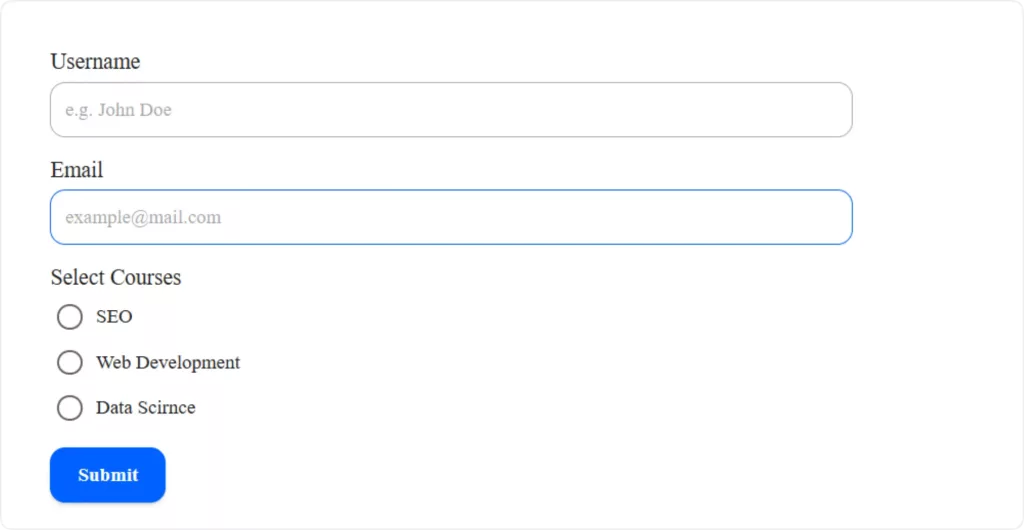
For example, you want to create a form like the below one. When one selects a seo course then an email notification related to this course will be sent to the users. If anyone selects Data Science, an email notification related to Data Science will be sent to that user automatically. How this could happen with bit form let’s see.
Just drag and drop the username, email and radio button fields. Add some options in the radio button fields. When users select a specific course, a particular email will automatically sent to the users. To make it happen just follow the instructions.
Instruction 1: Go to the settings > Email Templates > create 3 new email templates for SEO, Web development and Data science.
Instruction 2: After clicking on add new Template you will see a page appear like the below one. Here you can write the directions for this specific course. You can insert a link, image, and Media, plus you can set the format and everything whatever you want to do as you do with the doc file. Now save the template and create 2 more templates with different names and save them.
Put conditions on this form
Now apply the conditions to send the email to the different users as per their form fill-up.
Go conditional logic > Click on the “add conditional logic” button > Only On Form Submit and condition. Here I set the condition like- if “Select Courses” is equal to ‘SEO’ then check the success message and Email notification field. Fields and options that you have created in the Bit form builder, you can see all of them in the conditional logic area.
Similarly, you have to set conditions for web development and data science courses by simply clicking on “add conditional logic”. That’s it. You have done it.
Now to see the result, fill out the form and check the email.
Conditional Payment form
You can offer multiple payment options through the Bit Form based on what a user selects, such as different payment plans or donation amounts. This customization helps reduce cart abandonment by catering to the preferences of different users.
Bit Form has 3 available payment options. You can integrate Paypal, Razorpay, and Stripe. All you have to do is to drag and drop all payment fields and then hide them as I have shown in the first form. Then set conditional logic like- if anyone selects Paypal from the dropdown box then the Paypal payment option will be visible and the other option will remain hidden. To properly integrate and set all payment gateway you can go through a content. Here I have shown how to create a WordPress payment form using conditional logic step by step.
Conditional redirects after form submission
After a form is submitted, you can direct users to different landing pages based on their responses. This can help personalize the user’s experience and guide them to more relevant content or follow-up actions.
For example, you have a travel form like the below one where users can submit where they want to travel. A different landing page will appear after selecting a particular place. To make it happen you have to follow some instructions and set conditional logic. Let’s start.
Instructions: Settings > Confirmations > Set multiple Redirect Page for multiple options (travel places) > Set link. That’s it, now ready to set conditions.
Put conditions on this form
Go to conditional logics > check, Only on Form Submit > Condition
Conditions should be if the “Where do you want to travel” field is equal to “Grand Canyon” then check Redirect Url (put Grand Canyon option).
Similarly, set other conditions for other places by clicking on the “Add Conditional Logic” button. Like- if the “Where do you want to travel” field is equal to “Cape Town” then check Redirect Url (put Cape Town option).
By the way for your kind information, this option name and field name in the drop-down box are coming from the form builder where you set these before. Now update your form and see the result.
Conditional Calculator Form
If you have a calculator form on your website or any form where a calculation is needed, in that case setting conditional logic is necessary.
For example, if you have a form like the below one where you will fill in the product amount and VAT fields and the total amount field will automatically filled by those two fields.
If you put the product amount as 100 and VAT as 10, the total amount field will come with 110 automatically. However, you can set multiple products with this form builder as we have multiple image-select fields. Well, how it is possible and what conditions you have to set to make it happen.
Put conditions on this form
Settings > conditional logics > check Only on Field Input
The condition is like –
If > the Product amount Or Vat field is not null
Then > Total amount > Value > product amount+(product amount* Vat)/100
That’s it. You will get the result. Test it.
Advanced Tips and Tricks for Mastering Conditional Logic in WordPress Forms
Troubleshooting Common Issues with Conditional Logic
While conditional logic is a powerful tool, implementing it can sometimes introduce complexities that lead to common issues. Here are some typical problems and their solutions:
Conditional Logic Not Triggering: If the conditional logic does not activate as expected, ensure all conditions are set correctly. Double-check field identifiers and make sure there is no conflict between multiple conditional rules affecting the same field.
Slow Form Performance: Complex or numerous conditional logic rules can slow down form performance. To mitigate this, optimize your logic by combining conditions where possible and keep the form design as simple as you can.
Incompatibility with Form Styles or Themes: Sometimes, conditional logic might not display correctly due to CSS or JavaScript conflicts with your WordPress theme. Try testing the form with a default WordPress theme, and if it works, you’ll need to adjust your theme’s CSS or JavaScript.
Conflicts with Other Plugins: Plugin conflicts can disrupt the functionality of conditional logic. Deactivate other plugins temporarily to identify the culprit, and consider replacing the conflicting plugin or seeking an alternative solution.
Optimizing Forms with Conditional Logic
Enhancing form efficiency and user experience with advanced conditional logic features requires a strategic approach. Here are some tips to effectively use conditional logic in your forms:
Simplify User Paths: Design your form’s conditional logic to minimize the number of inputs needed from the user. Direct users through the shortest possible paths based on their selections to keep forms concise and focused.
Utilize Conditional Logic for User Segmentation: Use conditional logic to segment users by input to customize the form experience. It can assist send more tailored follow-up emails or activities for each user group.
Dynamic Data Population: Use conditional logic to automatically fill in data fields based on known information about the user, reducing the amount of data entry required from them.
Conditional Logic in Multi-Step Forms: In multi-step forms, use conditional logic to skip entire sections based on user responses. This not only saves time for the user but also makes the form appear less daunting.
Testing and Feedback: Regularly test new conditional logic implementations in a staging environment. Gather user feedback on the form’s functionality and user-friendliness, and use this information to make iterative improvements.
Wrapping up
Throughout this blog, we’ve explored the transformative impact that conditional logic can have on WordPress forms. From basic definitions and setup instructions to advanced optimization techniques and troubleshooting common issues, we’ve covered everything you need to know to start implementing dynamic and responsive forms on your website.
Bit Form stands out not only for its robust features and ease of use but also for its incredibly efficient performance, loading only 15 KB of JS & CSS. This ensures that your site remains fast and responsive, even as you implement complex form functionalities. Moreover, with pricing that begins at just $29 for the Pro version, Bit Form makes advanced form capabilities accessible to everyone. The best part? Whether you choose the Pro or Agency version, you gain access to all premium features. The only difference lies in the number of sites you can manage, making Bit Form a cost-effective solution for both individual developers and agencies.
Share Your Experiences and Questions
We’d love to hear from you! If you’ve tried implementing conditional logic using Bit Form or any other tools, share your experiences in the comments below. Do you have questions or need further assistance? Don’t hesitate to ask. Your feedback helps us improve and enrich our community’s knowledge. By integrating conditional logic into your WordPress forms, you’re not just building forms—you’re creating smarter, more interactive experiences that users will appreciate. So why wait? Dive into the world of dynamic forms today and see the difference it makes!
As 2025 comes to a close, it’s time to reflect on an incredible year at Bit Apps. This year wasn’t just about launching new features; it was about truly listening to our users, evolving our products, and delivering powerful solutions that help businesses grow. From Bit Form making form-building smarter to Bit Flows revolutionizing automation […]
Dear WordPress enthusiasts! What an unforgettable experience it was! WordCamp Dhaka 2025 is over, and wow, what an amazing event it was! From beginning to end, the energy, excitement, and community spirit were truly awesome. Bit Apps was proud to be part of this grand event as the Lalbagh Legacy (Platinum) Sponsor of WordCamp Dhaka […]
Black Friday 2025 is finally here, and it’s the best time to give your WordPress website the upgrade it deserves with huge discounts! If you’ve been thinking about improving your site’s design, automating tasks, or adding more functionality, this is the perfect opportunity. This Black Friday, you can grab amazing deals on the best plugins, themes, and automation […]
Cookie Consent
We use cookies to improve your experience on our site. By using our site, you consent to cookies.
This website uses cookies
Websites store cookies to enhance functionality and personalise your experience. You can manage your preferences, but blocking some cookies may impact site performance and services.
Essential cookies enable basic functions and are necessary for the proper function of the website.
Name
Description
Duration
Cookie Preferences
This cookie is used to store the user's cookie consent preferences.
30 days
Cookie Preferences
This cookie is used to store the user's cookie consent preferences.
30 days
Cookie Preferences
This cookie is used to store the user's cookie consent preferences.
30 days
This cookie is set by Cloudflare to help manage bot traffic and protect the website from malicious activity. It does not collect or store any personal data and is used solely for security and performance purposes.
Used to monitor number of Google Analytics server requests
10 minutes
__utmb
Used to distinguish new sessions and visits. This cookie is set when the GA.js javascript library is loaded and there is no existing __utmb cookie. The cookie is updated every time data is sent to the Google Analytics server.
30 minutes after last activity
__utmc
Used only with old Urchin versions of Google Analytics and not with GA.js. Was used to distinguish between new sessions and visits at the end of a session.
End of session (browser)
__utmz
Contains information about the traffic source or campaign that directed user to the website. The cookie is set when the GA.js javascript is loaded and updated when data is sent to the Google Anaytics server
6 months after last activity
__utmv
Contains custom information set by the web developer via the _setCustomVar method in Google Analytics. This cookie is updated every time new data is sent to the Google Analytics server.
2 years after last activity
__utmx
Used to determine whether a user is included in an A / B or Multivariate test.
18 months
_ga
ID used to identify users
2 years
_gali
Used by Google Analytics to determine which links on a page are being clicked
30 seconds
_ga_
ID used to identify users
2 years
_gid
ID used to identify users for 24 hours after last activity
24 hours
_gat
Used to monitor number of Google Analytics server requests when using Google Tag Manager
1 minute
_gac_
Contains information related to marketing campaigns of the user. These are shared with Google AdWords / Google Ads when the Google Ads and Google Analytics accounts are linked together.
90 days
__utma
ID used to identify users and sessions
2 years after last activity
Clarity is a web analytics service that tracks and reports website traffic.