Are you a small business owner looking to take online orders without the hassle of a full eCommerce store?
If you have a small business like a restaurant, local shop, digital service, or products, you don’t need a complete eCommerce store. All you need is to enable your users to place an order simply so that you can reach out to them. By using an order form you can get orders and deliver without making the process difficult.
In this guide, I will show you the easy steps to create an online product order form on your WordPress site. I will show you two ways, one with a payment feature and another without payment, and make everything better for users without needing any complicated e-commerce setup.
Table of Contents
Why Create an Online Order Form in WordPress
An online order form will improve the customer experience. Here are some main points on how an online product order form will make ordering simpler, faster, and maybe even error-free for you and your customer.
1. Convenience for Customers
Customers can order from any place and at any time without making a phone call or coming to your place. This is very useful for dealing with customers for custom orders like cakes when need to have details about the size, flavors, delivery dates, and cake text.
2. 24/7 Availability
With an online order form, your business is always open. Customers can place orders at any time, meaning you will not miss any chance of making a sale.
3. Minimize Errors
An online form makes sure the customers fill out all the details required, minimizing human error, which usually happens during orders taken via telephone or by email. You could even have drop-downs that would make selecting options quite easy for them.
4. Better arrangement
You will also store orders placed through online forms in an organized manner, which will make it easier to track and manage them. You can view order details directly from within your WordPress dashboard or integrate the form with tools like WooCommerce for better management.
5. Automated Notifications
Receive auto-email notifications with the details of an order immediately when the order is placed. Saves you from tracking, so that you can deliver orders fast.
6. Better Customer Experience
The simple order form provides a smooth and professional experience for customers. They see the preview of what they are buying and receive confirmation instantly which will make them more satisfied.
7. Mobile-Friendly
The order form would be optimized for mobile devices, allowing your customers to place an order even from their smartphones or tablets.
eCommerce Store vs. WordPress Order Form: Which One is Right for You?
Making a complete eCommerce store can be complicated and take a long time. Also, it would be costly as you may need to purchase premium themes and plugins. For a small business, you may not need to create a lot of product catalogs, manage inventory, set up multiple payment gateways, and handle complicated deliveries. All of that may be overwhelming if you do not need to sell many products online.
In addition, an eCommerce site requires updating, security checking, and general management on an ongoing basis. On the other hand, using a simple order form online is easier and much more affordable. You can allow your customers to place their orders with just a few fields but still customize them for things like cake orders, sizes, and delivery details without going through all the complexity of managing full eCommerce. This is easier, quicker, and far less stressful for small businesses.
Go with eCommerce (Like WooCommerce or SureCart) if you need a complete online store with a lot of products. Choose Order Form by Bit Form when you need a simple, low-cost way to take orders without all the features of a full eCommerce platform.
Easy Guide to Create a WordPress Order Form
Creating a customizable order form for WordPress is easy with this drag-and-drop WordPress form builder plugin. Follow this simple guide to create a personalized cake order form for your website.
Install & Activate Bit Form
First, install the Bit Form plugin on your WordPress site. You can do it from the WordPress dashboard: go to Plugins > Add New and search for “Bit Form” then click “Install Now.” After installation, activate the plugin.
Create a New Form
After enabling it, go to your dashboard in Bit Form and create a new form. Start with a blank form, or choose a template like the “Order Form.”
Adding Fields to the Form
Now, let’s start designing the form for the cake order. In the Bit Form, use its drag-and-drop functionality to create fields like name, email address, phone number, cake size, event date, and special requests.
You may also create drop-down menus where customers can choose items such as cake flavors or types of frosting. To edit the drop-down options click on the edit icon on the right side.
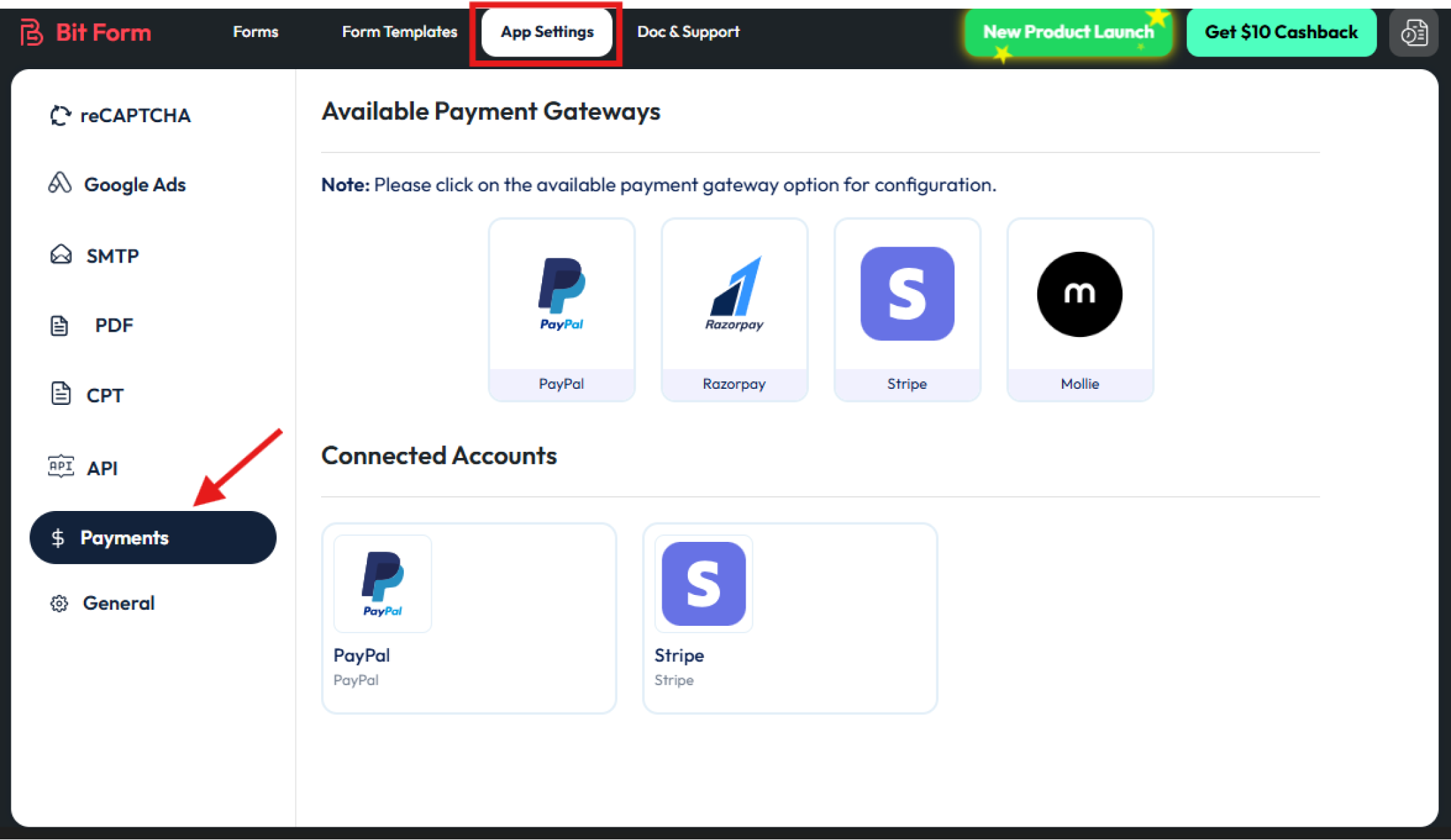
You can also take payment with your form. You can add Stripe, PayPal, Razorpay, and Mollie to your form by using the Bit Form payment fields. To add payment features navigate to Bit Form>App Setting>Payments.
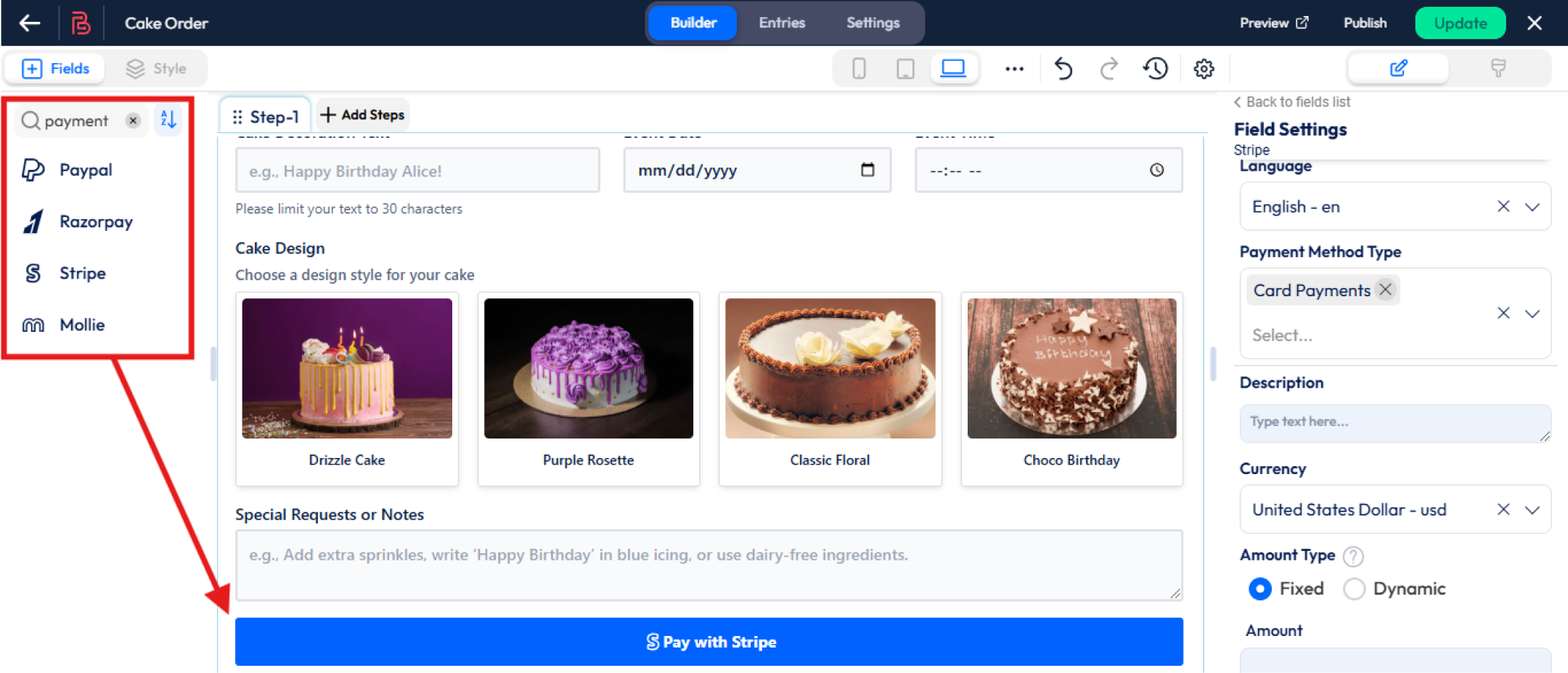
After configuring the payment setting, drag and drop the specific payment fields to your form and customize your payment option from the right side. In this order form, you can set all four payment gateways but only one payment method will be displayed in the form specifically which one is selected by users and the others will remain hidden.
Note: Payment fields are available in Bit Form pro features. So to get this feature you have to upgrade the Bit Form pro plan. Bit Form is super affordable! Get Bit Form now!
Add order forms to WordPress site
When you’re finished designing, hit Publish. You will get a shortcode that you can copy and paste into any page or post where you want the order form to appear.
Here is an example of the form that you can build with Bit Form.
Conditional Logic (Optional)
Bit Form also comes with conditional logic to help display or hide fields based on the user’s response. For example, if a customer selects an option for a “custom cake design,” you might want to show additional fields for custom text or the ability to upload an image of the design. It makes your form dynamic by only asking relevant questions derived from previous inputs.
Integrate with WooCommerce (Optional)
If you already run an e-commerce website using WooCommerce, Bit Form can be integrated to create orders automatically in your WooCommerce dashboard. The integration makes easy to create wordpress e-commerce order form and process payments and manage inventory without manually handling the orders.
How to Set Up Email Notifications with PDF Attachments
When the customer has filled out their order, you’ll want to get a copy of the order details so you can process them. Bit Form allows you to set up email notifications that are triggered once the form is submitted.
You can configure the notification to include a PDF attachment containing all the order details like customer info, cake type, size, special requests, and so on. The PDF attachment will automatically populate with the fields you’ve configured in your order form, ensuring you have all the relevant information in one neat document.
Creating an online order form in WordPress is one of the most easy and powerful ways to enhance your website and improve your sales process. Whether you sell products, take bookings, or process custom orders, Bit Form makes it very easy to build a form that suits your needs.
Follow these easy steps, and you can give your customers a smooth ordering experience without setting up a complex eCommerce website. Ready to get started? Install Bit Form, create your order form, and start collecting orders today!
Ever feel like managing appointments is taking up more time than actually serving clients? Service-based businesses that switch from manual bookings to online booking systems have seen a significant boost of 27% to 37% in revenue. Plus, 69% of customers are more likely to book with a company that offers online booking . With these […]
Are you planning to build an online food ordering website, but not sure where to start with WordPress? More customers now prefer ordering food online instead of calling. If your website does not support online orders, you risk losing customers to places that do. A well-structured food ordering website lets you show your menu clearly, […]
When you need to collect leads, there are many ways to do it, including paid marketing. However, if you already have a website with traffic, popup marketing is one of the most effective methods. You never know when your website’s organic traffic might decline. Also, a single visit doesn’t guarantee that a visitor will return. […]
Cookie Consent
We use cookies to improve your experience on our site. By using our site, you consent to cookies.
This website uses cookies
Websites store cookies to enhance functionality and personalise your experience. You can manage your preferences, but blocking some cookies may impact site performance and services.
Essential cookies enable basic functions and are necessary for the proper function of the website.
Name
Description
Duration
Cookie Preferences
This cookie is used to store the user's cookie consent preferences.
30 days
This cookie is set by Cloudflare to help manage bot traffic and protect the website from malicious activity. It does not collect or store any personal data and is used solely for security and performance purposes.
Used to monitor number of Google Analytics server requests
10 minutes
__utmb
Used to distinguish new sessions and visits. This cookie is set when the GA.js javascript library is loaded and there is no existing __utmb cookie. The cookie is updated every time data is sent to the Google Analytics server.
30 minutes after last activity
__utmc
Used only with old Urchin versions of Google Analytics and not with GA.js. Was used to distinguish between new sessions and visits at the end of a session.
End of session (browser)
__utmz
Contains information about the traffic source or campaign that directed user to the website. The cookie is set when the GA.js javascript is loaded and updated when data is sent to the Google Anaytics server
6 months after last activity
__utmv
Contains custom information set by the web developer via the _setCustomVar method in Google Analytics. This cookie is updated every time new data is sent to the Google Analytics server.
2 years after last activity
__utmx
Used to determine whether a user is included in an A / B or Multivariate test.
18 months
_ga
ID used to identify users
2 years
_gali
Used by Google Analytics to determine which links on a page are being clicked
30 seconds
_ga_
ID used to identify users
2 years
_gid
ID used to identify users for 24 hours after last activity
24 hours
_gat
Used to monitor number of Google Analytics server requests when using Google Tag Manager
1 minute
_gac_
Contains information related to marketing campaigns of the user. These are shared with Google AdWords / Google Ads when the Google Ads and Google Analytics accounts are linked together.
90 days
__utma
ID used to identify users and sessions
2 years after last activity
Clarity is a web analytics service that tracks and reports website traffic.