Exclusive Discount Deal

Offer ends in:
00
days day
00
hours hour
00
Mins Min
00
Secs Sec
days day
hours hour
Mins Min
Secs Sec


Are you looking to collect data with the same fields on your form without repeating them? Try Repeater fields! This will save you time on customization and prevent you from adding multiple individual fields.
Using a repeater field in WordPress forms increases the flexibility and usability of your WordPress forms. This feature allows users to add as many fields as needed, making it ideal for tasks like recording job history or listing products.
It keeps your form perfect and organized; there is no need to create multiple fields manually. Repeater fields also make forms less messy by letting users add only what they require, increasing the likelihood of form completion.
A repeater field in Bit Form for WordPress allows you to create a group of fields that users can repeat multiple times within a form. This means users can dynamically add more entries as needed without the need for predefined fields for each entry. For instance, if a form requires users to enter multiple previous job experiences, a repeater field in WordPress Form lets them add each job entry by clicking an “+” icon.

Forms can get messy when you ask for detailed info. Imagine trying to gather a user’s educational background by listing every possible qualification—yikes! Instead, try using repeatable fields in WordPress. These let users add as many entries as they need, keeping your forms clean and user-friendly.
Repeater fields in WordPress form are incredibly versatile and beneficial for various applications, including event registrations, job applications, and photography contests. They enable users to effortlessly add more attendees, list multiple previous jobs, upload educational certificates, and provide emergency contact information. These fields significantly enhance form functionality by supporting multiple entries and various file formats. Consider using the Bit Forms plugin for a straightforward way to incorporate repeater fields into your WordPress forms.
Here are some reasons you should love the repeater fields.
Adding repeatable fields makes your forms more effective and user-friendly. Check out our guide to learn how to create repeatable fields in WordPress.
Using the Bit Form plugin, you can add a repeater field in WordPress Form. Here is the guideline to add a repeater field in Bit Form; follow these steps:
1. Install and Activate the Bit Form Plugin
Navigate your WordPress dashboard and go to Plugins > Add New. Search for “Bit Form.” Install and activate the Bit Form plugin. You can follow the plugin installation guidelines if needed.

2. Create a New Form
Navigate to Bit Form > All Forms. Click on Add New to create a new form. Enter a title for your form and click Create Form. Add all the essential fields you need.

3. Add a Repeater Field
In the form builder interface, locate the “Repeater field” option in the field list. Drag and drop the repeater field in WordPress form. After doing that you will see the repeater section on the form under the name “Repeater”.

Next, simply drag and drop the desired fields into the repeater section. Add all the fields that you need. You can add new fields to the repeater section by dragging them from the left options. You cannot reuse fields you’ve already added. Drag and drop a new field each time to use the repeater field section.

4. Configure the Repeater Field:
Click on the repeater field to open its settings. Set the Field Label and Field Name. Add subfields like text, number, or other fields you want to repeat. Configure each subfield’s settings, including the label and required status.

Here, we have added a dropdown menu with three options: Native, Fluent, and Bilingual. To do this, click on the dropdown field and scroll down to “Add Option List”.

You can add as many items as you need. Then, click on the edit icon next to the list option. A popup will appear, where you can modify existing list items and add new ones.

5. Save the Form:
After adding and configuring all required fields, click the Save or Update button to save the changes to your form.
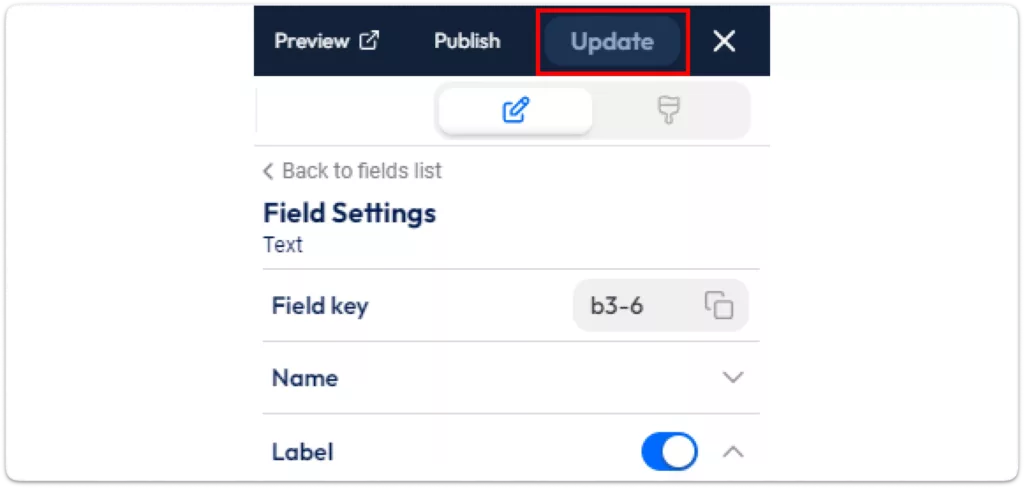
Place the Shortcode on any Page or Post:
Click on the “Publish” button and you will get the form shortcode. Now, copy the form shortcode provided by Bit Form.

[bit_form id=”your_form_id”]
Replace “your_form_id” with the actual ID of your form. For me, the form ID is 3. Go to the page or post where you want to display the form. Paste the shortcode into the content area.

Insert the shortcode, then view the page or post to see the form.

Adding a repeater field in WordPress form is a game-changer! It lets users quickly add multiple entries for the same type of info; like job experiences or contact details without making the form long. This improves user experience by allowing people to add or remove fields.
Repeater makes your form clean and simplifies data management by grouping related entries. They also ensure consistent data collection and storage, making life easier for users and site owners. Overall, they make your forms more flexible, efficient, and user-friendly.
Start using the Bit Form plugin today, configure the repeater field, and see the difference it makes for your WordPress site! Check out related guides, tutorials, and FAQs, and join the Bit Apps Facebook Community for tips and advice from fellow users and developers. Need help? Reach out via email or live chat for quick support.