

If you use WordPress, you probably know about WPForms or have already used the plugin. It’s one of the most popular tools



WordPress form submissions let visitors send information to your site, like contact requests or orders. It is very important for small businesses to collect this data safely and easily.
Just collecting form data is not enough to scale your business. You need to engage with the form submissions. These are leads that make you money. So, you need to nurture them and set up automated workflows for better results. From my experience, businesses that handle lead generation properly can easily achieve 3–5x better results.
In this guide, I will cover WordPress form submission and automation best practices for higher conversion. I will talk about choosing the right plugin, securing your form, setting up notifications, using integrations, and fixing common issues.
I managed one of my clients’ sites for the last 2 years. The site is based on providing tour guides and car rental services at an amazing tourist place. So the site has many listings and a direct booking process. Also, the site has a contact form where people can easily ask for tour details and information instead of direct booking.
I see that most people are contacting us by the contact form instead of direct booking. This gives users a more personalized experience with the tour guide or the site admin. For example, they can ask for more information and get more insight about the services.
In the beginning, I used the Contact Form 7 plugin for the contact form. But Contact Form 7 doesn’t have the built-in option to see and analyze the form submissions. Every time a user submits the form, the data goes to the admin’s email. And we can’t analyze the form data.
Then I switched to Bit Form. This form builder has built-in advanced form submission and analysis features and provides automation functionalities. By using the plugin, we can now easily analyze the form data in many different ways.
I also set up a workflow to send the form data to Google Sheets and add the user’s email to MailChimp. In a few months, we achieved a good audience list, and now we send them emails about the tours. This gives my client more confidence in his online business and helps him build a strong email user base.
To build a contact form, you need an optimized and functional form builder plugin. If you are using Contact Form builder, this may not fulfill your form requirements, as this one has no built-in advanced features. There are many Contact Form 7 alternatives you may consider. Such as Bit Form, WP Forms, Gravity Forms, and many more.
Pick a plugin that is easy and fast. You want a builder with drag-and-drop so you can make forms by clicking, not by coding. Also, look for a lightweight plugin so it does not slow down your site.
In this guide, I will show you the Bit Form plugin. It is one of the lightest and advanced WordPress form builders. It loads very little extra code and still has lots of features. Here are some plugin tips to consider before choosing a form plugin, and Bit Form has these features too:
Drag-and-drop builder. Make sure you can arrange fields by clicking. The drag-and-drop editor is simple and modern.
Many field types. Check that the plugin has all the fields you need (text, email, files, etc.). For example, Bit Form offers over 40 customizable fields, including special ones like signature and payment fields.
Multi-step forms. For long forms, a multi-step layout keeps users engaged. Bit Form supports multi-step or conversational forms to break questions into pages.
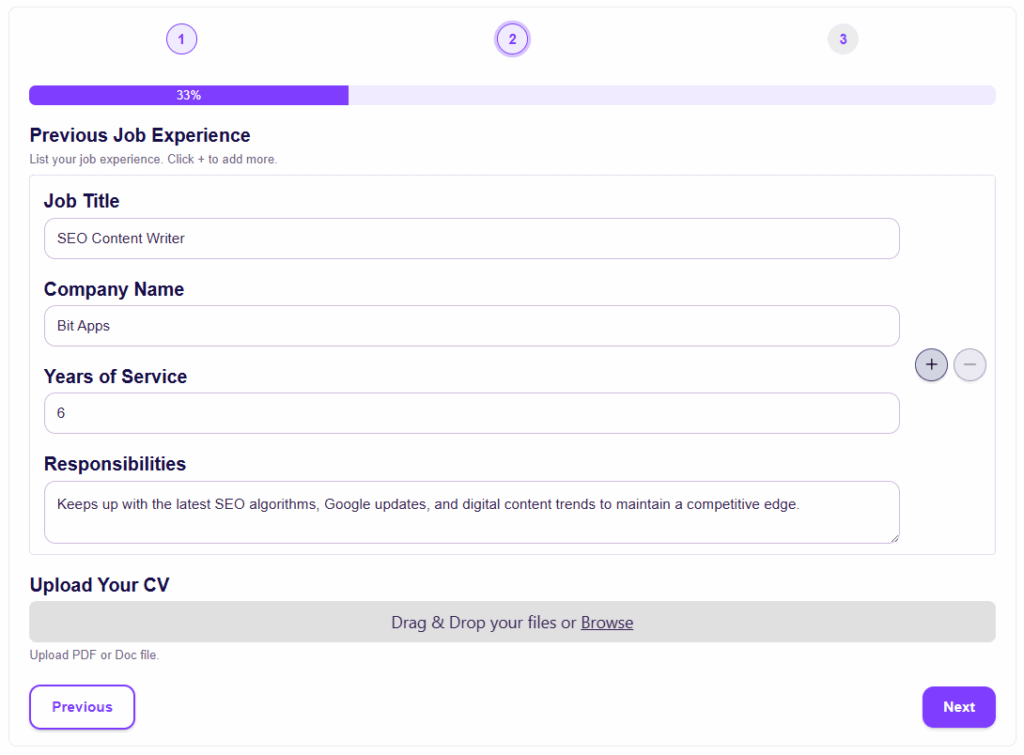
Easy Form Submission Management: One of the most important features you must need on a WordPress form is to easily manage form submissions, filter them, and play with data by using graphs, charts, bars, and more. Bit Form helps you to easily filter your data, and you can filter with form fields and apply different types of conditions.
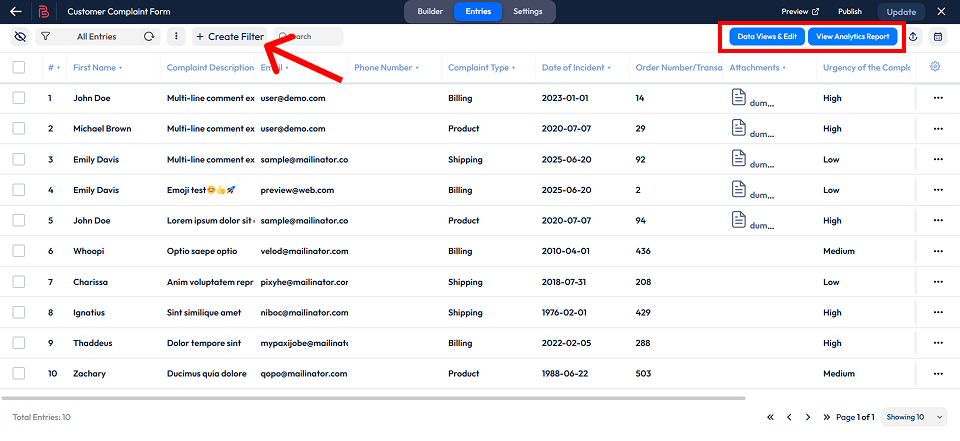
Export Form Submission Data: Bit Form allows you to export form submission data in different ways. You can export the form data in CSV, XLSX, Text, HTML, and many more file types.

Form Submission Analysis: Suppose you own a service where you provide services in different categories. You may need to analyze data for specific services. For example, for SEO services, you might want to see how many users requested SEO services. You can easily filter the field and get the analytics report.

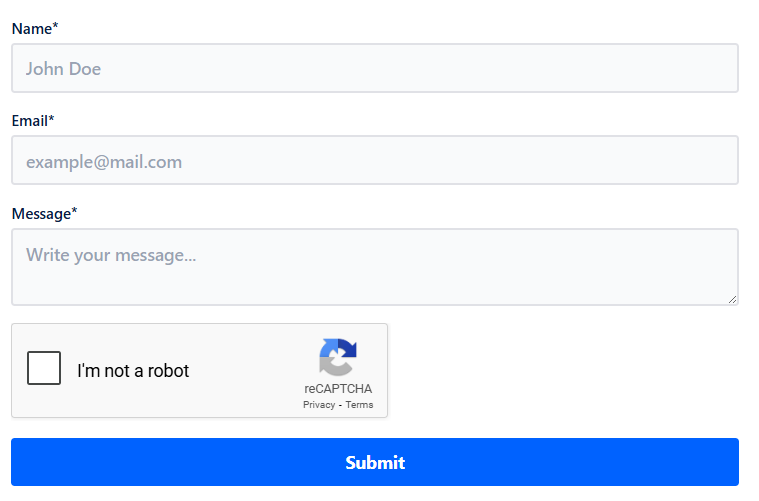
Spam protection. The plugin should include CAPTCHA or a honeypot to stop bots. Bit Form has built-in Google reCAPTCHA, honeypot protection, and CloudFlare Turnstile to prevent spam submissions.
Mobile-friendly and style options: It should look good on phones and let you style it to match your site. Bit Form has a built-in style editor with themes so forms can fit your design.

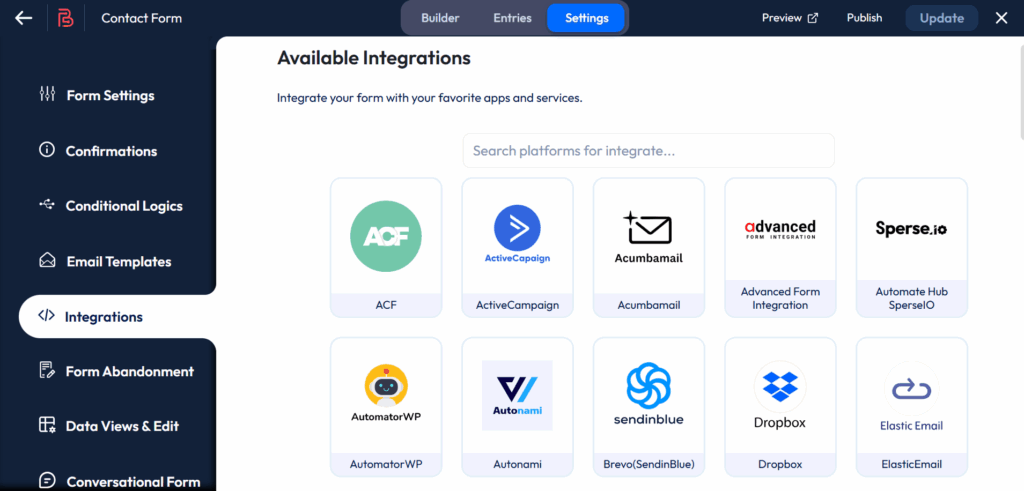
Integrations. If you plan to use other tools (like email or CRM), choose a plugin with integrations. Bit Form has 51+ integrations such as Mailchimp, WooCommerce, Google Sheets, etc.
Bit Form is a recommended plugin for beginners. It is easy to learn but still powerful. Bit Form is secure and optimized; it even includes free SMTP email sending. These help ensure your forms work well without extra add-ons or coding.
Form security means protecting your site and your users. Follow these best practices:
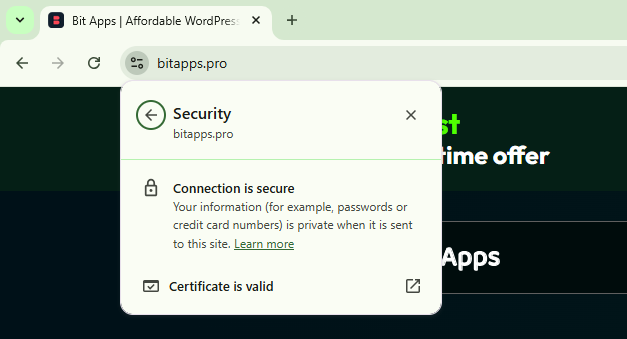
Use SSL/HTTPS: Make sure your site has a valid SSL certificate (the site URL shows https). This encrypts form data when people submit it, so private info stays safe.
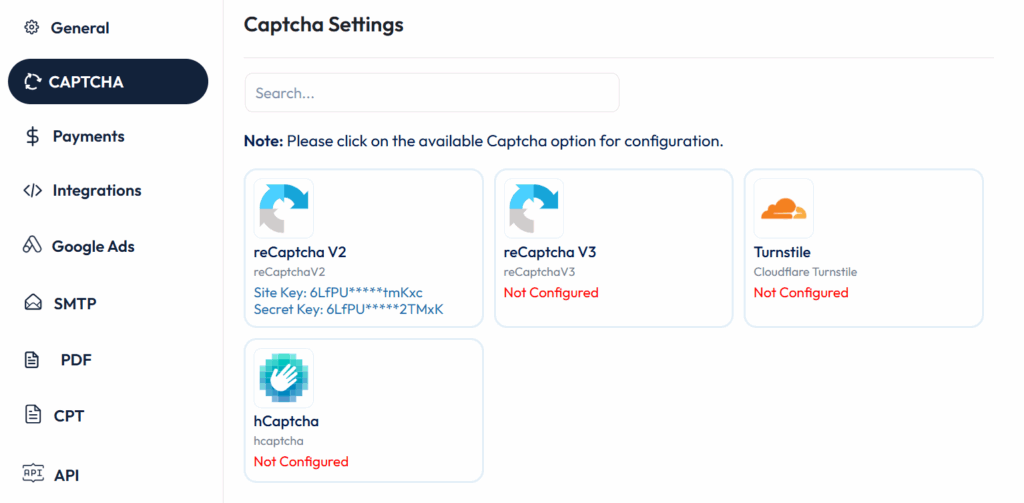
Spam protection: Enable a CAPTCHA or honeypot. For example, Bit Form includes Google reCAPTCHA and Cloudflare Turnstile, and a hidden honeypot field. This blocks most automated spam.
Limit submissions: To stop bots or floods, limit how many times one IP can submit. In Bit Form, you can limit submissions per IP or time interval.

Keep plugins updated: Always update WordPress, your theme, and plugins. An outdated plugin can have security holes. In fact, many form issues happen because the plugin version is old.
Require only the necessary info: Ask for as little as possible. Short forms are less annoying and safer. For example, don’t ask for a phone number unless you really need it. A study showed that reducing form fields boosts submissions.
If you have many questions, use multi-step forms or conditional logic to show only relevant fields. Here is an overview of how conditional logics can be used in Bit Form. With these conditions, you can show or hide form fields based on user input.

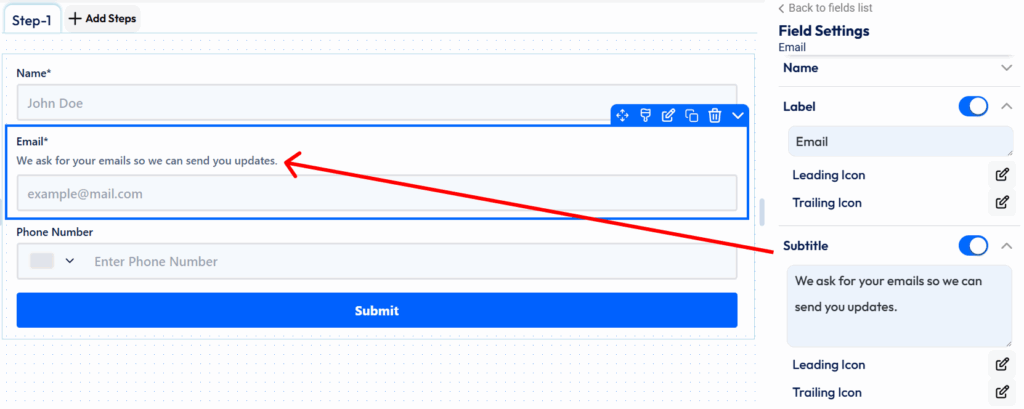
Explain sensitive fields: If you collect any private data (like email or address), add a short note or tooltip explaining why you need it. This builds trust. For example: “We ask for your emails so we can send you updates.”.
In Bit form, you can add subtitles to provide extra information about the fields.
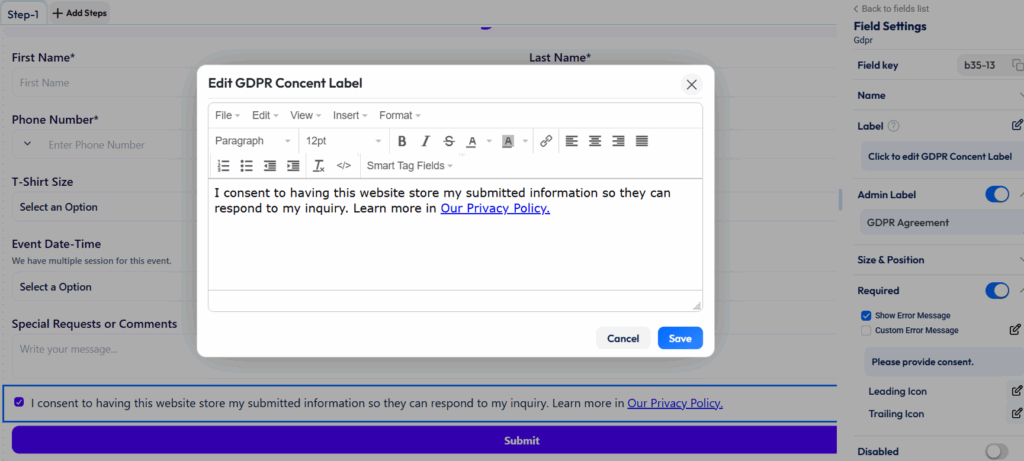
Privacy policy: Link to your privacy policy from the form. This reassures users that you will handle their data responsibly. It’s also good for legal compliance (like GDPR).
By following these form security practices, you help keep spam out and protect user data. Bit Form’s built-in features (reCAPTCHA, honeypot, limits) make it easy to implement many of these protections.
You will want to know whenever someone submits a form. Notifications make that happen:
Email to the site owner: Configure the plugin to send an email to you (or your team) after each submission. In Bit Form, you set this email notification for form submission in the settings. Use a clear subject line like “New Contact Form Submission” so you notice it.

Auto-reply to user: It’s friendly to send a quick thank-you email to the person who submitted. This lets them know you got their message. Bit Form can send a customizable auto-reply message.
Use SMTP for reliable email: Sometimes WordPress’s default mail can go to spam or fail. It’s a good idea to use an SMTP plugin or service. Bit Form even has a built-in free SMTP feature to help emails send correctly. With SMTP configured, your form emails are much more likely to arrive.
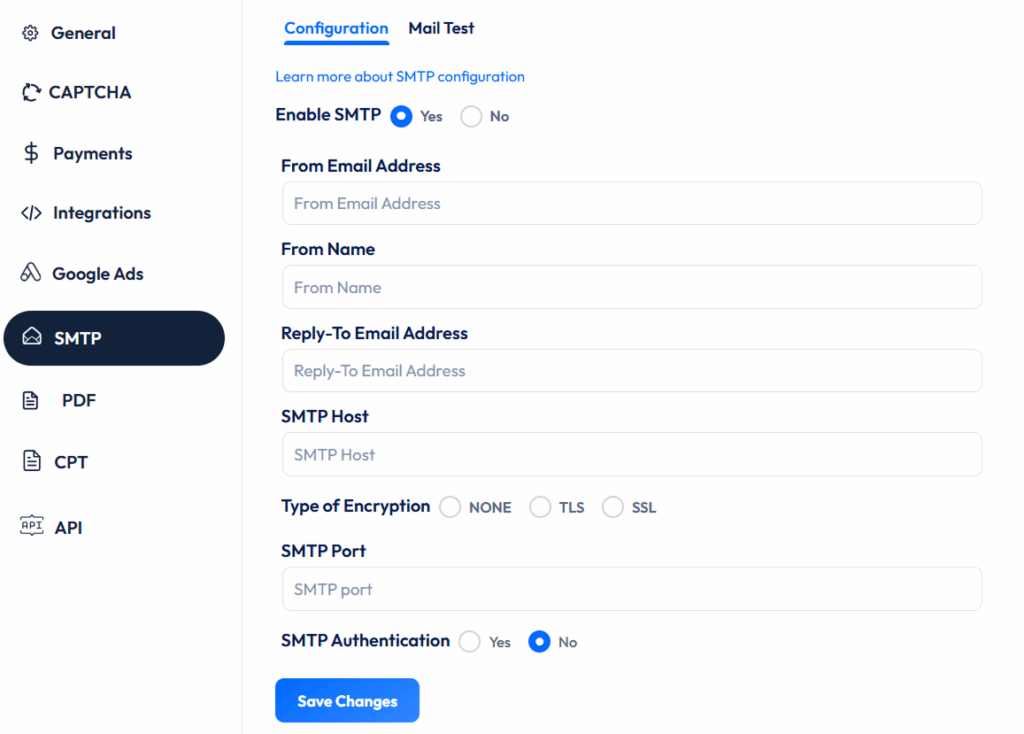
Test your emails: Always do a test submission. Check both the admin email and the user email. Also, check your spam/junk folder in case something got filtered. If you don’t see emails, verify SMTP settings.
Include form data in emails: Make sure your notification email contains all the important fields (name, message, etc.). Some plugins let you attach the full form entry as a PDF. For example, Bit Form can attach a PDF summary of the submission, which is handy for orders or quotes.

Good notifications keep you informed and keep your visitors happy. Bit Form makes it easy to customize both who gets emails and what the email says. If you miss an email, first look in spam and then double-check your SMTP and plugin settings.
Just having organized form submission data is not enough. You need to automate the data to optimize your business workflows. For example, if you have a team group on Telegram, you may need to send your form data to the Telegram group. Or, if you want more flexibility in data organization, you can send the form data to Google Sheets. Automating this process will definitely make your business more functional and professional.
Most small businesses use other tools with their website. Bit Form Integrations let form submissions connect to the following tools:
Email marketing. Automatically add new leads to your mailing list (like Mailchimp, MailerLite, or Encharge). Bit Form has built-in connections to Mailchimp and many CRM/email platforms. This way, every form entry can become a newsletter subscriber. Here is the list of the marketing automation tools that are directly integrated with Bit Form.

CRM or database. Send form data directly to a CRM system (HubSpot, FluentCRM, Brevo, etc.). Bit Form supports 51+ integrations, including popular CRMs. Your sales team can follow up faster this way. Integrated CRM on Bit Form:

Google Sheets or Zoho Sheets. Save entries in a spreadsheet for analysis or backup. Bit Form can send submissions to Google Sheets or export as CSV/Excel. This is great if you like to keep your own records outside WordPress.
Payments and Orders. If you sell products or services, integrate payment gateways. Bit Form supports Stripe, PayPal, Razorpay, and Mollie for payments. You can create an online order form and collect payment in one step.

Webhooks. For almost anything else, use webhooks to connect to thousands of apps (Slack alerts, Trello cards, WhatsApp messages, etc.). Bit Form can send a webhook on submission, so you can build custom workflows.
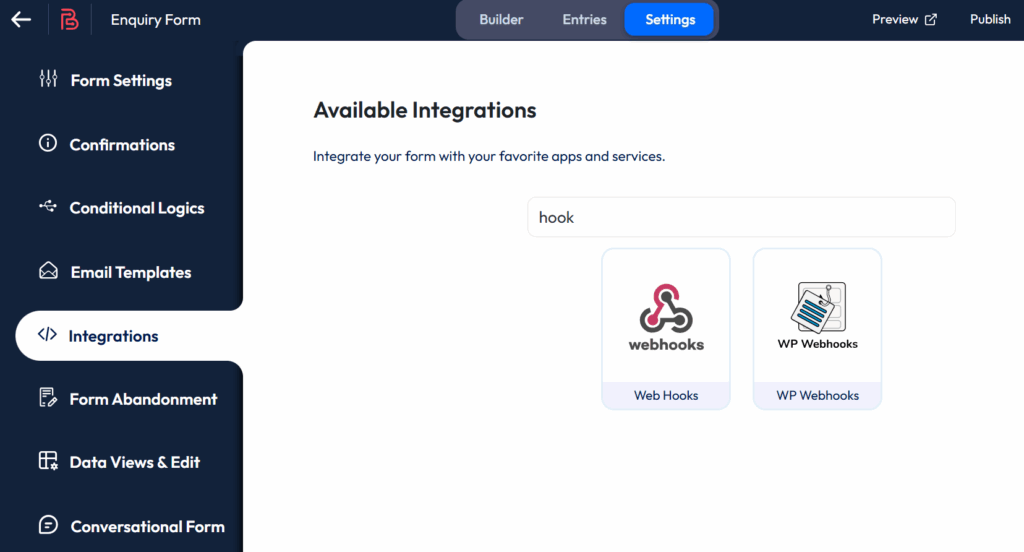
For example, a photographer could connect Bit Form to Google Drive to auto-save uploaded images, or a bakery could connect to Mailchimp to email customers about new cake flavors. Think about what tools you already use, and check if your form plugin (like Bit Form) can link to them. Bit Form’s large integration list means it will fit into most toolchains easily.
Even with a good plugin, problems can happen. Here are some common fixes:
Plugin not up-to-date or incompatible: Make sure WordPress, your theme, and the form plugin are all updated. Many problems happen because the plugin is old. To fix this, go to the Plugins screen and update Bit Form or any other form plugin.
Shortcode or block issues: If your form doesn’t show on the page, check that you placed it correctly. If using the Block Editor, use the Bit Form block or paste the right shortcode. An incorrect shortcode can prevent the form from displaying.

Bit Form also has an Elementor Widget. So if you are an Elementor user, you can easily add the form to your page by just dragging and dropping the page.

Plugin conflicts: Sometimes other plugins can interfere (like caching, minification, or security plugins). If a form suddenly stops, try temporarily disabling other plugins one by one to find the culprit. For example, some caching plugins need to skip pages with forms.
Form styling issues: If the form looks broken, it might be a CSS conflict. Try switching to a different theme or disabling conflicting CSS. Bit Form’s built-in style editor can override many style problems. Also, you can add CSS important rules in Bit Form to prevent any style conflict.

Email delivery: If notifications don’t arrive, first check your spam/junk folder. Also, test if WordPress can send any email by using a mail tester plugin. If emails fail, configure SMTP (Bit Form’s free SMTP can help) or try using an SMTP service. Many hosts block the default mail() function, so switching to SMTP usually fixes it.
Entries are not saving: If you see a success message but nothing is recorded, make sure you have an entry storage. Bit Form automatically saves entries in its Entries screen. You can check there to see if submissions arrived. Bit Form has an Entries page where you can view or export all submissions.
In most cases, updating plugins and double-checking settings solves the problem. If you still have trouble, Bit Form offers documentation and support forums. Remember, troubleshooting is easier if you test each part step by step (e.g., first see if the form displays, then test email, then check entries).
By following these tips and practices, even beginners can set up and manage WordPress form submissions confidently. Keep forms simple, secure, and user-friendly. With the right plugin like Bit Form and these best practices, your site’s forms will run smoothly and help your business grow.
Don’t forget to automate your form submissions. Automated lead generation not only gives your users a personalized experience but it also increases conversions. Install Bit Form and level up your WordPress form submission experience!
It depends on the plugin. For Bit Form, there is an Entries section in your WordPress dashboard. You can go to Bit Form > Hover on your form> Click on the entries, and view all submissions. You can also export them to CSV or Excel from there. Other plugins may have similar entry logs or let you email submissions.
First, check if it went to your spam/junk folder. If not, check your email settings. Many hosts require SMTP to send emails reliably. Make sure the “From” address is correct. Bit Form has a free SMTP feature to improve email delivery. Also, ensure your hosting allows outgoing mail. Updating the plugin can also fix email bugs.
Use a CAPTCHA or similar spam blocker. The simplest is Google reCAPTCHA (v2 checkbox or v3 invisible). Bit Form includes reCAPTCHA and a hidden honeypot field by default. You can also limit submissions by IP or use a quiz question. These methods keep most bots from sending junk forms.
Popular free options include Contact Form 7 and Gravity Forms, but we recommend trying Bit Form. It has a very easy drag-and-drop builder and many free features. Even the free version of Bit Form includes conditional logic and spam protection. Many users like Bit Form for its speed and simple interface.
Preview the page and try submitting the form yourself. Use a live email address (like your own) to see if you get the notification and/or success message. Check the WordPress dashboard to see if the entry shows up. If anything is wrong (email not received, error message shown), fix that before publishing your form to real users.


If you use WordPress, you probably know about WPForms or have already used the plugin. It’s one of the most popular tools
You’re likely familiar with chat widgets—those handy floating windows that appear when visiting a website. These tools are revolutionizing how businesses interact with customers online. But what exactly are chat widgets, and why are they essential for your website? See, when a customer visits a website, many questions arise in their mind. Therefore they wish […]

Are you a small business owner looking to take online orders without the hassle of a full eCommerce store? If you have a small business like a restaurant, local shop, digital service, or products, you don’t need a complete eCommerce store. All you need is to enable your users to place an order simply so […]